Configure notifications for scheduler events
To receive a notification when a scheduled report has been generated and is ready to be downloaded, configure event notifications for the scheduler service for the users you want to notify.
Before you begin
- An Organization Administrator has configured notification groups, roles, and members.
- You are logged in to the Hybrid Cloud Console as a Notifications administrator.
Create a behavior group to define how and to whom notifications are sent when specific events occur in the Hybrid Cloud Console. The behavior group defines actions and recipients, and associates console events so that notifications are triggered when the event happens.
You can associate events with multiple behavior groups. If a behavior group is not associated with any event, no notifications are sent when an event occurs. You can create a maximum of 64 behavior groups within an organization.
If your organization has configured workspaces to control user access to systems, review your notifications configuration to ensure that only appropriate groups of users are configured to receive notifications. If you do not review your notifications configuration, users might receive alerts triggered by systems outside of their workspace permission scope.
See Viewing and managing system inventory in the Red Hat Lightspeed documentation for more information about configuring workspaces.
Procedure
-
From the Actions drop-down list, select Send an email, or select an integration from the list:
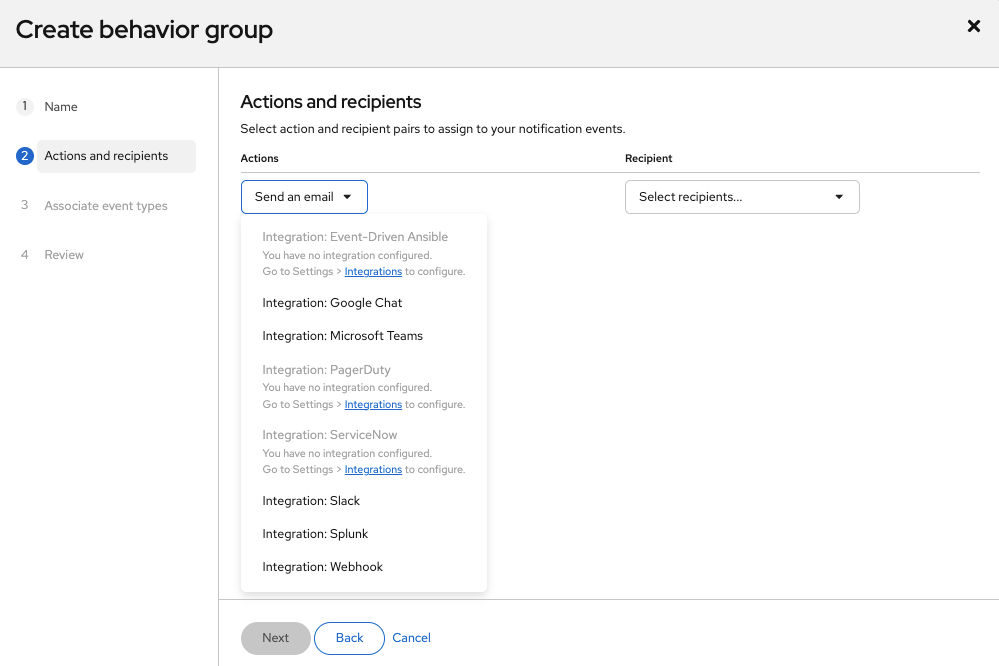
- If you selected Send an email, select a recipient from the Recipient drop-down list. You can specify that the email notification go to all users in the organization, or you can limit the recipients to administrators in the organization. If User Access groups are configured, you can select a User Access group to receive email notifications.
- If you selected an integration such as Integration: Slack, Integration: Splunk, or Integration: Webhook, select an integration endpoint from the Recipient drop-down list (for example, SPLUNK_AUTOMATION).
Note Configure endpoints for each integration in Settings > Integrations. If an action is disabled, no integrations exist for that event type.

'%20d='M201.5%20305.5c-13.8%200-24.9-11.1-24.9-24.6%200-13.8%2011.1-24.9%2024.9-24.9%2013.6%200%2024.6%2011.1%2024.6%2024.9%200%2013.6-11.1%2024.6-24.6%2024.6zM504%20256c0%20137-111%20248-248%20248S8%20393%208%20256%20119%208%20256%208s248%20111%20248%20248zm-132.3-41.2c-9.4%200-17.7%203.9-23.8%2010-22.4-15.5-52.6-25.5-86.1-26.6l17.4-78.3%2055.4%2012.5c0%2013.6%2011.1%2024.6%2024.6%2024.6%2013.8%200%2024.9-11.3%2024.9-24.9s-11.1-24.9-24.9-24.9c-9.7%200-18%205.8-22.1%2013.8l-61.2-13.6c-3-.8-6.1%201.4-6.9%204.4l-19.1%2086.4c-33.2%201.4-63.1%2011.3-85.5%2026.8-6.1-6.4-14.7-10.2-24.1-10.2-34.9%200-46.3%2046.9-14.4%2062.8-1.1%205-1.7%2010.2-1.7%2015.5%200%2052.6%2059.2%2095.2%20132%2095.2%2073.1%200%20132.3-42.6%20132.3-95.2%200-5.3-.6-10.8-1.9-15.8%2031.3-16%2019.8-62.5-14.9-62.5zM302.8%20331c-18.2%2018.2-76.1%2017.9-93.6%200-2.2-2.2-6.1-2.2-8.3%200-2.5%202.5-2.5%206.4%200%208.6%2022.8%2022.8%2087.3%2022.8%20110.2%200%202.5-2.2%202.5-6.1%200-8.6-2.2-2.2-6.1-2.2-8.3%200zm7.7-75c-13.6%200-24.6%2011.1-24.6%2024.9%200%2013.6%2011.1%2024.6%2024.6%2024.6%2013.8%200%2024.9-11.1%2024.9-24.6%200-13.8-11-24.9-24.9-24.9z'/%3e%3c/svg%3e)