Configure a Splunk integration
The Red Hat Insights (Red Hat Lightspeed) application for Splunk forwards selected Hybrid Cloud Console events to Splunk.
The application seamlessly integrates with the Hybrid Cloud Console, so that you can focus on handling the data on the Splunk application side in the same way that you manage other sources of data. After the integration has been configured, you can view and manage Hybrid Cloud Console notifications from the Splunk dashboard without having to open the Red Hat Hybrid Cloud Console.
If you have any issues with the Red Hat Insights application for Splunk, contact Red Hat for support. To open a Red Hat support case directly from the Hybrid Cloud Console:
- Click Help (the ? icon) to open the help panel.
- Select the My support cases tab.
- Click Open a support case and add information about the issue.
Splunk will not provide troubleshooting. The Red Hat Insights application for Splunk is fully supported by Red Hat.
Install the Red Hat Lightspeed application for Splunk
Install and configure the Red Hat Insights (Red Hat Lightspeed) application for Splunk to integrate Splunk with the Hybrid Cloud Console so that Splunk can receive event notifications from the Hybrid Cloud Console. The setup automation performs the following tasks:
Before you begin
- You have Organization Administrator permissions for the Hybrid Cloud Console.
- You have Splunk login credentials:
- To install applications on Splunk Cloud Platform, you must have the Splunk Cloud Administrator
sc-adminrole. - To install applications on Splunk Enterprise, you must have the
adminrole. For more information about creating theadminrole, see Create secure administration credentials in the Splunk documentation.
- To install applications on Splunk Cloud Platform, you must have the Splunk Cloud Administrator
- Popup blockers are disabled in your browser.
- Creates a user group with the Notifications administrator role using Organization Administrator permissions. You can also create the user group manually. For more information about manual configuration, see manually-configure-notif-admin-group.dita#proc-notif-splunk-manual-config-admin.
- Uses the Splunk HEC URL and HEC token to create a new integration called SPLUNK_AUTOMATION, with the integration type Splunk.
- Creates a new behavior group called SPLUNK_AUTOMATION_GROUP on the RHEL bundle. The group includes an action to send notifications to the SPLUNK_AUTOMATION Splunk integration.
- Assigns the new behavior group SPLUNK_AUTOMATION_GROUP to all Hybrid Cloud Console services. This forwards the events from all services to Splunk. Currently, the behavior group forwards events from the Advisor, Policies, Drift, Compliance, Malware Detection, Patch, and Vulnerability services.
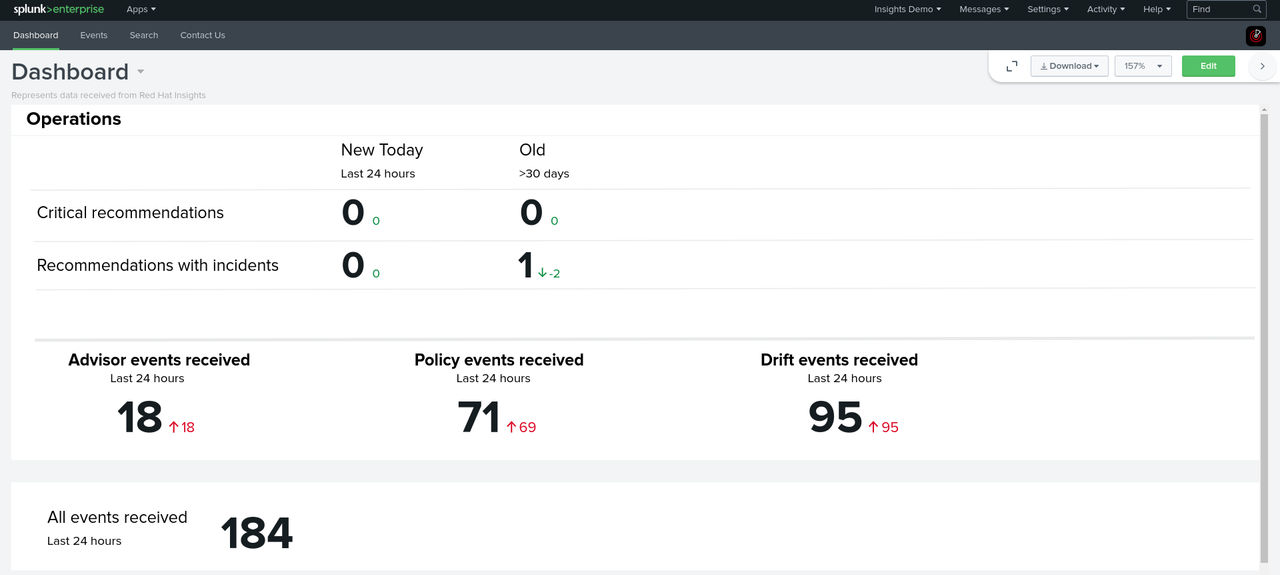
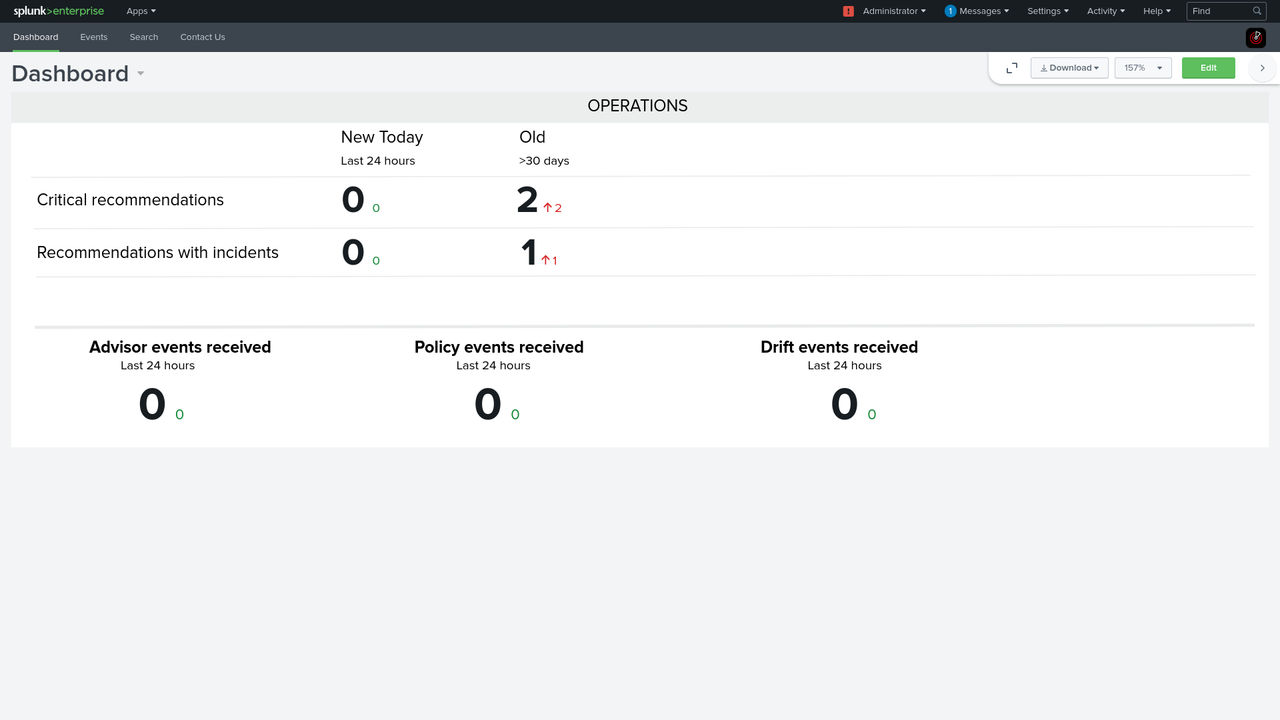
When Splunk begins to receive notifications from the Hybrid Cloud Console, the Red Hat Insights application for Splunk dashboard shows event activity. Each number contains a hyperlink to the Hybrid Cloud Console.
Procedure
-
Set up the Red Hat Insights application for Splunk:
-
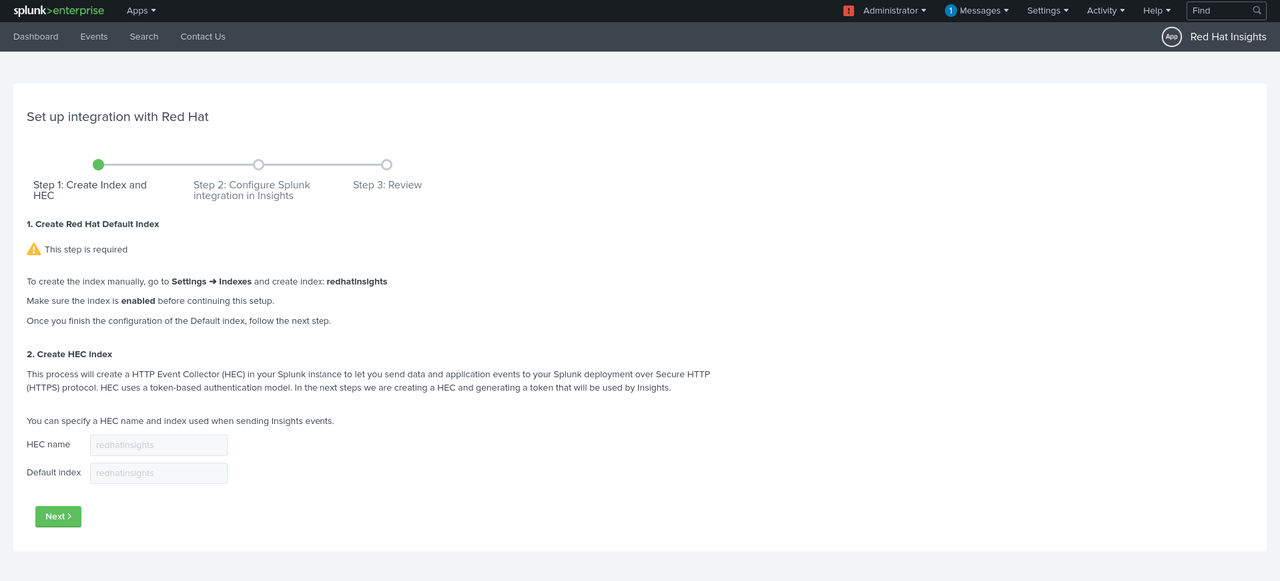
Click Continue to app setup page. The Set up integration with Red Hat Insights page opens. The page includes the HTTP Event Collector (HEC) name and default index fields.
-
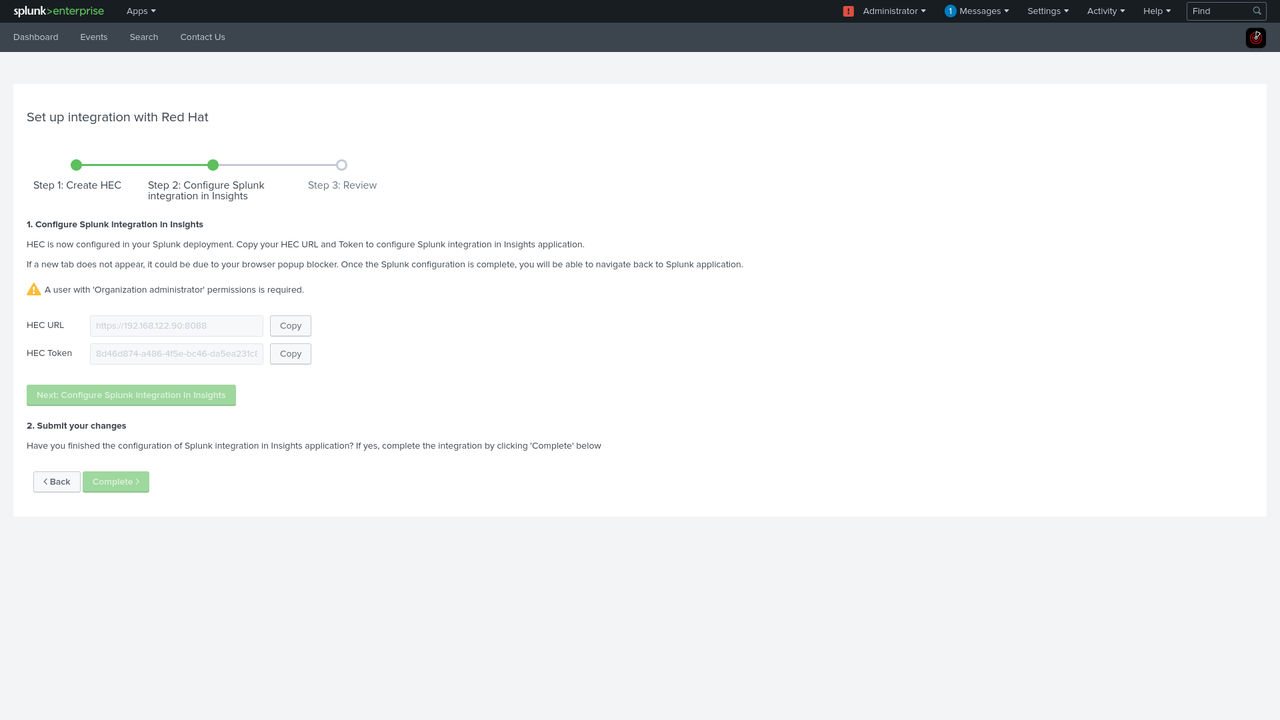
Click Next to create the HEC URL and HEC Token.
-
Click Continue to app setup page. The Set up integration with Red Hat Insights page opens. The page includes the HTTP Event Collector (HEC) name and default index fields.
-
Configure Splunk integration in Red Hat Insights (Red Hat Lightspeed):
-
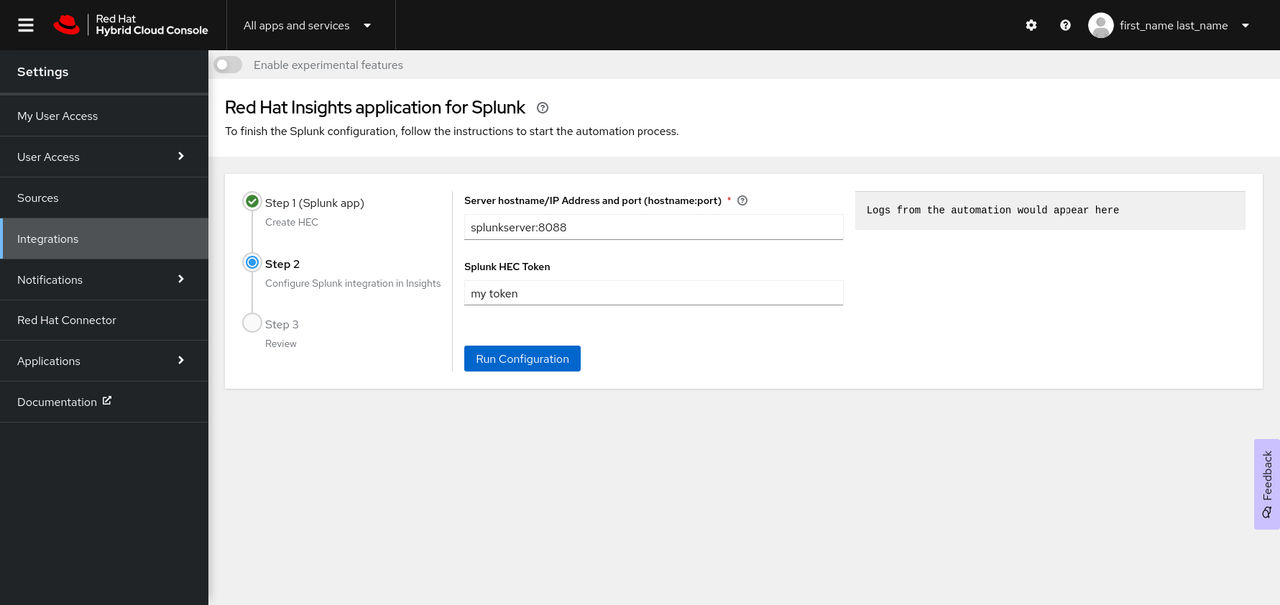
Add the port, if needed. The default port for Splunk Cloud Platform is 443. The default port for Splunk Enterprise and Splunk Cloud free trial is 8088.
-
Add the port, if needed. The default port for Splunk Cloud Platform is 443. The default port for Splunk Enterprise and Splunk Cloud free trial is 8088.
-
Complete the setup process:
-
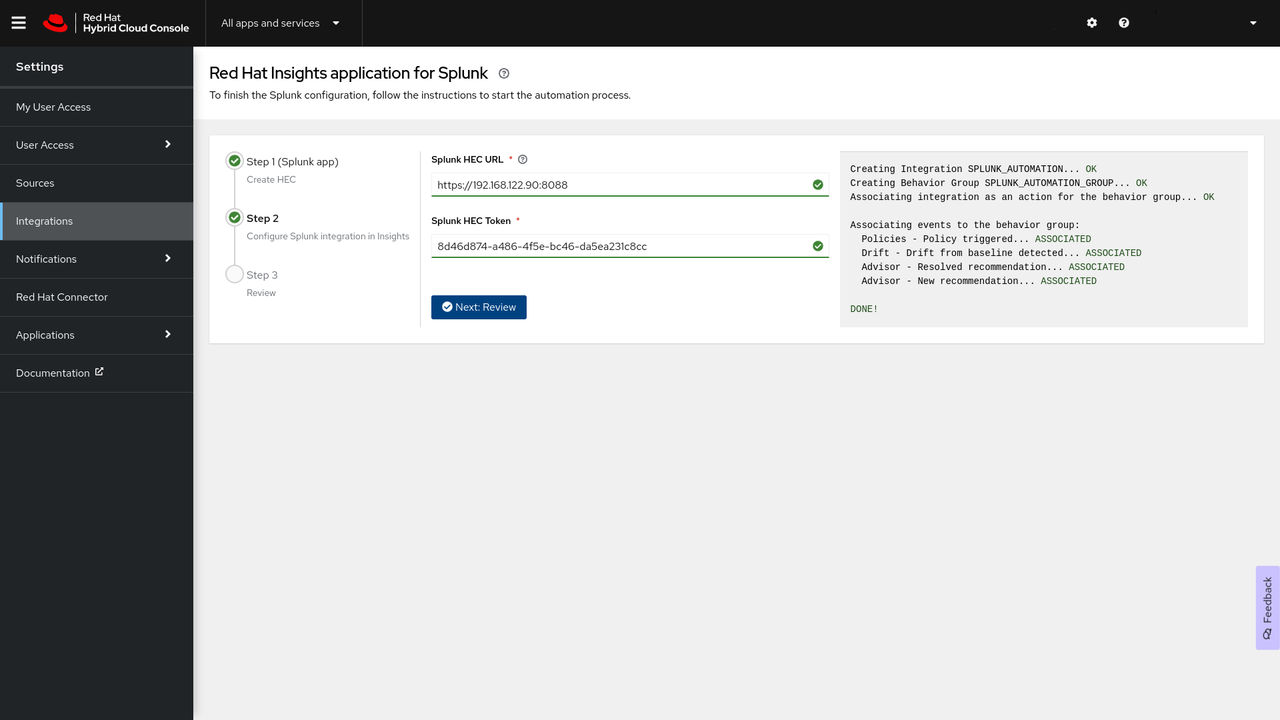
In the Hybrid Cloud Console, click Run configuration. The Hybrid Cloud Console sets up the integration, creates the behavior group, and associates Hybrid Cloud Console events to the behavior group. The status message section on the right side of the page shows the status of each of these actions.
-
When the setup completes successfully, click Next: Review. The application returns the message
Splunk integration in Insights completed.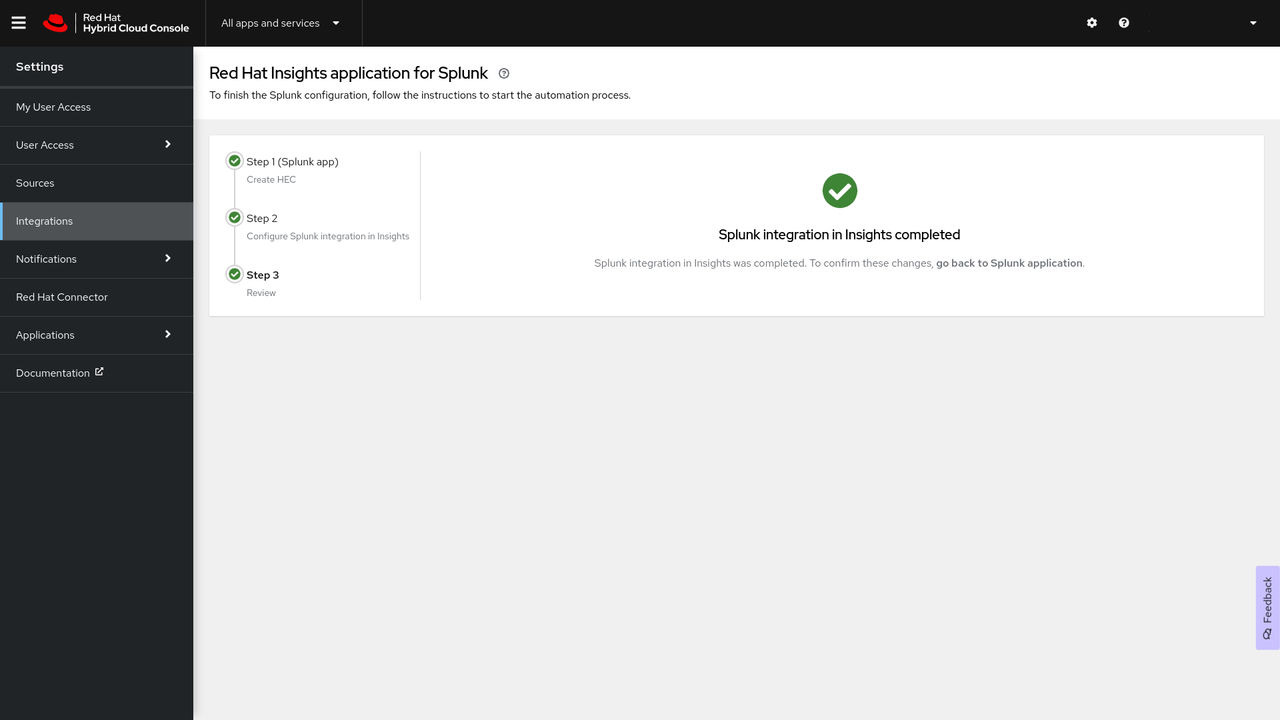
-
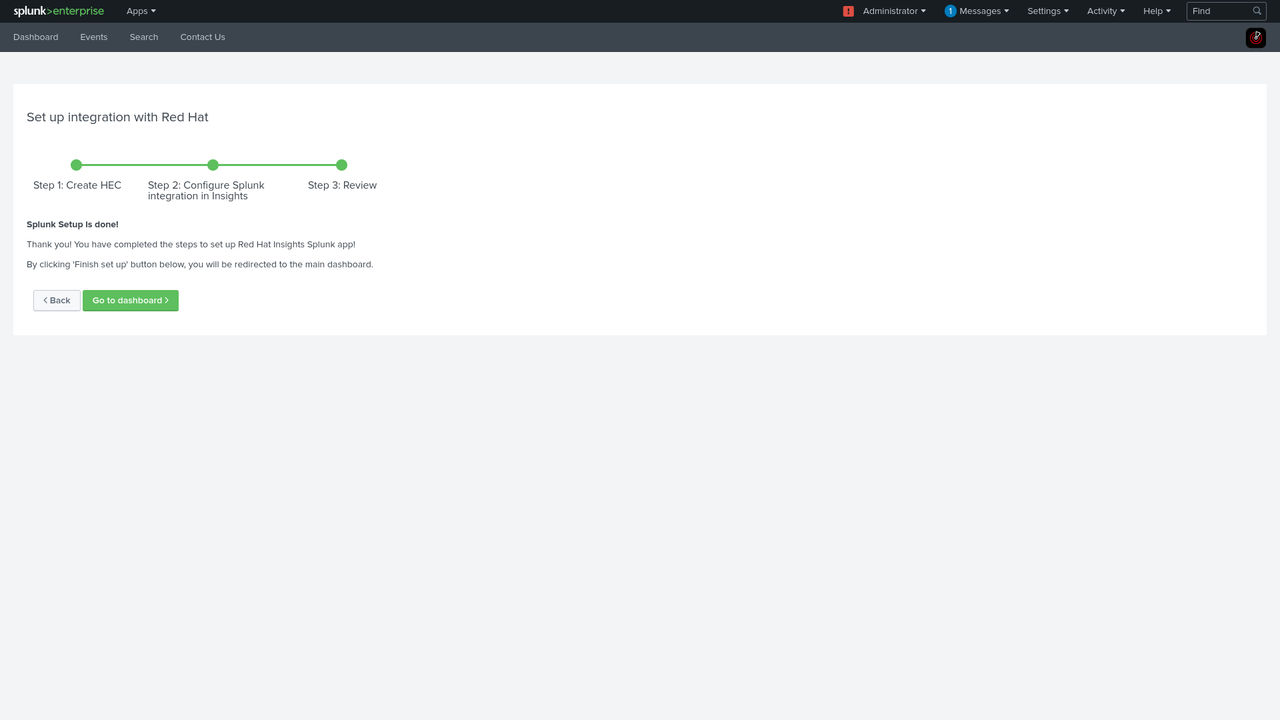
Click Finish set up to complete the setup in Splunk.
-
Click Go to dashboard to be redirected to your Splunk dashboard.
Note If the integration configuration fails during the Red Hat Insights application setup process, contact Red Hat support.
-
In the Hybrid Cloud Console, click Run configuration. The Hybrid Cloud Console sets up the integration, creates the behavior group, and associates Hybrid Cloud Console events to the behavior group. The status message section on the right side of the page shows the status of each of these actions.
-
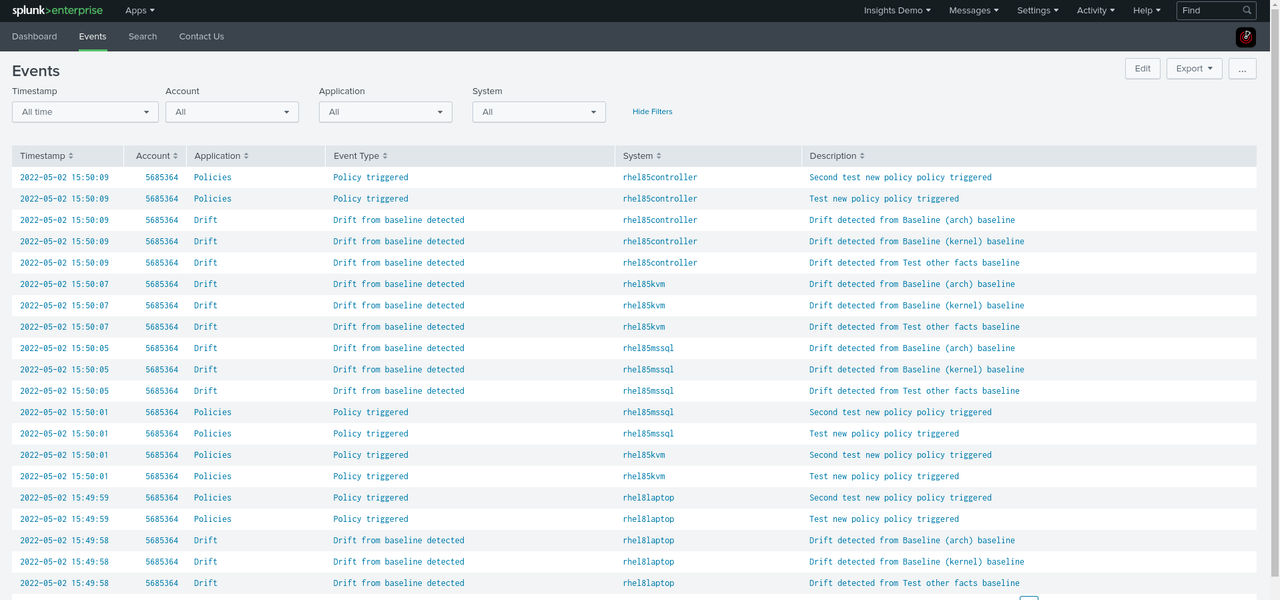
To view a list of Hybrid Cloud Console events on the Splunk dashboard, click the Events tab. Each event is hyperlinked to the Hybrid Cloud Console.
Enable the HEC token
Before Splunk can receive Hybrid Cloud Console events, you must enable the HEC token. For more information about the HEC token in Splunk Cloud, see Configure HTTP Event Collector on Splunk Cloud Platform in the Splunk documentation.
Before you begin
- You have Organization Administrator permissions for the Hybrid Cloud Console.
- You have Splunk login credentials:
- On Splunk Cloud Platform, you must have the Splunk Cloud Administrator
sc-adminrole. - On Splunk Enterprise, you must have the
adminrole. For more information about creating theadminrole, see Create secure administration credentials in the Splunk documentation.
- On Splunk Cloud Platform, you must have the Splunk Cloud Administrator
Procedure
-
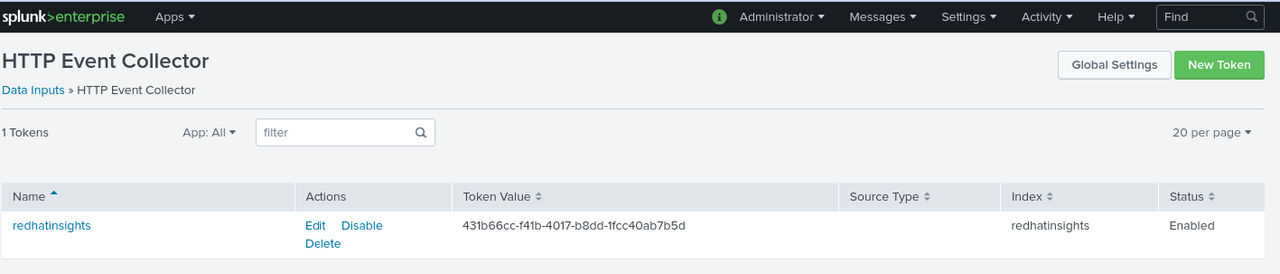
Select Data Inputs, and then select HTTP Event Collector. The HTTP Event Collector page shows the HEC, its Token value, the corresponding index that you selected during setup, and the status of the HEC.
-
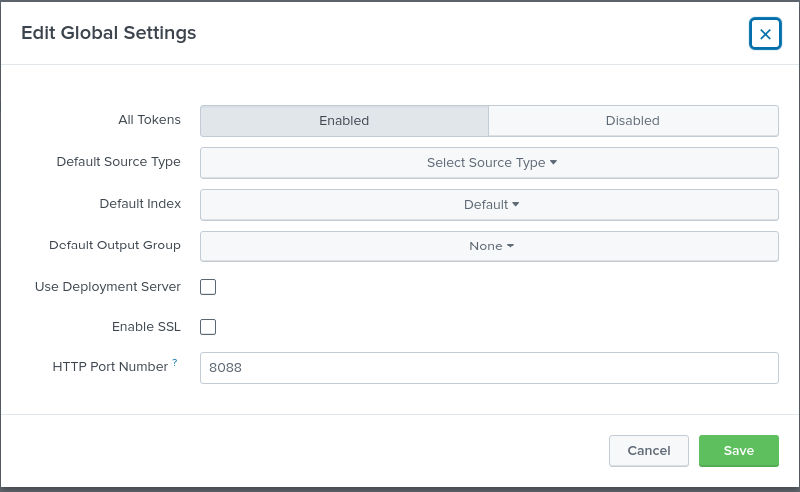
Click Global Settings in the upper right corner of the page. The Edit Global Settings dialog box displays.
Manually configure a Notifications administrator group in your account
The Red Hat Insights (Red Hat Lightspeed) application for Splunk automated installation and setup process automatically configures a Notifications administrator role and group in your Hybrid Cloud Console account. However, you can create the Notifications administrator manually.
Before you begin
- You are logged in to the Hybrid Cloud Console with the Organization Administrator role.
Note You cannot log in to the Hybrid Cloud Console with your email address unless your email address is the same as your Red Hat login. For more information, see ../get-started/access-hcc.dita#finding-login.
Procedure
- Click Settings > Identity & Access Management.
- Under Identity & Access Management, expand User Access if necessary, and select Groups.
- Click Create group. The Name and description page appears.
-
Enter a name for the group (for example,
splunknotifgroup), enter a description, and then click Next. The Add roles page opens. -
To add the Notifications administrator role, enter
notifin the search box. - Select Notifications administrator from the search results list, and then click Next. The Add Members page opens.
- Select the users to add to this group. You can use the search box to search for specific names.
- Click Next. The Review Details page opens.
- Review the information, and then click Submit to create the group.
- Click Exit. The Groups page opens.
What to do next
Verify your group:
- Enter the new group name in the search box.
- Click the group name. The page for the group opens.
- On the Roles tab, verify that the group has the Notifications administrator role.
- Click the Members tab and verify that the group includes the correct members.
Manually configure a Splunk integration
The Red Hat Insights (Red Hat Lightspeed) application for Splunk automated installation and setup process automatically configures Splunk integration to your Hybrid Cloud Console account. Use this procedure if you want to configure the integration manually.
Before you begin
- You have an HTTP Event Collector (HEC) URL from Splunk Cloud or Splunk Enterprise.
- You have the HEC token value from Splunk Cloud or Splunk Enterprise.
- You are logged in to the Hybrid Cloud Console with the Notifications administrator role.
Note You cannot log in to the Hybrid Cloud Console with your email address unless your email address is the same as your Red Hat login. For more information, see ../get-started/access-hcc.dita#finding-login. - Your Splunk instance has an SSL certificate that is signed by a globally trusted certificate authority (CA).
- Your Splunk instance must be accessible to the Red Hat IP addresses listed in ../troubleshoot/troubleshoot-connection-ip-address.dita#ref-if-address-troubleshooting.
Procedure
- In the Hybrid Cloud Console, navigate to Settings > Integrations.
- Select the Reporting & Automation tab.
- Click Add integration.
- Select Splunk as the integration type, and then click Next.
-
Enter a name for your new integration in the Integration name field (for example,
redhat_splunk). -
In the Endpoint URL field, add your Splunk HEC endpoint URL:
- In the Secret token field, add the Splunk HEC token value.
- Click Next.
- Review the integration details and click Submit.
Update the Red Hat Lightspeed application for Splunk
To update the Red Hat Insights (Red Hat Lightspeed) application for Splunk, the procedure is similar to the steps required for the initial installation. These steps ensure the application is properly set up with your environment after the update.
Before you begin
- You have Organization Administrator permissions for the Hybrid Cloud Console.
- You have Splunk login credentials:
- To install applications on Splunk Cloud Platform, you must have the Splunk Cloud Administrator
sc-adminrole. - To install applications on Splunk Enterprise, you must have the
adminrole. For more information about creating theadminrole, see Create secure administration credentials in the Splunk documentation. - You have a Splunkbase account.
- To install applications on Splunk Cloud Platform, you must have the Splunk Cloud Administrator
- You have the Red Hat Insights application installed on Splunk.
- Popup blockers are disabled in your browser.

'%20d='M201.5%20305.5c-13.8%200-24.9-11.1-24.9-24.6%200-13.8%2011.1-24.9%2024.9-24.9%2013.6%200%2024.6%2011.1%2024.6%2024.9%200%2013.6-11.1%2024.6-24.6%2024.6zM504%20256c0%20137-111%20248-248%20248S8%20393%208%20256%20119%208%20256%208s248%20111%20248%20248zm-132.3-41.2c-9.4%200-17.7%203.9-23.8%2010-22.4-15.5-52.6-25.5-86.1-26.6l17.4-78.3%2055.4%2012.5c0%2013.6%2011.1%2024.6%2024.6%2024.6%2013.8%200%2024.9-11.3%2024.9-24.9s-11.1-24.9-24.9-24.9c-9.7%200-18%205.8-22.1%2013.8l-61.2-13.6c-3-.8-6.1%201.4-6.9%204.4l-19.1%2086.4c-33.2%201.4-63.1%2011.3-85.5%2026.8-6.1-6.4-14.7-10.2-24.1-10.2-34.9%200-46.3%2046.9-14.4%2062.8-1.1%205-1.7%2010.2-1.7%2015.5%200%2052.6%2059.2%2095.2%20132%2095.2%2073.1%200%20132.3-42.6%20132.3-95.2%200-5.3-.6-10.8-1.9-15.8%2031.3-16%2019.8-62.5-14.9-62.5zM302.8%20331c-18.2%2018.2-76.1%2017.9-93.6%200-2.2-2.2-6.1-2.2-8.3%200-2.5%202.5-2.5%206.4%200%208.6%2022.8%2022.8%2087.3%2022.8%20110.2%200%202.5-2.2%202.5-6.1%200-8.6-2.2-2.2-6.1-2.2-8.3%200zm7.7-75c-13.6%200-24.6%2011.1-24.6%2024.9%200%2013.6%2011.1%2024.6%2024.6%2024.6%2013.8%200%2024.9-11.1%2024.9-24.6%200-13.8-11-24.9-24.9-24.9z'/%3e%3c/svg%3e)