Chapter 3. Tutorial: Accept and share a private offer for Red Hat OpenShift Service on AWS
Accept a private offer for Red Hat OpenShift Service on AWS and share the offer entitlement with team members in your Red Hat organization to ensure they can use the offer for the clusters they provision.
Red Hat OpenShift Service on AWS costs are composed of the AWS infrastructure costs and the Red Hat OpenShift Service on AWS service costs. AWS infrastructure costs, such as the EC2 instances that are running the needed workloads, are charged to the AWS account where the infrastructure is deployed. Red Hat OpenShift Service on AWS service costs are charged to the AWS account specified as the "AWS billing account" when deploying a cluster.
The cost components can be billed to different AWS accounts. Detailed description of how the Red Hat OpenShift Service on AWS service cost and AWS infrastructure costs are calculated can be found on the "Pricing" page linked in the Additional resources.
3.1. Accept a private offer
Accept a private offer for Red Hat OpenShift Service on AWS by reviewing available offers and selecting a new offer or upgrading an existing one.
Prerequisites
- You are logged in using the AWS account that was specified as the buyer. Attempting to access the offer using another AWS account produces a "Page not found" error message.
Procedure
- Open the private offer URL provided by the seller. You can only access the URL from the AWS account ID that was specified by the seller.
On the Offer selection page, review Available offers. Options can include:
A regular private offer that is pre-selected. This type of offer can be accepted only if Red Hat OpenShift Service on AWS was not activated before using the public offer or another private offer.
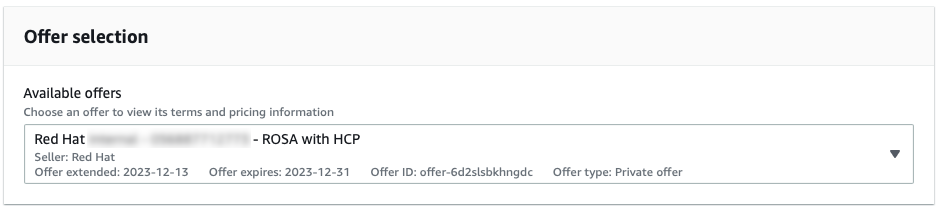
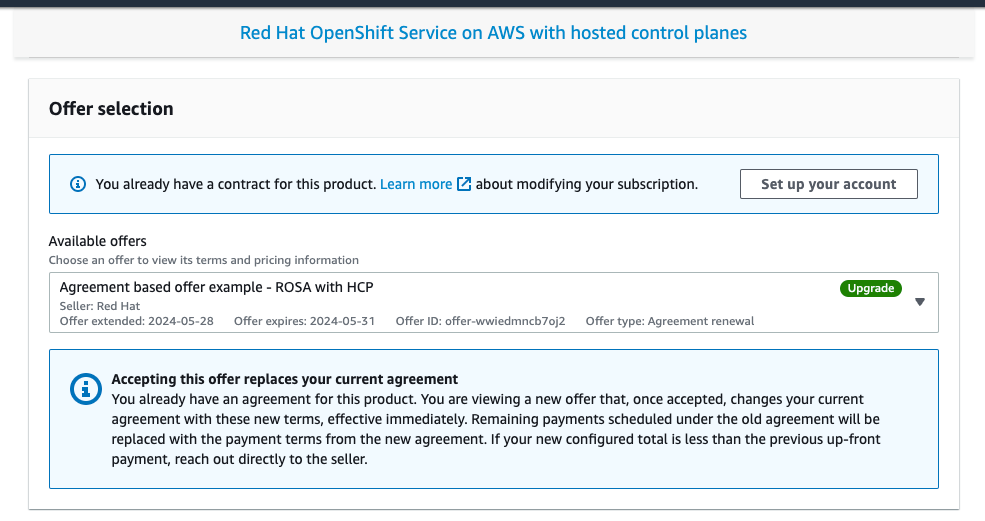
A private offer that was created for an AWS account that previously activated Red Hat OpenShift Service on AWS using the public offer. The selected private offer is labeled as Upgrade and accepting this offer replaces the currently running contract for Red Hat OpenShift Service on AWS.
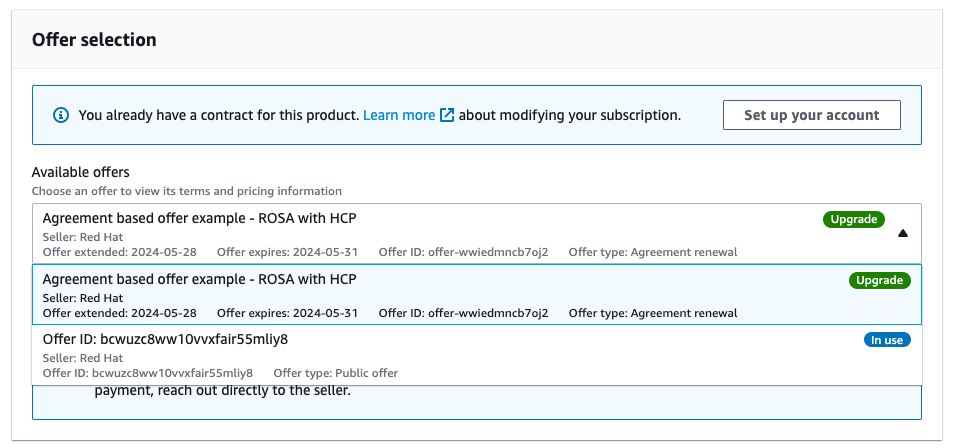
If multiple offers are available, the public offer activated earlier is shown together with the newly provided agreement-based offer that is labeled as "Upgrade".
Verify that your offer configuration is selected and review the offer details.
NoteReview the contract end date, the number of units included with the offer, and the payment schedule. In this example, 1 cluster and up to 3 nodes utilizing 4 vCPUs are included.
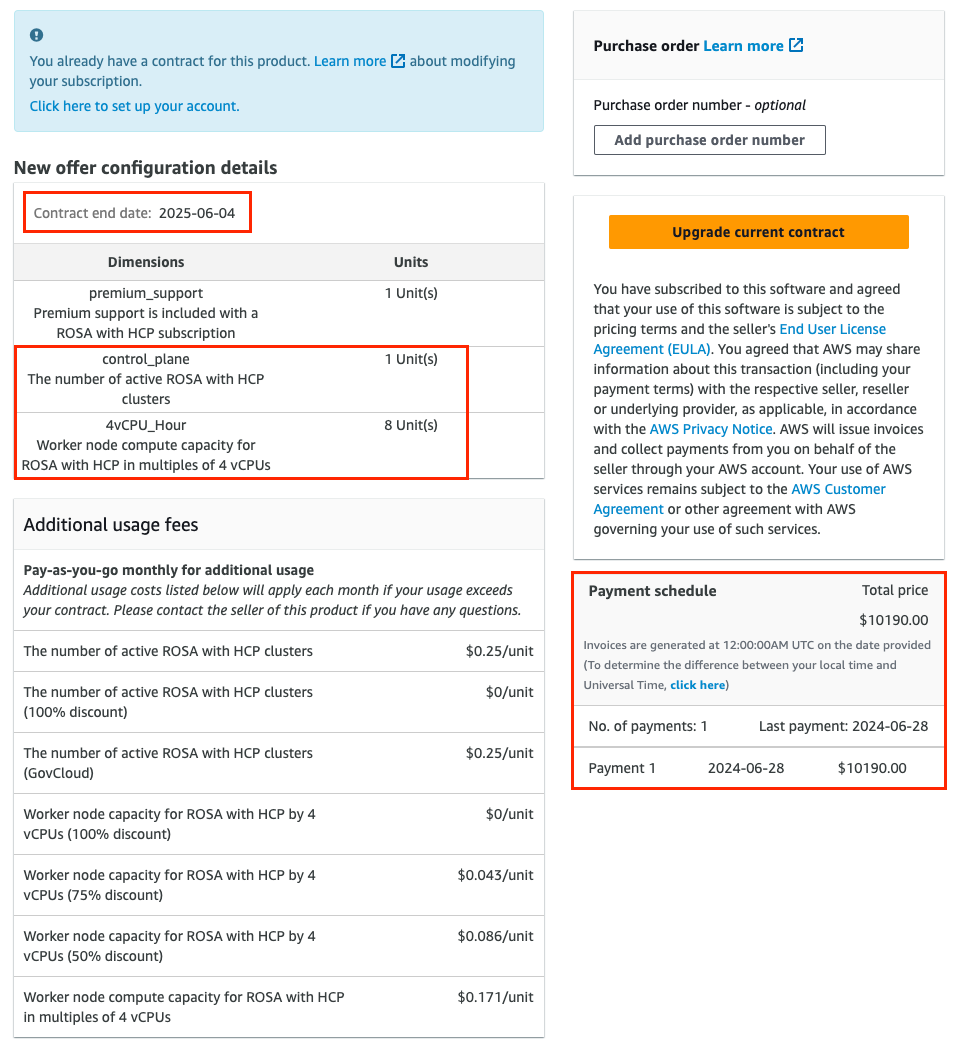
Optional: Add your own purchase order (PO) number to the subscription that is being purchased, so it is included on your subsequent AWS invoices. Also, check the "Additional usage fees" that are charged for any usage above the scope of the "New offer configuration details".
NotePrivate offers have several available configurations.
- It is possible that the private offer you are accepting is set up with a fixed future start date.
- If you do not have another active Red Hat OpenShift Service on AWS subscription at the time of accepting the private offer, a public offer or an older private offer entitlement, accept the private offer itself and continue with the account linking and cluster deployment steps after the specified service start date.
You must have an active Red Hat OpenShift Service on AWS entitlement to complete these steps. Service start dates are always reported in the UTC time zone
Create or upgrade your contract.
For private offers accepted by an AWS account that does not have Red Hat OpenShift Service on AWS activated yet and is creating the first contract for this service, click the Create contract button.
For agreement-based offers, click the Upgrade current contract button shown in Figures 4 and 6.
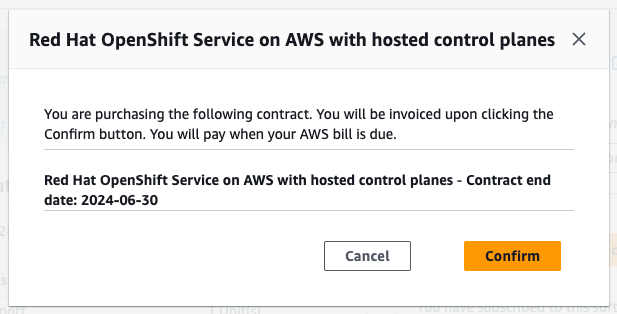
Click Confirm.
If the accepted private offer service start date is set to be immediately following the offer acceptance, click the Set up your account button in the confirmation modal window.
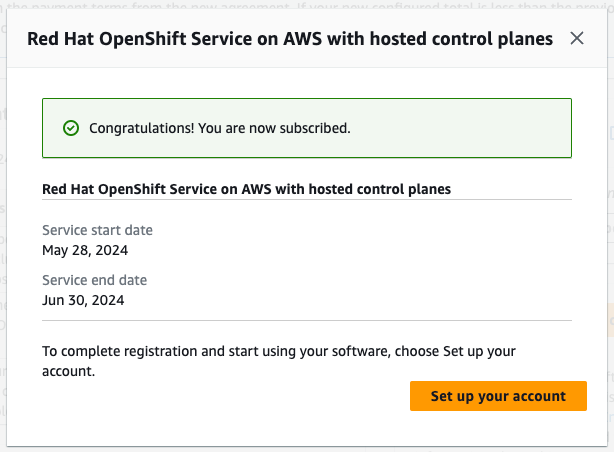
If the accepted private offer has a future start date specified, return to the private offer page after the service start date, and click the Setup your account button to proceed with the Red Hat and AWS account linking.
NoteWith no agreement active, the account linking described below is not triggered, the "Account setup" process can be done only after the "Service start date".
These are always in UTC time zone.
3.2. Share a private offer
You can share a private offer with other team members within your Red Hat organization account.
Red Hat OpenShift Service on AWS entitlement is shared with other team members through your Red Hat organization account. All existing users in the same Red Hat organization can select the billing AWS account that accepted the private offer. You can manage users in your Red Hat organization, when logged in as the Red Hat organization administrator, and invite or create new users.
Procedure
Click Set up your account to proceed to the AWS and Red Hat account linking step. At this time, you are already logged in with the AWS account that accepted the offer. Log in to a Red Hat account, if prompted.
NoteA Red Hat OpenShift Service on AWS private offer cannot be shared with AWS linked accounts through the AWS License Manager.
- Add any users that you want to deploy Red Hat OpenShift Service on AWS clusters. Check Common User Management Questions for more details about Red Hat account user management tasks.
- Verify that the already logged in Red Hat account includes all users that are meant to be Red Hat OpenShift Service on AWS cluster deployers benefiting from the accepted private offer.
Verify that the Red Hat account number and the AWS account ID are the desired accounts that are to be linked. This linking is unique and a Red Hat account can be connected only with a single AWS (billing) account.
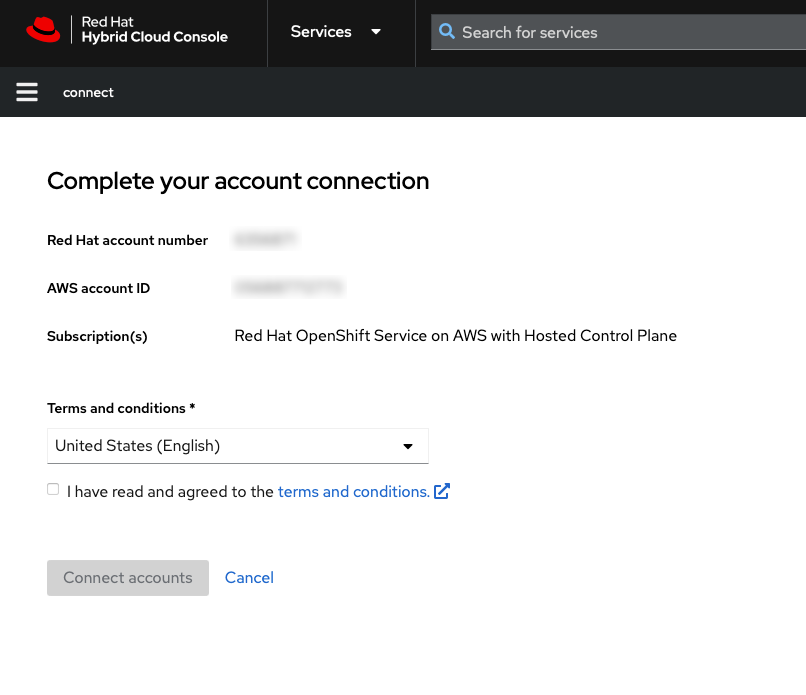
To link the AWS account with another Red Hat account, log out from the Red Hat Hybrid Cloud Console before connecting the accounts. Repeat the step of setting the account by returning to the private offer URL that is already accepted.
An AWS account can be connected with a single Red Hat account only. Once Red Hat and AWS accounts are connected, this cannot be changed by the user. If a change is needed, the user must create a support ticket.
- Agree to the terms and conditions and then click Connect accounts.
3.3. Select the AWS billing account
When deploying Red Hat OpenShift Service on AWS clusters, verify that end users select the AWS billing account that accepted the private offer.
Procedure
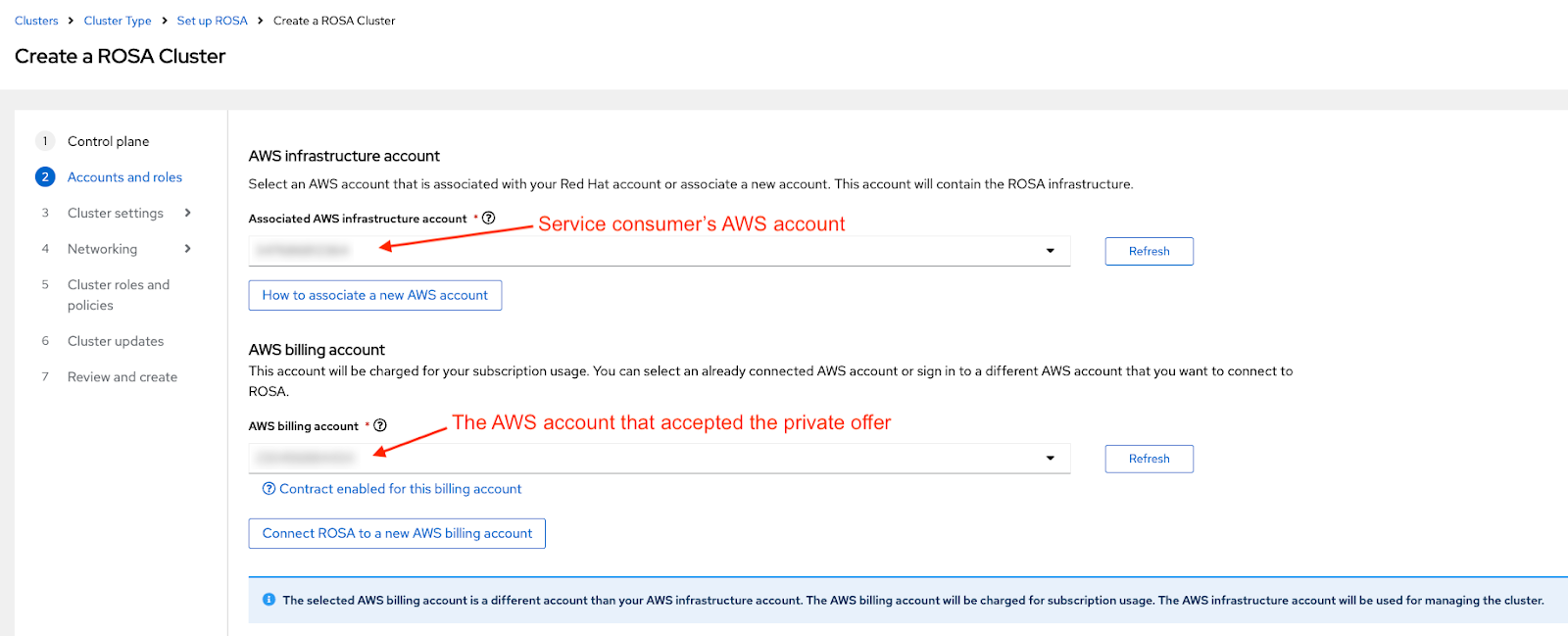
When using the web interface to deploy Red Hat OpenShift Service on AWS, verify that the AWS billing account drop-down is set to the AWS account that accepted the private offer if the purchased quota is intended for the cluster you are creating.
- The associated AWS infrastructure account is typically set to the AWS account ID used by the administrator of the cluster that is being created.
- This can be the same AWS account as the billing AWS account.
- AWS resources are deployed into this account and all the billing associated with those resources is processed accordingly.
If different AWS accounts are selected as the infrastructure and billing accounts, an informative note is displayed.
3.4. Private offer troubleshooting
Review solutions for the most frequent issues associated with private offer acceptance and Red Hat account linking.
3.4.1. Accessing a private offer using a different AWS account
If you try accessing the private offer when logged in under an AWS account ID that is not defined in the offer, and see the "Page not found" message, then verify that you are logged in as the desired AWS billing account.
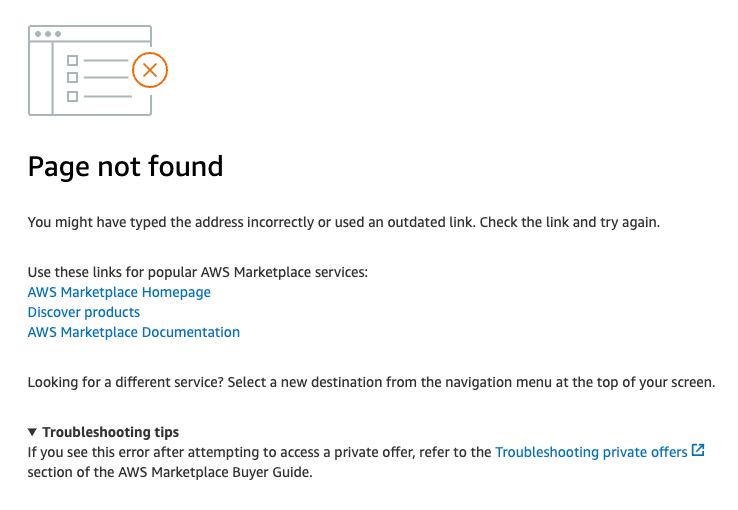
- Contact the seller if you need the private offer to be extended to another AWS account.
3.4.2. The private offer cannot be accepted because of an active subscription
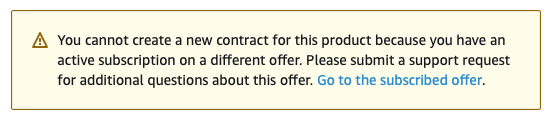
If you try accessing a private offer that was created for the first-time Red Hat OpenShift Service on AWS activation, while you already have Red Hat OpenShift Service on AWS activated using another public or private offer, and see the following notice, then contact the seller who provided you with the offer.
The seller can provide you with a new offer that will seamlessly replace your current agreement, without a need to cancel your previous subscription.
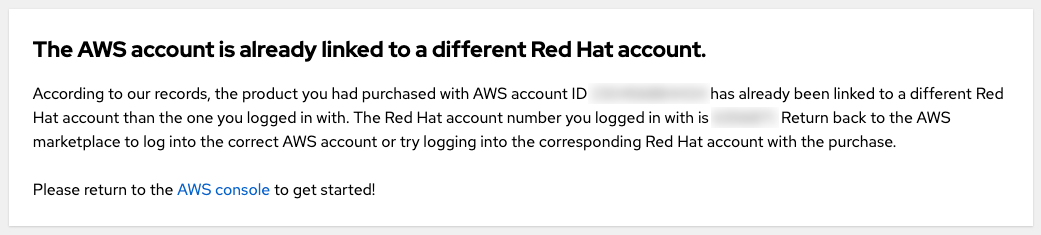
3.4.3. The AWS account is already linked to a different Red Hat account
If you see the error message "AWS account is already linked to a different Red Hat account" when you try to connect the AWS account that accepted the private offer with a presently logged-in Red Hat user, then the AWS account is already connected to another Red Hat user.
You can either log in using another Red Hat account or another AWS account.
- However, since this guide pertains to private offers, the assumption is that you are logged in with the AWS account that was specified as the buyer and already accepted the private offer so it is intended to be used as the billing account. Logging in as another AWS account is not expected after a private offer was accepted.
- You can still log in with another Red Hat user which is already connected to the AWS account that accepted the private offer. Other Red Hat users belonging to the same Red Hat organization are able to use the linked AWS account as the Red Hat OpenShift Service on AWS AWS billing account when creating clusters.
- If you believe that the existing account linking might not be correct, see the "My team members belong to different Red Hat organizations" question for tips on how you can proceed.
3.4.4. My team members belong to different Red Hat organizations
- An AWS account can be connected to a single Red Hat account only. Any user that wants to create a cluster and benefit from the private offer granted to this AWS account needs to be in the same Red Hat account. This can be achieved by inviting the user to the same Red Hat account and creating a new Red Hat user.
3.4.5. Incorrect AWS billing account was selected when creating a cluster
- If the user selected an incorrect AWS billing account, the fastest way to fix this is to delete the cluster and create a new one, while selecting the correct AWS billing account.
- If this is a production cluster that cannot be easily deleted, contact Red Hat support to change the billing account for an existing cluster. Expect some turnaround time for this to be resolved.

'%20d='M201.5%20305.5c-13.8%200-24.9-11.1-24.9-24.6%200-13.8%2011.1-24.9%2024.9-24.9%2013.6%200%2024.6%2011.1%2024.6%2024.9%200%2013.6-11.1%2024.6-24.6%2024.6zM504%20256c0%20137-111%20248-248%20248S8%20393%208%20256%20119%208%20256%208s248%20111%20248%20248zm-132.3-41.2c-9.4%200-17.7%203.9-23.8%2010-22.4-15.5-52.6-25.5-86.1-26.6l17.4-78.3%2055.4%2012.5c0%2013.6%2011.1%2024.6%2024.6%2024.6%2013.8%200%2024.9-11.3%2024.9-24.9s-11.1-24.9-24.9-24.9c-9.7%200-18%205.8-22.1%2013.8l-61.2-13.6c-3-.8-6.1%201.4-6.9%204.4l-19.1%2086.4c-33.2%201.4-63.1%2011.3-85.5%2026.8-6.1-6.4-14.7-10.2-24.1-10.2-34.9%200-46.3%2046.9-14.4%2062.8-1.1%205-1.7%2010.2-1.7%2015.5%200%2052.6%2059.2%2095.2%20132%2095.2%2073.1%200%20132.3-42.6%20132.3-95.2%200-5.3-.6-10.8-1.9-15.8%2031.3-16%2019.8-62.5-14.9-62.5zM302.8%20331c-18.2%2018.2-76.1%2017.9-93.6%200-2.2-2.2-6.1-2.2-8.3%200-2.5%202.5-2.5%206.4%200%208.6%2022.8%2022.8%2087.3%2022.8%20110.2%200%202.5-2.2%202.5-6.1%200-8.6-2.2-2.2-6.1-2.2-8.3%200zm7.7-75c-13.6%200-24.6%2011.1-24.6%2024.9%200%2013.6%2011.1%2024.6%2024.6%2024.6%2013.8%200%2024.9-11.1%2024.9-24.6%200-13.8-11-24.9-24.9-24.9z'/%3e%3c/svg%3e)