Chapter 4. Managing compute nodes using machine pools
4.1. About machine pools
Red Hat OpenShift Service on AWS uses machine pools as an elastic, dynamic provisioning method on top of your cloud infrastructure. The primary resources are machines, compute machine sets, and machine pools.
4.1.1. Machine pool infrastructure
Red Hat OpenShift Service on AWS uses machines, compute machine sets, and machine pools to manage the underlying cloud infrastructure for worker nodes.
4.1.1.1. Machines
A machine is a fundamental unit that describes the host for a worker node.
4.1.1.2. Machine sets
MachineSet resources are groups of compute machines. If you need more machines or must scale them down, change the number of replicas in the machine pool to which the compute machine sets belong.
Machine sets are not directly modifiable in Red Hat OpenShift Service on AWS.
4.1.1.3. Machine pools
Machine pools are a higher-level construct than compute machine sets.
A machine pool creates compute machine sets that are all clones of the same configuration across availability zones. Machine pools perform all of the host node provisioning management actions on a worker node. If you need more machines or must scale them down, change the number of replicas in the machine pool to meet your compute needs. You can manually configure scaling or set autoscaling.
In Red Hat OpenShift Service on AWS clusters, the hosted control plane spans multiple availability zones (AZ) in the installed cloud region. Each machine pool in a Red Hat OpenShift Service on AWS cluster deploys in a single subnet within a single AZ.
Worker node longevity is not guaranteed, and nodes may be replaced at any time as part of the normal operation and management of OpenShift. For more details about the node lifecycle, refer to Additional resources.
Many machine pools can exist on a single cluster, and each machine pool can contain a unique node type and node size configuration.
By default, a cluster has one machine pool. During cluster installation, you can define instance type or size, add labels to this machine pool, and define the size of the root disk.
4.1.2. Configure machine pools after cluster installation
After a cluster is installed, you can configure machine pools by adding labels, taints, and additional machine pools.
After a cluster’s installation, you can:
- Remove or add labels to any machine pool.
- Add additional machine pools to an existing cluster.
- Add taints to any machine pool if there is one machine pool without any taints.
Create or delete a machine pool if there is one machine pool without any taints and at least two replicas.
NoteYou cannot change the machine pool node type or size. The machine pool node type or size is specified during their creation only. If you need a different node type or size, you must re-create a machine pool and specify the required node type or size values.
- You can add a label to each added machine pool.
Worker node longevity is not guaranteed, and nodes may be replaced at any time as part of the normal operation and management of OpenShift. For more details about the node lifecycle, refer to Additional resources.
Procedure
Optional: Add a label to the default machine pool after configuration by using the default machine pool labels and running the following command:
$ rosa edit machinepool -c <cluster_name> <machinepool_name> -iExample input
$ rosa edit machinepool -c mycluster worker -iExample output
? Enable autoscaling: No
? Replicas: 3
? Labels: mylabel=true
I: Updated machine pool 'worker' on cluster 'mycluster'
4.1.3. Machine pool upgrade requirements
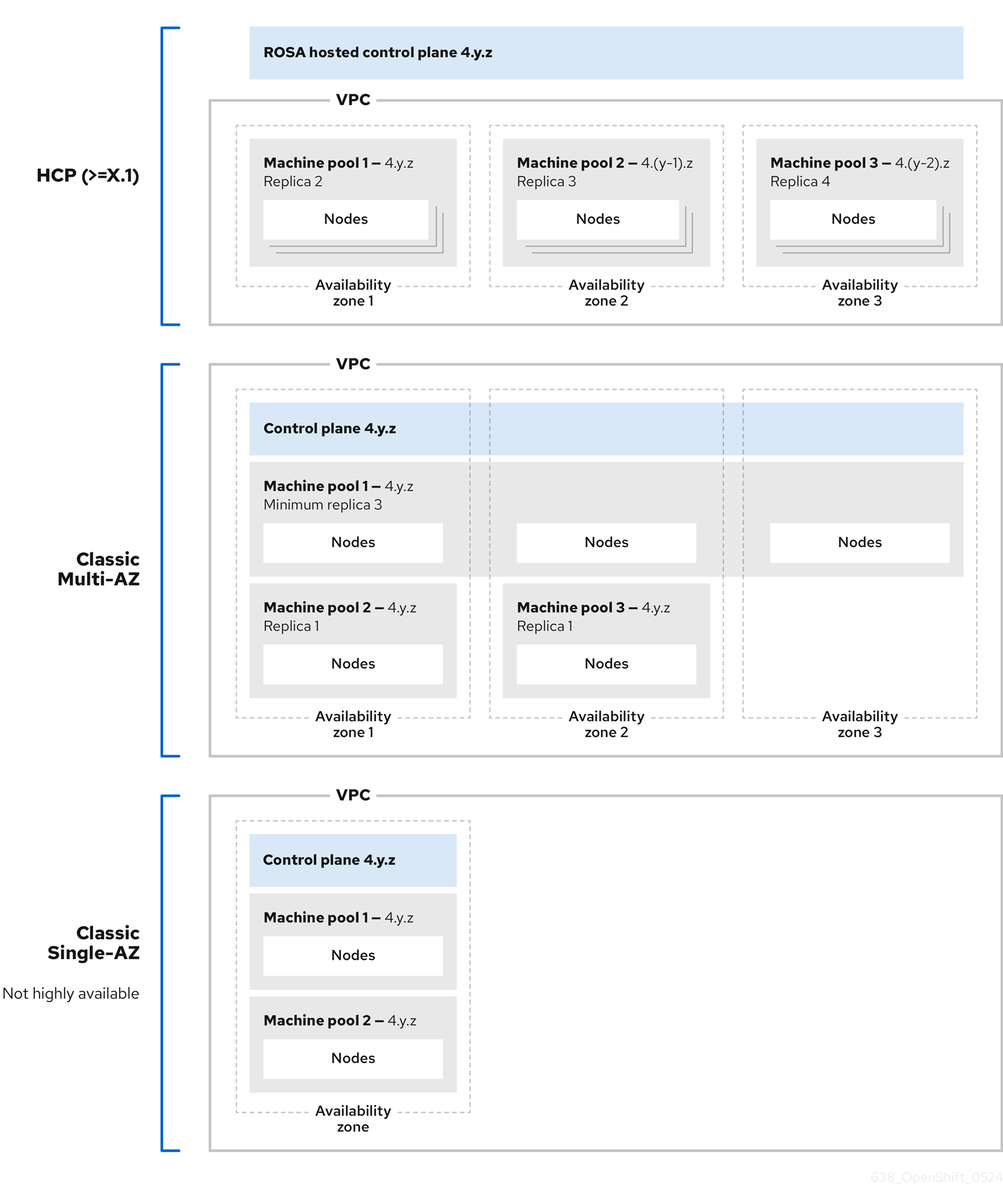
Each machine pool in a Red Hat OpenShift Service on AWS cluster upgrades independently and therefore must remain within two minor (Y-stream) versions of the hosted control plane. For example, if your hosted control plane is 4.16.z, your machine pools must be at least 4.14.z.
The following image depicts how machine pools work within Red Hat OpenShift Service on AWS clusters:
4.2. Managing compute nodes
With Red Hat OpenShift Service on AWS, you can manage compute (also known as worker) nodes to create and configure optimal compute capacity for your workloads.
The majority of changes for compute nodes are configured on machine pools. A machine pool is a group of compute nodes in a cluster that have the same configuration, providing ease of management.
You can edit machine pool configuration options such as scaling, adding node labels, and adding taints.
4.2.1. Overview of AWS Capacity Reservations
If you have reserved compute capacity using AWS Capacity Reservations for a specific instance type and Availability Zone (AZ), you can use it for your Red Hat OpenShift Service on AWS worker nodes. Both On-Demand Capacity Reservations and Capacity Blocks for machine learning (ML) workloads are supported.
Purchase and manage a Capacity Reservation directly with AWS. After reserving the capacity, add a Capacity Reservation ID to a new machine pool when you create it in your Red Hat OpenShift Service on AWS cluster. You can also use a Capacity Reservation shared with you from another AWS account within your AWS Organization.
After you configure Capacity Reservations in Red Hat OpenShift Service on AWS, you can then use your AWS account to monitor reserved capacity usage across all workloads in the account.
Using Capacity Reservations on machine pools in Red Hat OpenShift Service on AWS clusters has the following prerequisites and limitations:
-
You installed and configured the latest
rosaCLI. - Your Red Hat OpenShift Service on AWS cluster is version 4.19 or later.
- The cluster already has a machine pool that is not using a Capacity Reservation or taints. The machine pool must have at least 2 worker nodes.
- You have purchased a Capacity Reservation for the instance type required in the AZ of the machine pool that you are creating.
- You can only add a Capacity Reservation ID to a new machine pool.
-
You cannot use autoscaling with Capacity Reservations if you create a machine pool using the
rosaCLI. However, you can enable both autoscaling and Capacity Reservations on machine pools created using OpenShift Cluster Manager.
4.2.2. Creating a machine pool
A machine pool is created when you install a Red Hat OpenShift Service on AWS cluster. After installation, you can create additional machine pools for your cluster by using OpenShift Cluster Manager or the ROSA command-line interface (CLI) (rosa).
For users of rosa version 1.2.25 and earlier versions, the machine pool created along with the cluster is identified as Default. For users of rosa version 1.2.26 and later, the machine pool created along with the cluster is identified as worker.
4.2.2.1. Create a machine pool using OpenShift Cluster Manager
You can create additional machine pools for your Red Hat OpenShift Service on AWS cluster by using OpenShift Cluster Manager.
Prerequisites
- You created a Red Hat OpenShift Service on AWS cluster.
Procedure
- Navigate to OpenShift Cluster Manager and select your cluster.
- Under the Machine pools tab, click Add machine pool.
- Add a Machine pool name.
Select a Compute node instance type from the list. The instance type defines the vCPU and memory allocation for each compute node in the machine pool.
NoteYou cannot change the instance type for a machine pool after the pool is created.
Optional: If you are using OpenShift Virtualization on a Red Hat OpenShift Service on AWS cluster, you might want to run Windows VMs. In order to be license-compliant with Microsoft Windows in AWS, the hosts (x86-64 bare metal EC2 instances) running these VMs must be enabled with AWS EC2 Windows License Included. To enable the machine pool for AWS Windows License Included, select the Enable machine pool for AWS Windows License Included checkbox.
You can only select this option when the host cluster is a Red Hat OpenShift Service on AWS cluster version 4.19 and later and the instance type is x86-64 bare metal EC2.
ImportantEnabling AWS Windows LI on a machine pool applies the associated licensing fees on that specific machine pool. This includes billing for the full vCPU allocation of each AWS Windows LI enabled host in your Red Hat OpenShift Service on AWS cluster. Windows LI enabled machine pools will also deny vCPU over-allocation on OpenShift Virtualization VMs.
Configure the node count by choosing one of the following options:
- Enable autoscaling: Select Enable autoscaling to automatically scale the number of machines in your machine pool to meet the deployment needs. Set the minimum and maximum node count limits for autoscaling. The cluster autoscaler does not reduce or increase the machine pool node count beyond the limits that you specify.
- Manual node count: If you do not enable autoscaling, select a Compute node count from the drop-down menu. This defines the number of compute nodes to provision to the machine pool for the availability zone.
Optional: Configure advanced machine pool settings by expanding the appropriate sections and providing values:
- Root disk size: Specify a custom root disk size.
Reserved capacity: Add reserved capacity to your machine pool:
Select a Reservation Preference from the list. Valid preferences include:
- None: The instance does not use a Capacity Reservation even if one is available. The instance runs as an EC2 On-Demand instance. Choose this option when you want to avoid consuming purchased reserved capacity and use it for other workloads.
-
Open: The instance can run in any
openCapacity Reservation that has matching attributes such as the instance type, platform, AZ, or tenancy. Choose this option for flexibility; if a reservation is not available, the instance can use regular unreserved EC2 capacity. - CR only (capacity reservation only): The instance can only run in a Capacity Reservation. If capacity is not available, the instance fails to launch.
Add a Reservation ID. You get an ID in the
cr-<capacity_reservation_id>format when you purchase a Capacity Reservation from AWS. The ID can be for both On-Demand Capacity Reservations or Capacity Blocks for ML.- For Node labels and taints, expand the Edit node labels and taints menu.
- Under Node labels, add Key and Value entries for your node labels.
Under Taints, add Key and Value entries for your taints. For each taint, select an Effect from the drop-down menu. Available options include
NoSchedule,PreferNoSchedule, andNoExecute.NoteCreating a machine pool with taints is only possible if the cluster already has at least one machine pool without a taint. Alternatively, you can add node labels and taints after you create the machine pool.
Custom security groups: Select additional custom security groups to use for nodes in this machine pool. You must have already created the security groups and associated them with the VPC that you selected for this cluster. You cannot add or edit security groups after you create the machine pool.
ImportantYou can use up to ten additional security groups for machine pools on Red Hat OpenShift Service on AWS clusters.
Amazon EC2 Spot Instances: To configure your machine pool to deploy machines as non-guaranteed AWS Spot Instances, select Use Amazon EC2 Spot Instances. Leave Use On-Demand instance price selected to use the on-demand instance price, or select Set maximum price to define a maximum hourly price for a Spot Instance.
ImportantYour Amazon EC2 Spot Instances might be interrupted at any time. Use Amazon EC2 Spot Instances only for workloads that can tolerate interruptions.
NoteIf you select Use Amazon EC2 Spot Instances for a machine pool, you cannot disable the option after the machine pool is created.
4.2.2.2. Create a machine pool using the rosa CLI
You can create additional machine pools for your Red Hat OpenShift Service on AWS cluster by using the ROSA command-line interface (CLI) (rosa).
To add a pre-purchased Capacity Reservation to a machine pool, see Creating a machine pool with Capacity Reservations.
Prerequisites
-
You installed and configured the latest
rosaCLI on your workstation. -
You logged in to your Red Hat account using the
rosaCLI. - You created a Red Hat OpenShift Service on AWS cluster.
To ensure nodes reach the control plane, all subnets added to a Red Hat OpenShift Service on AWS cluster must have https access to the Virtual Private Cloud (VPC) endpoint for that availability zone. Routing and firewalls, which include network access control lists (NACLs) and security groups, must allow traffic between each subnet and the VPC endpoint at all times. To ensure availability, it is highly recommended to allow all https traffic between all subnets of the cluster.
Procedure
To add a machine pool that does not use autoscaling, create the machine pool and define the instance type, compute (also known as worker) node count, and node labels:
$ rosa create machinepool --cluster=<cluster-name> \
                          --name=<machine_pool_id> \
                          --replicas=<replica_count> \
                          --instance-type=<instance_type> \
                          --labels=<key>=<value>,<key>=<value> \
                          --taints=<key>=<value>:<effect>,<key>=<value>:<effect> \
                          --use-spot-instances \
                          --spot-max-price=<price> \
                          --disk-size=<disk_size> \
                          --availability-zone=<availability_zone_name> \
                          --additional-security-group-ids <sec_group_id> \
                          --subnet <subnet_id>
where:
--name=<machine_pool_id>- Specifies the name of the machine pool.
--replicas=<replica_count>-
Specifies the number of compute nodes to provision. If you deployed Red Hat OpenShift Service on AWS using a single availability zone, this defines the number of compute nodes to provision to the machine pool for the zone. If you deployed your cluster using multiple availability zones, this defines the number of compute nodes to provision in total across all zones and the count must be a multiple of 3. The
--replicasargument is required when autoscaling is not configured. --instance-type=<instance_type>-
Optional: Sets the instance type for the compute nodes in your machine pool. The instance type defines the vCPU and memory allocation for each compute node in the pool. Replace
<instance_type>with an instance type. The default ism7i.xlarge. You cannot change the instance type for a machine pool after the pool is created. --labels=<key>=<value>,<key>=<value>-
Optional: Defines the labels for the machine pool. Replace
<key>=<value>,<key>=<value>with a comma-delimited list of key-value pairs, for example--labels=key1=value1,key2=value2. --taints=<key>=<value>:<effect>,<key>=<value>:<effect>-
Optional: Defines the taints for the machine pool. Replace
<key>=<value>:<effect>,<key>=<value>:<effect>with a key, value, and effect for each taint, for example--taints=key1=value1:NoSchedule,key2=value2:NoExecute. Available effects includeNoSchedule,PreferNoSchedule, andNoExecute. --use-spot-instances- Optional: Configures your machine pool to deploy machines as non-guaranteed AWS Spot Instances. For information, see Amazon EC2 Spot Instances in the AWS documentation. If you select Use Amazon EC2 Spot Instances for a machine pool, you cannot disable the option after the machine pool is created.
--spot-max-price=<price>- Optional: If you choose to use Spot Instances, you can specify this argument to define a maximum hourly price for a Spot Instance. If this argument is not specified, the on-demand price is used.
--disk-size=<disk_size>-
Optional: Specifies the worker node disk size. The value can be in GB, GiB, TB, or TiB. Replace
<disk_size>with a numeric value and unit, for example--disk-size=200GiB. --availability-zone=<availability_zone_name>-
Optional: You can create a machine pool in an availability zone of your choice. Replace
<availability_zone_name>with an availability zone name. --additional-security-group-ids <sec_group_id>Optional: For machine pools in clusters that do not have Red Hat managed VPCs, you can select additional custom security groups to use in your machine pools. You must have already created the security groups and associated them with the VPC that you selected for this cluster. You cannot add or edit security groups after you create the machine pool.
ImportantYou can use up to ten additional security groups for machine pools on Red Hat OpenShift Service on AWS clusters.
--subnet <subnet_id>Optional: For BYO VPC clusters, you can select a subnet to create a Single-AZ machine pool. If the subnet is out of your cluster creation subnets, there must be a tag with a key
kubernetes.io/cluster/<infra-id>and valueshared. Customers can obtain the Infra ID by using the following command:$ rosa describe cluster -c <cluster name>|grep "Infra ID:"Example output
Infra ID: mycluster-xqvj7NoteYou cannot set both
--subnetand--availability-zoneat the same time, only 1 is allowed for a Single-AZ machine pool creation.
The following example creates a machine pool called
mymachinepoolthat uses them7i.xlargeinstance type and has 2 compute node replicas. The example also adds 2 workload-specific labels:$ rosa create machinepool --cluster=mycluster --name=mymachinepool --replicas=2 --instance-type=m7i.xlarge --labels=app=db,tier=backendExample output
I: Machine pool 'mymachinepool' created successfully on cluster 'mycluster'
I: To view all machine pools, run 'rosa list machinepools -c mycluster'
Verification
You can list all machine pools on your cluster or describe individual machine pools.
List the available machine pools on your cluster:
$ rosa list machinepools --cluster=<cluster_name>Example output
ID             AUTOSCALING  REPLICAS  INSTANCE TYPE  LABELS                  TAINTS    AVAILABILITY ZONE  SUBNET                    VERSION  AUTOREPAIR
Default        No           1/1       m7i.xlarge                                       us-east-2c         subnet-00552ad67728a6ba3  4.14.34  Yes
mymachinepool  Yes          3/3-6     m7i.xlarge      app=db, tier=backend              us-east-2a         subnet-0cb56f5f41880c413  4.14.34  Yes
Describe the information of a specific machine pool in your cluster:
$ rosa describe machinepool --cluster=<cluster_name> --machinepool=mymachinepoolExample output
ID: mymachinepool Cluster ID: 2d6010rjvg17anri30v84vspf7c7kr6v Autoscaling: Yes Desired replicas: 3-6 Current replicas: 3 Instance type: m7i.xlarge Labels: app=db, tier=backend Taints: Availability zone: us-east-2a Subnet: subnet-0cb56f5f41880c413 Version: 4.14.34 Autorepair: Yes Tuning configs: Additional security group IDs: Node drain grace period: Message:- Verify that the machine pool is included in the output and the configuration is as expected.
4.2.2.3. Create an autoscaling machine pool using the rosa CLI
You can create an autoscaling machine pool for your Red Hat OpenShift Service on AWS cluster by using the ROSA command-line interface (CLI) (rosa).
Prerequisites
-
You installed and configured the latest
rosaCLI on your workstation. -
You logged in to your Red Hat account using the
rosaCLI. - You created a Red Hat OpenShift Service on AWS cluster.
Procedure
To add a machine pool that uses autoscaling, create the machine pool and define the autoscaling configuration, instance type and node labels:
$ rosa create machinepool --cluster=<cluster-name> \
                          --name=<machine_pool_id> \
                          --enable-autoscaling \
                          --min-replicas=<minimum_replica_count> \
                          --max-replicas=<maximum_replica_count> \
                          --instance-type=<instance_type> \
                          --labels=<key>=<value>,<key>=<value> \
                          --taints=<key>=<value>:<effect>,<key>=<value>:<effect> \
                          --availability-zone=<availability_zone_name>
                          --availability-zone=<availability_zone_name> \
                          --use-spot-instances \
                          --spot-max-price=<price>
where:
--name=<machine_pool_id>-
Specifies the name of the machine pool. Replace
<machine_pool_id>with the name of your machine pool. --enable-autoscaling- Enables autoscaling in the machine pool to meet the deployment needs.
--min-replicas=<minimum_replica_count>and--max-replicas=<maximum_replica_count>Defines the minimum and maximum compute node limits. The cluster autoscaler does not reduce or increase the machine pool node count beyond the limits that you specify.
The
--min-replicasand--max-replicasarguments define the autoscaling limits in the machine pool for the availability zone.--instance-type=<instance_type>-
Optional: Sets the instance type for the compute nodes in your machine pool. The instance type defines the vCPU and memory allocation for each compute node in the pool. Replace
<instance_type>with an instance type. The default ism7i.xlarge. You cannot change the instance type for a machine pool after the pool is created. --labels=<key>=<value>,<key>=<value>-
Optional: Defines the labels for the machine pool. Replace
<key>=<value>,<key>=<value>with a comma-delimited list of key-value pairs, for example--labels=key1=value1,key2=value2. --taints=<key>=<value>:<effect>,<key>=<value>:<effect>-
Optional: Defines the taints for the machine pool. Replace
<key>=<value>:<effect>,<key>=<value>:<effect>with a key, value, and effect for each taint, for example--taints=key1=value1:NoSchedule,key2=value2:NoExecute. Available effects includeNoSchedule,PreferNoSchedule, andNoExecute. --availability-zone=<availability_zone_name>-
Optional: You can create a machine pool in an availability zone of your choice. Replace
<availability_zone_name>with an availability zone name. --use-spot-instances- Optional: Configures your machine pool to deploy machines as non-guaranteed AWS Spot Instances. For information, see Amazon EC2 Spot Instances in the AWS documentation. If you select Use Amazon EC2 Spot Instances for a machine pool, you cannot disable the option after the machine pool is created.
--spot-max-price=<price>- Optional: If you choose to use Spot Instances, you can specify this argument to define a maximum hourly price for a Spot Instance. If this argument is not specified, the on-demand price is used.
The following example creates a machine pool called
mymachinepoolthat uses them7i.xlargeinstance type and has autoscaling enabled. The minimum compute node limit is 3 and the maximum is 6 overall. The example also adds 2 workload-specific labels:$ rosa create machinepool --cluster=mycluster --name=mymachinepool --enable-autoscaling --min-replicas=3 --max-replicas=6 --instance-type=m7i.xlarge --labels=app=db,tier=backendExample output
I: Machine pool 'mymachinepool' created successfully on hosted cluster 'mycluster'
I: To view all machine pools, run 'rosa list machinepools -c mycluster'
Verification
You can list all machine pools on your cluster or describe individual machine pools.
List the available machine pools on your cluster:
$ rosa list machinepools --cluster=<cluster_name>Example output
ID             AUTOSCALING  REPLICAS  INSTANCE TYPE  LABELS                  TAINTS    AVAILABILITY ZONE  SUBNET                    VERSION  AUTOREPAIR
Default        No           1/1       m7i.xlarge                                       us-east-2c         subnet-00552ad67728a6ba3  4.14.34  Yes
mymachinepool  Yes          3/3-6     m7i.xlarge      app=db, tier=backend              us-east-2a         subnet-0cb56f5f41880c413  4.14.34  Yes
Describe the information of a specific machine pool in your cluster:
$ rosa describe machinepool --cluster=<cluster_name> --machinepool=mymachinepoolExample output
ID: mymachinepool Cluster ID: 2d6010rjvg17anri30v84vspf7c7kr6v Autoscaling: Yes Desired replicas: 3-6 Current replicas: 3 Instance type: m7i.xlarge Labels: app=db, tier=backend Taints: Availability zone: us-east-2a Subnet: subnet-0cb56f5f41880c413 Version: 4.14.34 Autorepair: Yes Tuning configs: Additional security group IDs: Node drain grace period: Message:- Verify that the machine pool is included in the output and the configuration is as expected.
4.2.2.4. Creating a machine pool with AWS Windows License Included enabled using the rosa CLI
If you are using OpenShift Virtualization on a Red Hat OpenShift Service on AWS cluster running Windows VMs you need to be license-compliant with Microsoft Windows in AWS. The hosts (AWS x86-64 bare metal EC2 instances) running these VMs must be enabled with AWS EC2 Windows License Included (LI).
Enabling AWS Windows LI on a machine pool applies the associated licensing fees on that specific machine pool. This includes billing for the full vCPU allocation of each AWS Windows LI enabled host in your Red Hat OpenShift Service on AWS cluster. Windows LI enabled machine pools will also deny vCPU over-allocation on OpenShift Virtualization VMs. For more information, see Microsoft Licensing on AWS and the Red Hat OpenShift Service on AWS instance types.
Prerequisites
-
You installed and configured the
rosaCLI version 1.2.58 or above. -
You logged in to your Red Hat account using the
rosaCLI. - You created a Red Hat OpenShift Service on AWS cluster version 4.19 or above.
- You identified an x86-64 bare metal EC2 instance type to use OpenShift Virtualization. For more, see Amazon EC2 Instance Types.
- You are in compliance with Microsoft and AWS requirements for the Microsoft licenses and associated costs.
Procedure
To add a Windows LI enabled machine pool to a Red Hat OpenShift Service on AWS cluster, create the machine pool with the following definitions:
$ rosa create machinepool --cluster=<cluster-name> \
                          --name=<machine_pool_id> \
                          --replicas=<replica_count> \
                          --instance-type=<instance_type> \
                          --type=<image_type>
where:
--name=<machine_pool_id>-
Specifies the name of the machine pool. Replace
<machine_pool_id>with the name of your machine pool. --replicas=<replica_count>-
Specifies the number of compute nodes to provision. If you deployed Red Hat OpenShift Service on AWS using a single availability zone, this defines the number of compute nodes to provision to the machine pool for the zone. If you deployed your cluster using multiple availability zones, this defines the number of compute nodes to provision in total across all zones and the count must be a multiple of 3. The
--replicasargument is required when autoscaling is not configured. --instance-type=<instance_type>-
Specifies the instance type. You can only select an x86-64 bare metal instance type to enable Windows LI. For example, you can use
m5zn.metalori3.metal. You cannot change the instance type for a machine pool after the pool is created. --type=<type>You must specify
Windowsto ensure the machine pool is created with Windows LI enabled.The following command creates a Windows LI enabled machine pool called
mymachinepoolusing them5zn.metalinstance type with 1 compute node replica:$ rosa create machinepool --cluster=mycluster --name=mymachinepool --type=Windows --instance-type=m5zn.metal --replicas=1Example output
I: Machine pool 'mymachinepool' created successfully on cluster 'mycluster'
I: To view all machine pools, run 'rosa list machinepools -c mycluster'
Verification
List the available machine pools on your cluster by running the following command:
$ rosa list machinepools --cluster=<cluster_name>Describe the information of a specific machine pool in your cluster:
$ rosa describe machinepool --cluster=<cluster_name> --machinepool=mymachinepoolThe output has the image type set to
Windowsas shown in the following example:Example output
ID: mymachinepool Cluster ID: mycluster Autoscaling: No Desired replicas: 1 Current replicas: 1 Instance type: m5zn.metal Image type: Windows Labels: Tags: Taints: Availability zone: us-east-1a Subnet: <subnet-id> Disk Size: 300 GiB Version: 4.19.18 EC2 Metadata Http Tokens: optional Autorepair: Yes Tuning configs: Kubelet configs: Additional security group IDs: Node drain grace period:- For more information about running virtualized Windows workloads after you have set up a Windows LI enabled machine pool, see Additional resources.
4.2.2.5. Creating a machine pool with Capacity Reservations using the rosa CLI
You can create a new machine pool with Capacity Reservations by using the ROSA command-line interface (CLI) (rosa). Both On-Demand Capacity Reservations and Capacity Blocks for ML are supported.
Currently, autoscaling is not supported on machine pools with Capacity Reservations.
Prerequisites
-
You installed and configured the latest
rosaCLI. -
You logged in to your Red Hat account using the
rosaCLI. - You created a Red Hat OpenShift Service on AWS cluster version 4.19 or above.
- The cluster already has a machine pool that is not using a Capacity Reservation or taints. The machine pool must have at least 2 worker nodes.
- You have a Capacity Reservation ID and capacity is reserved for the instance type required in the Availability Zone (AZ) of the machine pool that you are creating.
Procedure
Create the machine pool and define the Capacity Reservation preference and ID by running the following command:
$ rosa create machinepool --cluster=<cluster_name> \
                          --name=<machine_pool_id> \
                          --replicas=<replica_count> \
                          --capacity-reservation-preference none | open | capacity-reservations-only \
                          --capacity-reservation-id cr-<capacity_reservation_id> \
                          --instance-type=<instance_type> \
                          --subnet <subnet_id>
where:
<machine_pool_id>- Specifies the name of the machine pool.
<replica_count>-
Specifies the number of provisioned compute nodes. If you deploy Red Hat OpenShift Service on AWS using a single AZ, this defines the number of compute nodes provisioned to the machine pool for the AZ. If you deploy your cluster using multiple AZs, this defines the total number of compute nodes provisioned across all AZs. For multi-zone clusters, the compute node count must be a multiple of 3. The
--replicasargument is required when autoscaling is not configured. <capacity_reservation_preference>-
Specifies the Capacity Reservation behavior. Valid preferences include
none(the instance does not use a Capacity Reservation and runs as an EC2 On-Demand instance),open(the instance can run in anyopenCapacity Reservation that has matching attributes such as the instance type, platform, AZ, or tenancy), orcapacity-reservations-only(the instance can only run in a Capacity Reservation; if capacity is not available, the instance fails to launch). cr-<capacity_reservation_id>-
Specifies the reservation ID. You get an ID in the
cr-<capacity_reservation_id>format when you purchase a Capacity Reservation from AWS. The ID can be for both On-Demand Capacity Reservations or Capacity Blocks for ML, you do not need to specify the reservation type. <instance_type>-
Optional: Specifies the instance type for the compute nodes in your machine pool. The instance type defines the vCPU and memory allocation for each compute node in the pool. Replace
<instance_type>with an instance type. The default ism5.xlarge. You cannot change the instance type for a machine pool after the pool is created. <subnet_id>Optional: Specifies the subnet ID. For Bring Your Own Virtual Private Cloud (BYO VPC) clusters, you can select a subnet to create a single-AZ machine pool. If you select a subnet that was not specified during the initial cluster creation, you must tag the subnet with the
kubernetes.io/cluster/<infra_id>key andsharedvalue. Customers can obtain the Infra ID by running the following command:$ rosa describe cluster --cluster <cluster_name>|grep "Infra ID:"Example output
Infra ID: mycluster-xqvj7
The following example creates a machine pool called
mymachinepoolthat uses thec5.xlargeinstance type, has one compute node replica, and uses a Capacity Reservation ID:$ rosa create machinepool --cluster=mycluster --name=mymachinepool --replicas 1 --capacity-reservation-id <capacity_reservation_id> --subnet <subnet_id> --instance-type c5.xlargeI: Checking available instance types for machine pool 'mymachinepool' I: Machine pool 'mymachinepool' created successfully on hosted cluster 'mycluster'
Verification
You can list all machine pools on your cluster or describe individual machine pools.
List the available machine pools on your cluster by running the following command:
$ rosa list machinepools --cluster <cluster_name>Describe the information of a specific machine pool in your cluster by running the following command.
$ rosa describe machinepool --cluster <cluster_name> --machinepool <machine_pool_name>Example output
ID:                         <machine_pool_name>
Cluster ID:                 <cluster_id>
Autoscaling:                No
Desired replicas:           1
Current replicas:           1
Instance type:              c5.xlarge
Labels:
Tags:                       red-hat-managed=true, api.openshift.com/environment=production, api.openshift.com/id=<cluster_name>, api.openshift.com/legal-entity-id=<legal_entity_id>, api.openshift.com/name=<cluster_name>, api.openshift.com/nodepool-hypershift=<cluster_name>-<machine_pool_name>, api.openshift.com/nodepool-ocm=<machine_pool_name>, red-hat-clustertype=rosa
Taints:
Availability zone:          us-east-1a
Subnet:                     <subnet_id>
Disk Size:                  300 GiB
Version:                    4.19.10
EC2 Metadata Http Tokens:   optional
Autorepair:                 Yes
Tuning configs:
Kubelet configs:
Additional security group IDs:
Node drain grace period:
Capacity Reservation:
    - ID:                   <capacity_reservation_id>
    - Type:                 OnDemand
    - Preference:           open
Management upgrade:
    - Type:                 Replace
    - Max surge:            1
    - Max unavailable:      0
Message:                    Minimum availability requires 1 replicas, current 1 available
The output should include the Capacity Reservation ID, type, and preference.
4.2.3. Adjust node storage capacity
Machine pool disk volume size can be configured for additional flexibility. The default disk size is 300 GiB.
For Red Hat OpenShift Service on AWS clusters, the disk size can be configured from a minimum of 75 GiB to a maximum of 16,384 GiB.
You can configure the machine pool disk size for your cluster by using OpenShift Cluster Manager or the ROSA command-line interface (CLI) (rosa).
Existing cluster and machine pool node volumes cannot be resized.
4.2.3.1. Configure machine pool disk volume using OpenShift Cluster Manager
Configure the disk volume size for machine pools during cluster creation or when adding new machine pools by using Red Hat OpenShift Cluster Manager.
Prerequisites
- You have access to OpenShift Cluster Manager.
Procedure
To configure disk volume during cluster creation:
- From the Red Hat OpenShift Service on AWS cluster wizard, navigate to Cluster settings.
- Navigate to Machine pool step.
- Select the desired Root disk size.
- Select Next to continue creating your cluster.
To configure disk volume for a new machine pool after cluster installation:
- Navigate to OpenShift Cluster Manager and select your cluster.
- Navigate to Machine pool tab.
- Click Add machine pool.
- Select the desired Root disk size.
- Select Add machine pool to create the machine pool.
4.2.3.2. Configure machine pool disk volume using the ROSA CLI
Configure the disk volume size for machine pools during cluster creation or when adding new machine pools by using the ROSA command-line interface (CLI) (rosa).
Prerequisites
-
You installed and configured the latest
rosaCLI on your workstation. -
You logged in to your Red Hat account using the
rosaCLI.
Procedure
To configure disk volume during cluster creation, run the following command:
$ rosa create cluster --worker-disk-size=<disk_size>The value can be in GB, GiB, TB, or TiB. Replace
<disk_size>with a numeric value and unit, for example--worker-disk-size=200GiB. You cannot separate the digit and the unit. No spaces are allowed.To configure disk volume for a new machine pool after cluster installation, scale up the cluster by running the following command:
$ rosa create machinepool --cluster=<cluster_id> \
                          --disk-size=<disk_size>
where:
<cluster_id>- Specifies the ID or name of your existing OpenShift cluster.
<disk_size>-
Specifies the worker node disk size. The value can be in GB, GiB, TB, or TiB. Replace
<disk_size>with a numeric value and unit, for example--disk-size=200GiB. You cannot separate the digit and the unit. No spaces are allowed.
Verification
- Confirm new machine pool disk volume size by logging into the AWS console and find the EC2 virtual machine root volume size.
4.2.4. Delete a machine pool
You can delete a machine pool if your workload requirements have changed and your current machine pools no longer meet your needs. You can delete machine pools by using Red Hat OpenShift Cluster Manager or the ROSA command-line interface (CLI) (rosa).
4.2.4.1. Delete a machine pool using OpenShift Cluster Manager
You can delete a machine pool for your Red Hat OpenShift Service on AWS cluster by using Red Hat OpenShift Cluster Manager.
Prerequisites
- You created a Red Hat OpenShift Service on AWS cluster.
- The cluster is in the ready state.
- You have an existing machine pool without any taints and with at least two instances for a single-AZ cluster or three instances for a multi-AZ cluster.
Procedure
- From OpenShift Cluster Manager, navigate to the Cluster List page and select the cluster that contains the machine pool that you want to delete.
- On the selected cluster, select the Machine pools tab.
-
Under the Machine pools tab, click the Options menu
 for the machine pool that you want to delete.
Click Delete.
The selected machine pool is deleted.
4.2.4.2. Delete a machine pool using the rosa CLI
You can delete a machine pool for your Red Hat OpenShift Service on AWS cluster by using the ROSA command-line interface (CLI) (rosa).
For users of rosa version 1.2.25 and earlier versions, the machine pool (ID='Default') that is created along with the cluster cannot be deleted. For users of rosa version 1.2.26 and later, the machine pool (ID='worker') that is created along with the cluster can be deleted if there is one machine pool within the cluster that contains no taints, and at least two replicas for a Single-AZ cluster or three replicas for a Multi-AZ cluster.
Prerequisites
- You created a Red Hat OpenShift Service on AWS cluster.
- The cluster is in the ready state.
- You have an existing machine pool without any taints and with at least two instances for a Single-AZ cluster or three instances for a Multi-AZ cluster.
Procedure
From the
rosaCLI, run the following command:$ rosa delete machinepool -c=<cluster_name> <machine_pool_ID>Example output
? Are you sure you want to delete machine pool <machine_pool_ID> on cluster <cluster_name>? (y/N)Enter
yto delete the machine pool.The selected machine pool is deleted.
4.2.5. Scale compute nodes manually
If you have not enabled autoscaling for your machine pool, you can manually scale the number of compute nodes, also known as worker nodes, in the pool to meet your deployment needs. You must scale each machine pool separately.
Prerequisites
-
You installed and configured the latest ROSA command-line interface (CLI) (
rosa) on your workstation. -
You logged in to your Red Hat account using the
rosaCLI. - You created a Red Hat OpenShift Service on AWS cluster.
- You have an existing machine pool.
Procedure
List the machine pools in the cluster:
$ rosa list machinepools --cluster=<cluster_name>Example output
ID        AUTOSCALING   REPLICAS    INSTANCE TYPE  LABELS    TAINTS   AVAILABILITY ZONES    DISK SIZE   SG IDs
default   No            2           m7i.xlarge                         us-east-1a            300GiB      sg-0e375ff0ec4a6cfa2
mp1       No            2           m7i.xlarge                         us-east-1a            300GiB      sg-0e375ff0ec4a6cfa2
Increase or decrease the number of compute node replicas in a machine pool:
$ rosa edit machinepool --cluster=<cluster_name> \
                        --replicas=<replica_count> \
                        <machine_pool_id>
where:
-
<replica_count>: The replica count defines the number of compute nodes to provision to the machine pool for the zone. -
<machine_pool_id>: Replace with the ID of your machine pool, as listed in the output of the preceding command.
-
List the available machine pools in your cluster:
$ rosa list machinepools --cluster=<cluster_name>Example output
ID AUTOSCALING REPLICAS INSTANCE TYPE LABELS TAINTS AVAILABILITY ZONES DISK SIZE SG IDs default No 2 m7i.xlarge us-east-1a 300GiB sg-0e375ff0ec4a6cfa2 mp1 No 3 m7i.xlarge us-east-1a 300GiB sg-0e375ff0ec4a6cfa2-
In the output of the preceding command, verify that the compute node replica count is as expected for your machine pool. In the example output, the compute node replica count for the
mp1machine pool is scaled to 3.
Verification
- Verify that the compute node replica count is as expected for your machine pool by listing the machine pools and checking the REPLICAS column.
4.2.6. Node labels for managing machine pools in Red Hat OpenShift Service on AWS
A label is a key-value pair applied to a Node object. You can use labels to organize sets of objects and control the scheduling of pods. You can add labels during cluster creation or after. Labels can be modified or updated at any time.
4.2.6.1. Add node labels to control scheduling
Add or edit labels for compute nodes at any time to manage the nodes in a manner that is relevant to you. For example, you can assign types of workloads to specific nodes. Each key must be unique to the object it is assigned to.
A label is a key-value pair applied to a Node object. You can use labels to organize sets of objects and control the scheduling of pods. You can add labels during or after cluster creation, and you can update them at any time.
Prerequisites
-
You installed and configured the latest ROSA command-line interface (CLI) (
rosa) on your workstation. -
You logged in to your Red Hat account using the
rosaCLI. - You created a Red Hat OpenShift Service on AWS cluster.
- You have an existing machine pool.
Procedure
List the machine pools in the cluster:
$ rosa list machinepools --cluster=<cluster_name>Example output
ID           AUTOSCALING  REPLICAS  INSTANCE TYPE  LABELS    TAINTS    AVAILABILITY ZONE  SUBNET                    VERSION  AUTOREPAIR
workers      No           2/2       m7i.xlarge                          us-east-2a         subnet-0df2ec3377847164f  4.16.6   Yes
db-nodes-mp  No           2/2       m7i.xlarge                          us-east-2a         subnet-0df2ec3377847164f  4.16.6   Yes
Add or update the node labels for a machine pool:
To add or update node labels for a machine pool that does not use autoscaling, run the following command:
$ rosa edit machinepool --cluster=<cluster_name> \
                        --labels=<key>=<value>,<key>=<value> \
                        <machine_pool_id>
Replace
<key>=<value>,<key>=<value>with a comma-delimited list of key-value pairs, for example--labels=key1=value1,key2=value2. This list overwrites any modifications made to node labels on an ongoing basis.The following example adds labels to the
db-nodes-mpmachine pool:$ rosa edit machinepool --cluster=mycluster --replicas=2 --labels=app=db,tier=backend db-nodes-mpExample output
I: Updated machine pool 'db-nodes-mp' on cluster 'mycluster'
Describe the details of the machine pool with the new labels:
$ rosa describe machinepool --cluster=<cluster_name> --machinepool=<machine-pool-name>Example output
ID: db-nodes-mp Cluster ID: <ID_of_cluster> Autoscaling: No Desired replicas: 2 Current replicas: 2 Instance type: m7i.xlarge Labels: app=db, tier=backend Tags: Taints: Availability zone: us-east-2a Subnet: subnet-0df2ec3377847164f Spot instances: No Disk size: 300 GiB Version: 4.16.6 EC2 Metadata Http Tokens: optional Autorepair: Yes Tuning configs: Kubelet configs: Additional security group IDs: Node drain grace period: Management upgrade: - Type: Replace - Max surge: 1 - Max unavailable: 0 Message:- Verify that the labels are included for your machine pool in the output.
4.2.7. Adding tags to a machine pool
You can add tags for compute nodes, also known as worker nodes, in a machine pool to introduce custom user tags for AWS resources that are generated when you provision your machine pool. Note that you cannot edit the tags after you create the machine pool.
Procedure
-
Add tags to a machine pool by using OpenShift Cluster Manager or the ROSA command-line interface (CLI) (
rosa).
4.2.7.1. Add tags to a machine pool by using the rosa CLI
You cannot not edit the tags after after you create the machine pool.
You must ensure that your tag keys are not aws, red-hat-managed, red-hat-clustertype, or Name. In addition, you must not set a tag key that begins with kubernetes.io/cluster/. Your tag’s key cannot be longer than 128 characters, while your tag’s value cannot be longer than 256 characters. Red Hat reserves the right to add additional reserved tags in the future.
Prerequisites
-
You installed and configured the latest AWS (
aws), ROSA command-line interface (CLI) (rosa), and OpenShift (oc) CLIs on your workstation. -
You logged in to your Red Hat account by using the
rosaCLI. - You created a Red Hat OpenShift Service on AWS cluster.
Procedure
Create a machine pool with a custom tag by running the following command:
$ rosa create machinepool --cluster=<name> --replicas=<replica_count> \
     --name <mp_name> --tags='<key> <value>,<key> <value>'
where:
<key> <value>,<key> <value>- Specifies a key and value for each tag, separated by commas.
Example output
$ rosa create machinepool --cluster=mycluster --replicas 2 --tags='tagkey1 tagvalue1,tagkey2 tagvaluev2'

I: Checking available instance types for machine pool 'mp-1'
I: Machine pool 'mp-1' created successfully on cluster 'mycluster'
I: To view the machine pool details, run 'rosa describe machinepool --cluster mycluster --machinepool mp-1'
I: To view all machine pools, run 'rosa list machinepools --cluster mycluster'
Verification
Use the
describecommand to see the details of the machine pool with the tags, and verify that the tags are included for your machine pool in the output:$ rosa describe machinepool --cluster=<cluster_name> --machinepool=<machinepool_name>Example output
ID:                            db-nodes-mp
Cluster ID:                    <ID_of_cluster>
Autoscaling:                   No
Desired replicas:              2
Current replicas:              2
Instance type:                 m7i.xlarge
Labels:
Tags:                          red-hat-clustertype=rosa, red-hat-managed=true, tagkey1=tagvalue1, tagkey2=tagvaluev2
Taints:
Availability zone:             us-east-2a
Spot instances:                No
...
4.2.8. Add node taints to restrict workloads
You can add taints for compute nodes in a machine pool to control which pods are scheduled to them. When you apply a taint to a machine pool, the scheduler cannot place a pod on the nodes in the pool unless the pod specification includes a toleration for the taint.
Taints can be added to a machine pool using Red Hat OpenShift Cluster Manager or the ROSA command-line interface (CLI) (rosa).
A cluster must have at least one machine pool that does not contain any taints.
4.2.8.1. Add taints to a machine pool using OpenShift Cluster Manager
You can add taints to a machine pool for your Red Hat OpenShift Service on AWS cluster by using Red Hat OpenShift Cluster Manager.
Prerequisites
- You created a Red Hat OpenShift Service on AWS cluster.
- You have an existing machine pool that does not contain any taints and contains at least two instances.
Procedure
- Navigate to OpenShift Cluster Manager and select your cluster.
-
Under the Machine pools tab, click the Options menu
for the machine pool that you want to add a taint to.
- Select Edit taints.
- Add Key and Value entries for your taint.
-
Select an Effect for your taint from the list. Available options include
NoSchedule,PreferNoSchedule, andNoExecute. - Optional: Select Add taint if you want to add more taints to the machine pool.
- Click Save to apply the taints to the machine pool.
Verification
- Under the Machine pools tab, select > next to your machine pool to expand the view.
- Verify that your taints are listed under Taints in the expanded view.
4.2.8.2. Add taints to a machine pool using the rosa CLI
You can add taints to a machine pool for your Red Hat OpenShift Service on AWS cluster by using the ROSA command-line interface (CLI) (rosa).
For users of rosa version 1.2.25 and prior versions, the number of taints cannot be changed within the machine pool (ID=Default) created along with the cluster. For users of rosa version 1.2.26 and beyond, the number of taints can be changed within the machine pool (ID=worker) created along with the cluster. There must be at least one machine pool without any taints and with at least two replicas.
Prerequisites
-
You installed and configured the latest AWS (
aws), ROSA (rosa), and OpenShift (oc) CLIs on your workstation. -
You logged in to your Red Hat account by using the
rosaCLI. - You created a Red Hat OpenShift Service on AWS cluster.
- You have an existing machine pool that does not contain any taints and contains at least two instances.
Procedure
List the machine pools in the cluster by running the following command:
$ rosa list machinepools --cluster=<cluster_name>Example output
ID           AUTOSCALING  REPLICAS  INSTANCE TYPE  LABELS    TAINTS    AVAILABILITY ZONE  SUBNET                    VERSION  AUTOREPAIR
workers      No           2/2       m7i.xlarge                          us-east-2a         subnet-0df2ec3377847164f  4.16.6   Yes
db-nodes-mp  No           2/2       m7i.xlarge                          us-east-2a         subnet-0df2ec3377847164f  4.16.6   Yes
Add or update the taints for a machine pool:
To add or update taints for a machine pool that does not use autoscaling, run the following command:
$ rosa edit machinepool --cluster=<cluster_name> \
                        --taints=<key>=<value>:<effect>,<key>=<value>:<effect> \
                        <machine_pool_id>
where:
<key>=<value>:<effect>,<key>=<value>:<effect>Specifies a key, value, and effect for each taint, for example
--taints=key1=value1:NoSchedule,key2=value2:NoExecute. Available effects includeNoSchedule,PreferNoSchedule, andNoExecute. This list overwrites any modifications made to node taints on an ongoing basis.The following example adds taints to the
db-nodes-mpmachine pool:$ rosa edit machinepool --cluster=mycluster --replicas 2 --taints=key1=value1:NoSchedule,key2=value2:NoExecute db-nodes-mpExample output
I: Updated machine pool 'db-nodes-mp' on cluster 'mycluster'
Verification
Describe the details of the machine pool with the new taints:
$ rosa describe machinepool --cluster=<cluster_name> --machinepool=<machinepool_name>Example output
ID: db-nodes-mp Cluster ID: <ID_of_cluster> Autoscaling: No Desired replicas: 2 Current replicas: 2 Instance type: m7i.xlarge Labels: Tags: Taints: key1=value1:NoSchedule, key2=value2:NoExecute Availability zone: us-east-2a Spot instances: No ...- Verify that the taints are included for your machine pool in the output.
4.2.9. Configure machine pool AutoRepair
Red Hat OpenShift Service on AWS supports AutoRepair, an automatic repair process for machine pools. AutoRepair detects unhealthy nodes, drains them, and re-creates them. You can disable AutoRepair if unhealthy nodes should be preserved. AutoRepair is enabled by default on machine pools.
The AutoRepair process deems a node unhealthy when the state of the node is either NotReady or is in an unknown state for predefined amount of time (typically 8 minutes). Whenever two or more nodes become unhealthy simultaneously, the AutoRepair process stops repairing the nodes. Similarly, when a new node is created unhealthy even after a predefined amount of time (typically 20 minutes), the service will auto-repair.
Machine pool AutoRepair is only available for Red Hat OpenShift Service on AWS clusters.
4.2.9.1. Configure AutoRepair on a machine pool using OpenShift Cluster Manager
You can configure machine pool AutoRepair for your Red Hat OpenShift Service on AWS cluster by using Red Hat OpenShift Cluster Manager.
Prerequisites
- You created a ROSA with HCP cluster.
- You have an existing machine pool.
Procedure
- Navigate to OpenShift Cluster Manager and select your cluster.
-
Under the Machine pools tab, click the Options menu
for the machine pool that you want to configure auto repair for.
- From the menu, select Edit.
- From the Edit Machine Pool dialog box that displays, find the AutoRepair option.
- Select or clear the box next to AutoRepair to enable or disable.
- Click Save to apply the change to the machine pool.
Verification
- Under the Machine pools tab, select > next to your machine pool to expand the view.
- Verify that your machine pool has the correct AutoRepair setting in the expanded view.
4.2.9.2. Configure machine pool AutoRepair using the rosa CLI
You can configure machine pool AutoRepair for your Red Hat OpenShift Service on AWS cluster by using the ROSA command-line interface (CLI) (rosa).
Prerequisites
-
You installed and configured the latest AWS (
aws) CLI and ROSA command-line interface (CLI) (rosa) on your workstation. -
You logged in to your Red Hat account by using the
rosaCLI. - You created a Red Hat OpenShift Service on AWS cluster.
- You have an existing machine pool.
Procedure
List the machine pools in the cluster by running the following command:
$ rosa list machinepools --cluster=<cluster_name>Example output
ID           AUTOSCALING  REPLICAS  INSTANCE TYPE  LABELS    TAINTS    AVAILABILITY ZONE  SUBNET                    VERSION  AUTOREPAIR
workers      No           2/2       m7i.xlarge                          us-east-2a         subnet-0df2ec3377847164f  4.16.6   Yes
db-nodes-mp  No           2/2       m7i.xlarge                          us-east-2a         subnet-0df2ec3377847164f  4.16.6   Yes
Enable or disable AutoRepair on a machine pool:
To disable AutoRepair for a machine pool, run the following command:
$ rosa edit machinepool --cluster=mycluster --machinepool=<machinepool_name> --autorepair=falseTo enable AutoRepair for a machine pool, run the following command:
$ rosa edit machinepool --cluster=mycluster --machinepool=<machinepool_name> --autorepair=trueExample output
I: Updated machine pool 'machinepool_name' on cluster 'mycluster'
Verification
Describe the details of the machine pool:
$ rosa describe machinepool --cluster=<cluster_name> --machinepool=<machinepool_name>Example output
ID: machinepool_name Cluster ID: <ID_of_cluster> Autoscaling: No Desired replicas: 2 Current replicas: 2 Instance type: m7i.xlarge Labels: Tags: Taints: Availability zone: us-east-2a ... Autorepair: Yes Tuning configs: Kubelet configs: Additional security group IDs: Node drain grace period: Management upgrade: - Type: Replace - Max surge: 1 - Max unavailable: 0- Verify that the AutoRepair setting is correct for your machine pool in the output.
4.2.10. Add node tuning to a machine pool
You can add tunings for compute, also called worker, nodes in a machine pool to control their configuration on Red Hat OpenShift Service on AWS clusters.
Prerequisites
-
You installed and configured the latest ROSA command-line interface (CLI) (
rosa) on your workstation. -
You logged in to your Red Hat account by using the
rosaCLI. - You created a Red Hat OpenShift Service on AWS cluster.
- You have an existing machine pool.
- You have an existing tuning configuration.
Procedure
List all of the machine pools in the cluster:
$ rosa list machinepools --cluster=<cluster_name>Example output
ID           AUTOSCALING  REPLICAS  INSTANCE TYPE  LABELS    TAINTS    AVAILABILITY ZONE  SUBNET                    VERSION  AUTOREPAIR
db-nodes-mp  No           0/2       m7i.xlarge                          us-east-2a         subnet-08d4d81def67847b6  4.14.34  Yes
workers      No           2/2       m7i.xlarge                          us-east-2a         subnet-08d4d81def67847b6  4.14.34  Yes
You can add tuning configurations to an existing or new machine pool.
Add tunings when creating a machine pool:
$ rosa create machinepool -c <cluster-name> --name <machinepoolname> --tuning-configs <tuning_config_name>Example output
? Tuning configs: sample-tuning
I: Machine pool 'db-nodes-mp' created successfully on hosted cluster 'sample-cluster'
I: To view all machine pools, run 'rosa list machinepools -c sample-cluster'
Add or update the tunings for a machine pool:
$ rosa edit machinepool -c <cluster-name> --machinepool <machinepoolname> --tuning-configs <tuning_config_name>Example output
I: Updated machine pool 'db-nodes-mp' on cluster 'mycluster'
Verification
Describe the machine pool for which you added a tuning config:
$ rosa describe machinepool --cluster=<cluster_name> --machinepool=<machine_pool_name>Example output
ID: db-nodes-mp Cluster ID: <cluster_ID> Autoscaling: No Desired replicas: 2 Current replicas: 2 Instance type: m7i.xlarge Labels: Tags: Taints: Availability zone: us-east-2a Subnet: subnet-08d4d81def67847b6 Version: 4.14.34 EC2 Metadata Http Tokens: optional Autorepair: Yes Tuning configs: sample-tuning ...- Verify that the tuning config is included for your machine pool in the output.
4.2.11. Set node drain grace periods for workload migration
You can configure the node drain grace period for machine pools in your cluster. This setting controls how long the cluster respects Pod Disruption Budget protected workloads during upgrades or replacements. After this period, remaining workloads are forcibly evicted.
Valid values range from 0 to 1 week. A value of 0, or empty, drains without a time limit.
Prerequisites
-
You installed and configured the latest ROSA command-line interface (CLI) (
rosa) on your workstation. - You created a Red Hat OpenShift Service on AWS cluster.
- You have an existing machine pool.
Procedure
List all of the machine pools in the cluster by running the following command:
$ rosa list machinepools --cluster=<cluster_name>Example output
ID           AUTOSCALING  REPLICAS  INSTANCE TYPE  LABELS    TAINTS    AVAILABILITY ZONE  SUBNET                    VERSION  AUTOREPAIR
db-nodes-mp  No           2/2       m7i.xlarge                          us-east-2a         subnet-08d4d81def67847b6  4.14.34  Yes
workers      No           2/2       m7i.xlarge                          us-east-2a         subnet-08d4d81def67847b6  4.14.34  Yes
Check the node drain grace period for a machine pool by running the following command:
$ rosa describe machinepool --cluster <cluster_name> --machinepool=<machinepool_name>Example output
ID:                                    workers
Cluster ID:                            2a90jdl0i4p9r9k9956v5ocv40se1kqs
...
Node drain grace period:
...
If the
Node drain grace periodvalue is empty, the machine pool drains without any time limitation until complete.Optional: Update the node drain grace period for a machine pool by running the following command:
$ rosa edit machinepool --node-drain-grace-period="<node_drain_grace_period_value>" --cluster=<cluster_name> <machinepool_name>NoteChanging the node drain grace period during a machine pool upgrade applies to future upgrades, not in-progress upgrades.
Verification
Check the node drain grace period for a machine pool by running the following command:
$ rosa describe machinepool --cluster <cluster_name> <machinepool_name>Example output
ID: workers Cluster ID: 2a90jdl0i4p9r9k9956v5ocv40se1kqs ... Node drain grace period: 30 minutes ...-
Verify the correct
Node drain grace periodfor your machine pool in the output.
4.2.12. Additional resources
4.3. About autoscaling nodes on a cluster
The autoscaler option can be configured to automatically scale the number of machines in a machine pool.
The cluster autoscaler increases the size of the machine pool when there are pods that failed to schedule on any of the current nodes due to insufficient resources or when another node is necessary to meet deployment needs. The cluster autoscaler does not increase the cluster resources beyond the limits that you specify.
Additionally, the cluster autoscaler decreases the size of the machine pool when some nodes are consistently not needed for a significant period, such as when it has low resource use and all of its important pods can fit on other nodes.
When you enable autoscaling, you must also set a minimum and maximum number of worker nodes.
Only cluster owners and organization admins can scale or delete a cluster.
4.3.1. Enabling autoscaling nodes on a cluster
Disable autoscaling on worker nodes to set a fixed number of nodes available by editing the machine pool definition for an existing cluster.
4.3.1.1. Enable autoscaling nodes in an existing cluster using OpenShift Cluster Manager
Enable autoscaling for worker nodes in the machine pool definition from OpenShift Cluster Manager console.
Procedure
- From OpenShift Cluster Manager, navigate to the Cluster List page and select the cluster that you want to enable autoscaling for.
- On the selected cluster, select the Machine pools tab.
-
Click the Options menu
at the end of the machine pool that you want to enable autoscaling for and select Edit.
- On the Edit machine pool dialog, select the Enable autoscaling checkbox.
- Select Save to save these changes and enable autoscaling for the machine pool.
4.3.1.2. Enable autoscaling nodes in an existing cluster using the rosa CLI
Configure autoscaling to dynamically scale the number of worker nodes up or down based on load.
Successful autoscaling is dependent on having the correct AWS resource quotas in your AWS account. Verify resource quotas and request quota increases from the AWS console.
Procedure
To identify the machine pool IDs in a cluster, enter the following command:
$ rosa list machinepools --cluster=<cluster_name>Example
ID AUTOSCALING REPLICAS INSTANCE TYPE LABELS TAINTS AVAILABILITY ZONE SUBNET SPOT INSTANCES VERSION AUTOREPAIR workers No 2/2 m7i.xlarge us-east-2a subnet-03c2998b482bf3b20 No 4.16.6 Yes mp1 No 2/2 m7i.xlarge us-east-2a subnet-03c2998b482bf3b20 No 4.16.6 Yes- Get the ID of the machine pools that you want to configure.
To enable autoscaling on a machine pool, enter the following command:
$ rosa edit machinepool --cluster=<cluster_name> <machinepool_ID> --enable-autoscaling --min-replicas=<number> --max-replicas=<number>The following example enables autoscaling on a machine pool with the ID
mp1on a cluster namedmycluster, with the number of replicas set to scale between 2 and 5 worker nodes:$ rosa edit machinepool --cluster=mycluster mp1 --enable-autoscaling --min-replicas=2 --max-replicas=5
4.3.2. Disabling autoscaling nodes on a cluster
Disable autoscaling on worker nodes that increases or decreases the number of nodes available by editing the machine pool definition for an existing cluster.
You can disable autoscaling on a cluster by using Red Hat OpenShift Cluster Manager or the ROSA command-line interface (CLI) (rosa).
4.3.2.1. Disable autoscaling nodes in an existing cluster using OpenShift Cluster Manager
Disable autoscaling for worker nodes in the machine pool definition from OpenShift Cluster Manager.
Procedure
- From OpenShift Cluster Manager, navigate to the Cluster List page and select the cluster with autoscaling that must be disabled.
- On the selected cluster, select the Machine pools tab.
-
Click the Options menu
at the end of the machine pool with autoscaling and select Edit.
- On the Edit machine pool dialog, clear the Enable autoscaling checkbox.
- Select Save to save these changes and disable autoscaling from the machine pool.
4.3.2.2. Disabling autoscaling nodes in an existing cluster using the rosa CLI
Disable autoscaling for worker nodes in the machine pool definition using the ROSA command-line interface (CLI) (rosa).
Procedure
Enter the following command:
$ rosa edit machinepool --cluster=<cluster_name> <machinepool_ID> --enable-autoscaling=false --replicas=<number>The following example disables autoscaling on the
defaultmachine pool on a cluster namedmycluster:$ rosa edit machinepool --cluster=mycluster default --enable-autoscaling=false --replicas=3
4.4. Configuring cluster memory for container requirements
Configure cluster memory parameters to meet container memory and risk requirements, optimize application runtimes, and diagnose memory-related error conditions.
4.4.1. Understanding how to manage application memory
You can review the following concepts to learn how Red Hat OpenShift Service on AWS manages compute resources so that you can lean how to keep your cluster running efficiently.
For each kind of resource (memory, CPU, storage), Red Hat OpenShift Service on AWS allows optional request and limit values to be placed on each container in a pod.
Note the following information about memory requests and memory limits:
Memory request
- The memory request value, if specified, influences the Red Hat OpenShift Service on AWS scheduler. The scheduler considers the memory request when scheduling a container to a node, then fences off the requested memory on the chosen node for the use of the container.
- If a node’s memory is exhausted, Red Hat OpenShift Service on AWS prioritizes evicting its containers whose memory usage most exceeds their memory request. In serious cases of memory exhaustion, the node OOM killer might select and kill a process in a container based on a similar metric.
- The cluster administrator can assign quota or assign default values for the memory request value.
- The cluster administrator can override the memory request values that a developer specifies, to manage cluster overcommit.
Memory limit
- The memory limit value, if specified, provides a hard limit on the memory that can be allocated across all the processes in a container.
- If the memory allocated by all of the processes in a container exceeds the memory limit, the node Out of Memory (OOM) killer immediately selects and kills a process in the container.
- If both memory request and limit are specified, the memory limit value must be greater than or equal to the memory request.
- The cluster administrator can assign quota or assign default values for the memory limit value.
-
The minimum memory limit is 12 MB. If a container fails to start due to a
Cannot allocate memorypod event, the memory limit is too low. Either increase or remove the memory limit. Removing the limit allows pods to consume unbounded node resources.
The steps for sizing application memory on Red Hat OpenShift Service on AWS are as follows:
Determine expected container memory usage
Determine expected mean and peak container memory usage. For example, you could perform separate load testing. Remember to consider all the processes that could potentially run in parallel in the container, such as any ancillary scripts that might be spawned by the main application.
Determine risk appetite
Determine risk appetite for eviction. If the risk appetite is low, the container should request memory according to the expected peak usage plus a percentage safety margin. If the risk appetite is higher, it might be more appropriate to request memory according to the expected mean usage.
Set container memory request
Set the container memory request based on the above. The request should represent the application memory usage as accurately as possible. If the request is too high, cluster and quota usage will be inefficient. If the request is too low, the chances of application eviction increase.
Set container memory limit, if required
Set the container memory limit, if required. Setting a limit has the effect of immediately killing a container process if the combined memory usage of all processes in the container exceeds the limit. Setting a limit might make unanticipated excess memory usage obvious early (fail fast). However, setting a limit also terminates processes abruptly.
Note that some Red Hat OpenShift Service on AWS clusters might require a limit value to be set; some might override the request based on the limit; and some application images rely on a limit value being set as this is easier to detect than a request value.
If the memory limit is set, it should not be set to less than the expected peak container memory usage plus a percentage safety margin.
Ensure applications are tuned
Ensure your applications are tuned with respect to configured request and limit values, if appropriate. This step is particularly relevant to applications which pool memory, such as the JVM. The rest of this page discusses this.
4.4.2. Understanding OpenJDK settings for Red Hat OpenShift Service on AWS
You can review the following concepts to learn about how to deploy OpenJDK applications in your cluster effectively.
The default OpenJDK settings do not work well with containerized environments. As a result, some additional Java memory settings must always be provided whenever running the OpenJDK in a container.
The Java Virtual Machine (JVM) memory layout is complex, version dependent, and describing it in detail is beyond the scope of this documentation. However, as a starting point for running OpenJDK in a container, at least the following three memory-related tasks are key:
- Overriding the JVM maximum heap size
OpenJDK defaults to using a maximum of 25% of available memory (recognizing any container memory limits in place) for heap memory. This default value is conservative, and, in a properly-configured container environment, would result in 75% of the memory assigned to a container being mostly unused. A much higher percentage for the JVM to use for heap memory, such as 80%, is more suitable in a container context where memory limits are imposed on the container level.
Most of the Red Hat containers include a startup script that replaces the OpenJDK default by setting updated values when the JVM launches.
For example, the Red Hat build of OpenJDK containers have a default value of 80%. This value can be set to a different percentage by defining the
JAVA_MAX_RAM_RATIOenvironment variable.For other OpenJDK deployements, the default value of 25% can be changed using the following command:
Example
$ java -XX:MaxRAMPercentage=80.0- Encouraging the JVM to release unused memory to the operating system, if appropriate
By default, the OpenJDK does not aggressively return unused memory to the operating system. This could be appropriate for many containerized Java workloads, but notable exceptions include workloads where additional active processes co-exist with a JVM within a container, whether those additional processes are native, additional JVMs, or a combination of the two.
Java-based agents can use the following JVM arguments to encourage the JVM to release unused memory to the operating system:
-XX:+UseParallelGC
-XX:MinHeapFreeRatio=5 -XX:MaxHeapFreeRatio=10 -XX:GCTimeRatio=4
-XX:AdaptiveSizePolicyWeight=90
These arguments are intended to return heap memory to the operating system whenever allocated memory exceeds 110% of in-use memory (
-XX:MaxHeapFreeRatio), spending up to 20% of CPU time in the garbage collector (-XX:GCTimeRatio). At no time will the application heap allocation be less than the initial heap allocation (overridden by-XX:InitialHeapSize/-Xms). For more information, see Additional resources.- Ensuring all JVM processes within a container are appropriately configured
In the case that multiple JVMs run in the same container, it is essential to ensure that they are all configured appropriately. For many workloads it will be necessary to grant each JVM a percentage memory budget, leaving a perhaps substantial additional safety margin.
Many Java tools use different environment variables (
JAVA_OPTS,GRADLE_OPTS, and so on) to configure their JVMs and it can be challenging to ensure that the right settings are being passed to the right JVM.The
JAVA_TOOL_OPTIONSenvironment variable is always respected by the OpenJDK, and values specified inJAVA_TOOL_OPTIONSwill be overridden by other options specified on the JVM command line. By default, to ensure that these options are used by default for all JVM workloads run in the Java-based agent image, the Red Hat OpenShift Service on AWS Jenkins Maven agent image sets the following variable:JAVA_TOOL_OPTIONS="-Dsun.zip.disableMemoryMapping=true"
This does not guarantee that additional options are not required, but is intended to be a helpful starting point. Optimally tuning JVM workloads for running in a container is beyond the scope of this documentation, and may involve setting multiple additional JVM options.
4.4.3. Find the memory request and limit from within a pod
You can configure your container to use the Downward API to dynamically discover its memory request and limit from within a pod. This allows your applications to better manage these resources without needing to use the API server.
Procedure
Configure the pod to add the
MEMORY_REQUESTandMEMORY_LIMITstanzas:Create a YAML file similar to the following:
apiVersion: v1
kind: Pod
metadata:
  name: test
spec:
  securityContext:
    runAsNonRoot: false
    seccompProfile:
      type: RuntimeDefault
  containers:
  - name: test
    image: fedora:latest
    command:
    - sleep
    - "3600"
    env:
    - name: MEMORY_REQUEST
      valueFrom:
        resourceFieldRef:
          containerName: test
          resource: requests.memory
    - name: MEMORY_LIMIT
      valueFrom:
        resourceFieldRef:
          containerName: test
          resource: limits.memory
    resources:
      requests:
        memory: 384Mi
      limits:
        memory: 512Mi
    securityContext:
      allowPrivilegeEscalation: false
      capabilities:
        drop: [ALL]
where:
spec.consinters.env.name.MEMORY_REQUEST- This stanza discovers the application memory request value.
spec.consinters.env.name.MEMORY_LIMIT- This stanza discovers the application memory limit value.
Create the pod by running the following command:
$ oc create -f <file_name>.yaml
Verification
Access the pod using a remote shell:
$ oc rsh testCheck that the requested values were applied:
$ env | grep MEMORY | sortExample output
MEMORY_LIMIT=536870912
MEMORY_REQUEST=402653184
The memory limit value can also be read from inside the container by the /sys/fs/cgroup/memory/memory.limit_in_bytes file.
4.4.4. Understanding OOM kill policy
Red Hat OpenShift Service on AWS can kill a process in a container if the total memory usage of all the processes in the container exceeds the memory limit, or in serious cases of node memory exhaustion.
If a process is Out of Memory (OOM) killed, the container could exit immediately. If the container PID 1 process receives the SIGKILL, the container does exit immediately. Otherwise, the container behavior is dependent on the behavior of the other processes.
For example, a container process exited with code 137, indicating it received a SIGKILL signal.
If the container does not exit immediately, use the following stepts to detect if an OOM kill occurred.
Procedure
Access the pod using a remote shell:
# oc rsh <pod name>Run the following command to see the current OOM kill count in
/sys/fs/cgroup/memory/memory.oom_control:$ grep '^oom_kill ' /sys/fs/cgroup/memory/memory.oom_controlExample output
oom_kill 0Run the following command to provoke an OOM kill:
$ sed -e '' </dev/zeroExample output
KilledRun the following command to see that the OOM kill counter in
/sys/fs/cgroup/memory/memory.oom_controlincremented:$ grep '^oom_kill ' /sys/fs/cgroup/memory/memory.oom_controlExample output
oom_kill 1If one or more processes in a pod are OOM killed, when the pod subsequently exits, whether immediately or not, it will have phase Failed and reason OOMKilled. An OOM-killed pod might be restarted depending on the value of
restartPolicy. If not restarted, controllers such as the replication controller will notice the pod’s failed status and create a new pod to replace the old one.Use the following command to get the pod status:
$ oc get pod testExample output
NAME      READY     STATUS      RESTARTS   AGE
test      0/1       OOMKilled   0          1m
If the pod has not restarted, run the following command to view the pod:
$ oc get pod test -o yamlExample output
apiVersion: v1
kind: Pod
metadata:
  name: test
# ...
status:
  containerStatuses:
  - name: test
    ready: false
    restartCount: 0
    state:
      terminated:
        exitCode: 137
        reason: OOMKilled
  phase: Failed
If restarted, run the following command to view the pod:
$ oc get pod test -o yamlExample output
apiVersion: v1
kind: Pod
metadata:
  name: test
# ...
status:
  containerStatuses:
  - name: test
    ready: true
    restartCount: 1
    lastState:
      terminated:
        exitCode: 137
        reason: OOMKilled
    state:
      running:
  phase: Running
4.4.5. Understanding pod eviction
You can review the following concepts to learn the Red Hat OpenShift Service on AWS pod eviction policy.
Red Hat OpenShift Service on AWS can evict a pod from its node when the node’s memory is exhausted. Depending on the extent of memory exhaustion, the eviction might or might not be graceful. Graceful eviction implies the main process (PID 1) of each container receiving a SIGTERM signal, then some time later a SIGKILL signal if the process has not exited already. Non-graceful eviction implies the main process of each container immediately receiving a SIGKILL signal.
An evicted pod has phase Failed and reason Evicted. It is not restarted, regardless of the value of restartPolicy. However, controllers such as the replication controller will notice the pod’s failed status and create a new pod to replace the old one.
$ oc get pod testExample output
NAME      READY     STATUS    RESTARTS   AGE
test      0/1       Evicted   0          1m
$ oc get pod test -o yamlExample output
apiVersion: v1
kind: Pod
metadata:
  name: test
...
status:
  message: 'Pod The node was low on resource: [MemoryPressure].'
  phase: Failed
  reason: Evicted
'%20d='M201.5%20305.5c-13.8%200-24.9-11.1-24.9-24.6%200-13.8%2011.1-24.9%2024.9-24.9%2013.6%200%2024.6%2011.1%2024.6%2024.9%200%2013.6-11.1%2024.6-24.6%2024.6zM504%20256c0%20137-111%20248-248%20248S8%20393%208%20256%20119%208%20256%208s248%20111%20248%20248zm-132.3-41.2c-9.4%200-17.7%203.9-23.8%2010-22.4-15.5-52.6-25.5-86.1-26.6l17.4-78.3%2055.4%2012.5c0%2013.6%2011.1%2024.6%2024.6%2024.6%2013.8%200%2024.9-11.3%2024.9-24.9s-11.1-24.9-24.9-24.9c-9.7%200-18%205.8-22.1%2013.8l-61.2-13.6c-3-.8-6.1%201.4-6.9%204.4l-19.1%2086.4c-33.2%201.4-63.1%2011.3-85.5%2026.8-6.1-6.4-14.7-10.2-24.1-10.2-34.9%200-46.3%2046.9-14.4%2062.8-1.1%205-1.7%2010.2-1.7%2015.5%200%2052.6%2059.2%2095.2%20132%2095.2%2073.1%200%20132.3-42.6%20132.3-95.2%200-5.3-.6-10.8-1.9-15.8%2031.3-16%2019.8-62.5-14.9-62.5zM302.8%20331c-18.2%2018.2-76.1%2017.9-93.6%200-2.2-2.2-6.1-2.2-8.3%200-2.5%202.5-2.5%206.4%200%208.6%2022.8%2022.8%2087.3%2022.8%20110.2%200%202.5-2.2%202.5-6.1%200-8.6-2.2-2.2-6.1-2.2-8.3%200zm7.7-75c-13.6%200-24.6%2011.1-24.6%2024.9%200%2013.6%2011.1%2024.6%2024.6%2024.6%2013.8%200%2024.9-11.1%2024.9-24.6%200-13.8-11-24.9-24.9-24.9z'/%3e%3c/svg%3e)