Chapter 2. Tutorial: Activate Red Hat OpenShift Service on AWS and link your account
Before deploying your first cluster, activate your Red Hat OpenShift Service on AWS subscription, link your AWS and Red Hat accounts, and select the correct billing account.
If you have received a private offer for the product, make sure to proceed according to the instructions provided with the private offer before following this tutorial. The private offer is designed either for a case when the product is already activated, which replaces an active subscription, or for first time activations.
2.1. Enable the subscription and set up your AWS account
Activate Red Hat OpenShift Service on AWS on the AWS console page to enable billing and metering for the service.
Prerequisites
You are logged in to the Red Hat account that you want to associate with the AWS account that will activate the Red Hat OpenShift Service on AWS product subscription.
The AWS account used for service billing can only be associated with a single Red Hat account. Typically, an AWS payer account is the one that is used to subscribe to Red Hat OpenShift Service on AWS and used for account linking and billing.
All team members within the same Red Hat organization can use the linked AWS account for service billing while creating Red Hat OpenShift Service on AWS clusters.
Procedure
Click the Get started button on AWS console page:
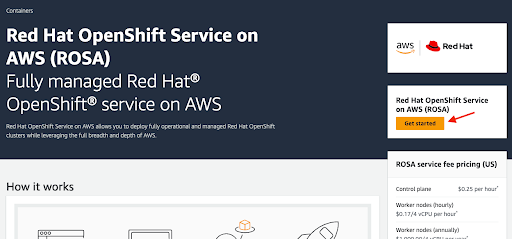
If you have activated Red Hat OpenShift Service on AWS before but did not complete the process, you can click the button and complete the account linking as described in the following steps.
Confirm that you want your contact information to be shared with Red Hat and enable the service:
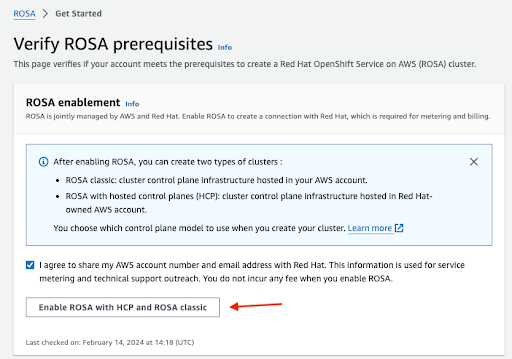
You are not charged by enabling the service in this step. The connection is made for billing and metering that takes place only after you deploy your first cluster. This could take a few minutes.
Verify that the process completed successfully by reviewing the confirmation message:
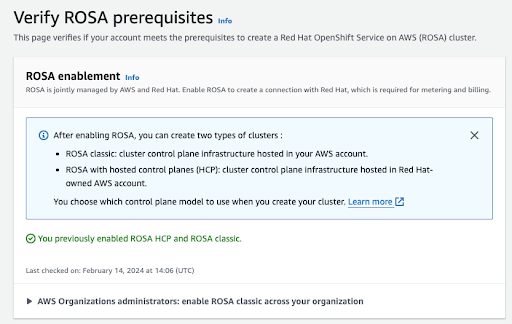
Check the status of additional prerequisites on this verification page. If any prerequisites are not met, a corresponding message is shown. The following is an example of insufficient quotas in the selected region:
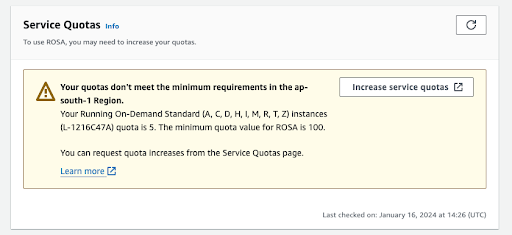
- Click the Increase service quotas button or use the Learn more link to get more information about how to manage service quotas. In the case of insufficient quotas, note that quotas are region-specific. You can use the region switcher to re-run the quota check for any region you are interested in and then submit service quota increase requests as needed.
Confirm that all the prerequisites are met:
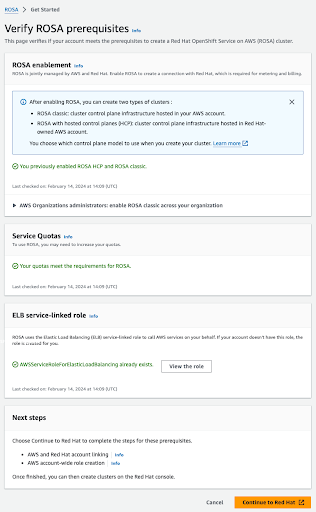
The Elastic Load Balancing (ELB) service-linked role is created for you automatically. You can click any of the small Info blue links to get context-sensitive help and resources.
2.2. Link AWS and Red Hat accounts and subscriptions
Link your AWS and Red Hat accounts to associate your Red Hat OpenShift Service on AWS subscription with a billing account.
Procedure
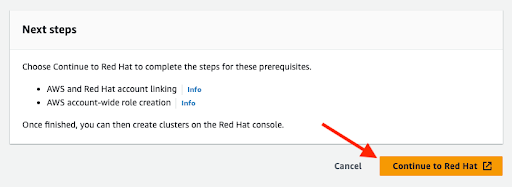
Click the Continue to Red Hat button to proceed with account linking:
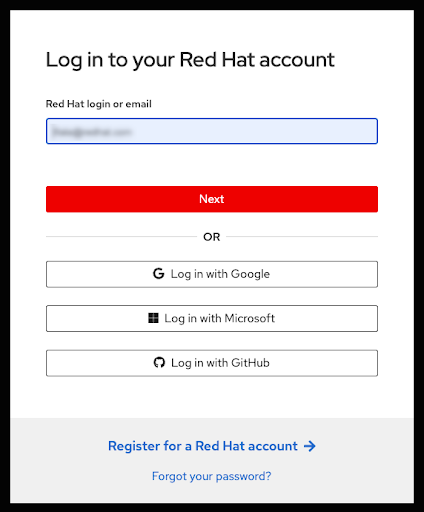
Log in to your Red Hat account, if prompted.
 Note
NoteYour AWS account must be linked to a single Red Hat organization.
- You can also register for a new Red Hat account or reset your password on this page.
- Log in to the Red Hat account that you want to associate with the AWS account that has activated the Red Hat OpenShift Service on AWS product subscription.
- The AWS account used for service billing can only be associated with a single Red Hat account. Typically, an AWS payer account is the one that is used to subscribe to Red Hat OpenShift Service on AWS and used for account linking and billing.
- All team members within the same Red Hat organization can use the linked AWS account for service billing while creating Red Hat OpenShift Service on AWS clusters.
Complete the Red Hat account linking after reviewing the terms and conditions.
NoteThis step is available only if the AWS account was not linked to any Red Hat account before.
This step is skipped if the AWS account is already linked to the user’s logged in Red Hat account.
If the AWS account is linked to a different Red Hat account, an error is displayed. See Correcting Billing Account Information for HCP clusters for troubleshooting.
On the Complete your account connection page, verify that the Red Hat and AWS account numbers are correct.
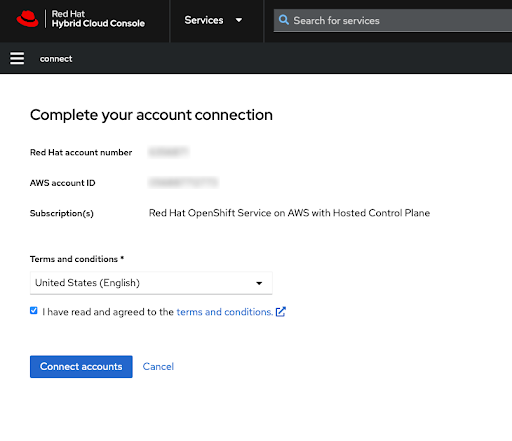
Click the Connect accounts button if you agree with the service terms.
If this is the first time you are using the Red Hat Hybrid Cloud Console, you must agree with the general managed services terms and conditions before creating the first cluster:
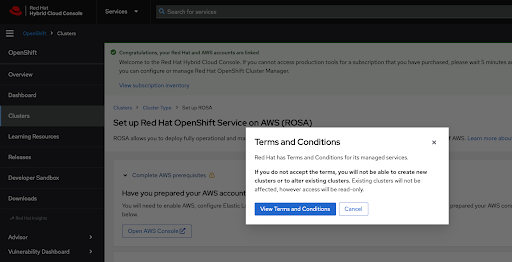
Additional terms that need to be reviewed and accepted are shown after clicking the View Terms and Conditions button:
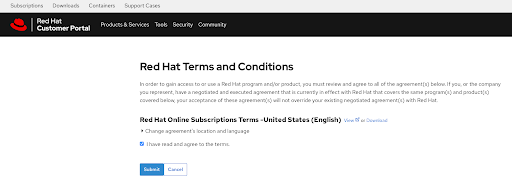
Submit your agreement once you have reviewed any additional terms when prompted at this time.
The Hybrid Cloud Console provides a confirmation that AWS account setup was completed and lists the prerequisites for cluster deployment:
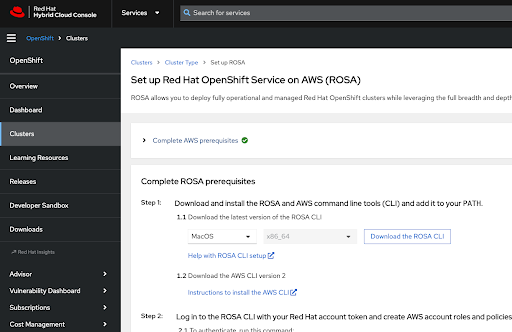
The last section of this page shows cluster deployment options, either using the ROSA command-line interface (CLI) (
rosa) or through the web console: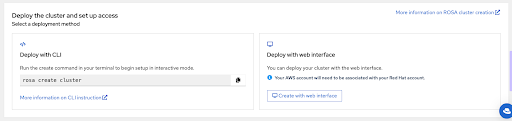
2.3. Select the AWS billing account during cluster deployment using the CLI
When deploying your cluster using ROSA command-line interface (CLI) (rosa), you must select the correct AWS billing account for Red Hat OpenShift Service on AWS.
Prerequisites
-
You have installed the most recent
rosaCLI. - You have installed the most recent AWS CLI.
- You have completed the steps in Link AWS and Red Hat accounts and subscriptions.
Procedure
Initiate the cluster deployment using the
rosa create clustercommand. You can click the copy button on the Set up Red Hat OpenShift Service on AWS console page and paste the command in your terminal. This launches the cluster creation process in interactive mode.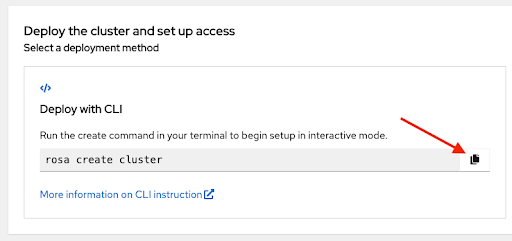
Optional: Add the
--profile <profile_name>option to therosa create clustercommand to use a non-default profile from your~/.aws/credentialsfile, for example:$ rosa create cluster --profile stageIf no profile is specified, the default AWS CLI profile determines the AWS infrastructure profile into which the cluster is deployed.
Specify the billing AWS account.
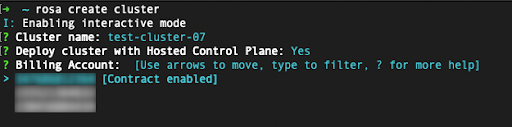
- Only AWS accounts that are linked to the user’s logged in Red Hat account are shown.
- The specified AWS account is charged for using the Red Hat OpenShift Service on AWS service.
An indicator shows if the Red Hat OpenShift Service on AWS contract is enabled or not enabled for a given AWS billing account.
- If you select an AWS billing account that shows the Contract enabled label, on-demand consumption rates are charged only after the capacity of your pre-paid contract is consumed.
- AWS accounts without the Contract enabled label are charged the applicable on-demand consumption rates.
2.4. Select the AWS billing account during cluster deployment using the web console
When deploying your cluster using OpenShift Cluster Manager, you must select the correct AWS billing account for Red Hat OpenShift Service on AWS.
Procedure
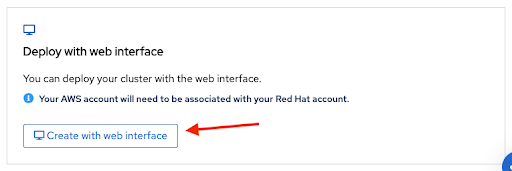
To start creating a cluster, select Create with web interface of the introductory Set up Red Hat OpenShift Service on AWS page.
 Note
NoteComplete the prerequisites before starting the web console deployment process.
The ROSA command-line interface (CLI) (
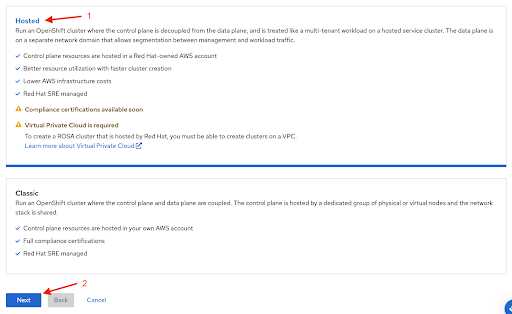
rosa) is required for certain tasks, such as creating the account roles. If you are deploying Red Hat OpenShift Service on AWS for the first time, follow the CLI steps until running therosa whoamicommand, before starting the web console deployment steps.Select the Hosted control plane option, then click Next.
In the next step Accounts and roles, specify the infrastructure AWS account, into which the Red Hat OpenShift Service on AWS cluster is deployed and where the resources are consumed and managed.
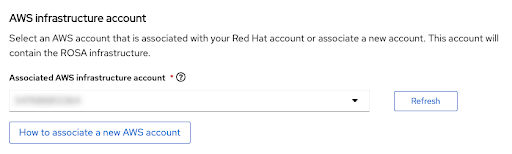
- Click the How to associate a new AWS account, if you don’t see the account into which you want to deploy the Red Hat OpenShift Service on AWS cluster for detailed information on how to create or link account roles for this association.
-
The
rosaCLI is used for this. -
If you are using multiple AWS accounts and have their profiles configured for the AWS CLI, you can use the
--profileselector to specify the AWS profile when working with therosaCLI commands.
Select the AWS billing account.
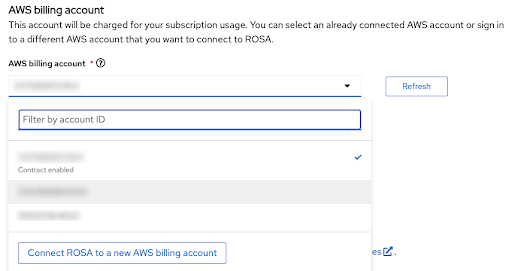
- Only AWS accounts that are linked to the user’s logged in Red Hat account are shown.
- The specified AWS account is charged for using the Red Hat OpenShift Service on AWS service.
An indicator shows if the Red Hat OpenShift Service on AWS contract is enabled or not enabled for a given AWS billing account.
- If you select an AWS billing account that shows the Contract enabled label, on-demand consumption rates are charged only after the capacity of your pre-paid contract is consumed.
AWS accounts without the Contract enabled label are charged the applicable on-demand consumption rates.
NoteThe following steps past the billing AWS account selection are beyond the scope of this tutorial.

'%20d='M201.5%20305.5c-13.8%200-24.9-11.1-24.9-24.6%200-13.8%2011.1-24.9%2024.9-24.9%2013.6%200%2024.6%2011.1%2024.6%2024.9%200%2013.6-11.1%2024.6-24.6%2024.6zM504%20256c0%20137-111%20248-248%20248S8%20393%208%20256%20119%208%20256%208s248%20111%20248%20248zm-132.3-41.2c-9.4%200-17.7%203.9-23.8%2010-22.4-15.5-52.6-25.5-86.1-26.6l17.4-78.3%2055.4%2012.5c0%2013.6%2011.1%2024.6%2024.6%2024.6%2013.8%200%2024.9-11.3%2024.9-24.9s-11.1-24.9-24.9-24.9c-9.7%200-18%205.8-22.1%2013.8l-61.2-13.6c-3-.8-6.1%201.4-6.9%204.4l-19.1%2086.4c-33.2%201.4-63.1%2011.3-85.5%2026.8-6.1-6.4-14.7-10.2-24.1-10.2-34.9%200-46.3%2046.9-14.4%2062.8-1.1%205-1.7%2010.2-1.7%2015.5%200%2052.6%2059.2%2095.2%20132%2095.2%2073.1%200%20132.3-42.6%20132.3-95.2%200-5.3-.6-10.8-1.9-15.8%2031.3-16%2019.8-62.5-14.9-62.5zM302.8%20331c-18.2%2018.2-76.1%2017.9-93.6%200-2.2-2.2-6.1-2.2-8.3%200-2.5%202.5-2.5%206.4%200%208.6%2022.8%2022.8%2087.3%2022.8%20110.2%200%202.5-2.2%202.5-6.1%200-8.6-2.2-2.2-6.1-2.2-8.3%200zm7.7-75c-13.6%200-24.6%2011.1-24.6%2024.9%200%2013.6%2011.1%2024.6%2024.6%2024.6%2013.8%200%2024.9-11.1%2024.9-24.6%200-13.8-11-24.9-24.9-24.9z'/%3e%3c/svg%3e)