Secure Red Hat user accounts with two-factor authentication (2FA)
Red Hat allows users to enable two-factor authentication (2FA) as an additional layer of security for logging in to their Red Hat user accounts.
To ensure Red Hat account access is restricted to the intended user, you can add an extra layer of protection beyond just a password. When two-factor authentication is enabled, you use your password plus a one-time code to log in to your account. Utilizing these two authentication factors ensures that even if an unauthorized individual finds your password, they still can not access your account. For daily access, use an authenticator app on your smartphone to instantly generate a one-time code. Alternatively, generate a list of backup recovery codes to use in case you can not access the authenticator app on your smartphone.
Customers have two options for securing Red Hat user accounts with 2FA:
- Organizational two-factor authentication. Require all users who belong to a specific organization account to use two factors each time they authenticate by enabling two-factor authentication for the organization. Users will be prompted to enable two-factor authentication upon the first log in attempt after the organization account is enrolled.
Note The Organization Administrator for an account can enable organization-wide two-factor authentication. When enabled, all users on that account must use two-factor authentication for authentication when they log in. - Individual opt-in two-factor authentication. Offer individual users the option to enable or disable two-factor authentication for their Red Hat account.
Note When organizational two-factor authentication is turned on, individual users cannot disable it.
Token support for 2FA one-time codes is limited to smartphones or other devices that can install either of the following applications from the Apple App Store or the Google Play Store:
- Google Authenticator
- FreeOTP Authenticator
Google Authenticator and FreeOTP Authenticator are the only supported token generators. Hardware tokens, SMS (text-message) tokens, and other apps are not supported.
Require two-factor authentication (2FA) for all users in your organization
To promote the security of Red Hat user accounts associated with your organization, the Organization Administrator can enable a two-factor authentication requirement for all users in the organization.
Before you begin
- Ensure you are using a registered Red Hat account with Organization Administrator permissions.
Procedure
- Log in to Red Hat Hybrid Cloud Console as a user who has Organization Administrator permission.
- From the home page after you log in, click ⚙ (Settings).
- Click Authentication Policy.
- When the Authentication Policy window appears, click Authentication Factors.
- On the Authentication factors page, check Enable two-factor authentication for your organization.
- Click Save.
Results
Set up two-factor authentication (2FA) for your individual Red Hat account
To secure your individual Red Hat user account when organization-wide two-factor authentication is not required, you will need to enable 2FA and set up an authenticator app on your smartphone or other device.
Before you begin
- Ensure you are using a registered Red Hat user account.
- Ensure you have a smartphone or other device with the Google Authenticator app or the FreeOTP app installed.
Procedure
Results
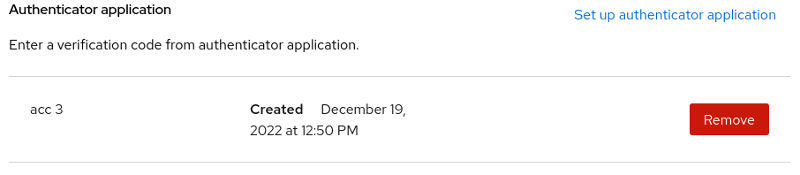
The Signing In page opens when the authenticator app was set up and any optional name you gave to the app.
Remove your two-factor authentication (2FA) requirement
You can remove the two-factor authentication for your Red Hat user account.
Before you begin
- Ensure you have a registered Red Hat user account with two-factor authentication enabled..
- Ensure you have a smartphone or other device with the Google Authenticator app or the FreeOTP app installed.
Procedure
Manage alternative authentication options
A recovery code can be used as an alternative authentication factor if your authenticator app is not available.
When updating your signing in options, you might be asked to log in again. This is a normal added security measure. If you cannot successfully log in to your Red Hat account with recovery codes enabled, contact Red Hat Support for assistance in resetting your account.
When you set up recovery codes, you get a list of codes that are unique to your login. Each code can be used once, and the system tracks each code as it is used. You can also remove the recovery codes for your user account.
Create recovery codes for two-factor authentication (2FA)
You can use a recovery code to authenticate and log in to your account if you lose your authenticator device or your authenticator app is not available. Create recovery codes after you enable two-factor authentication for your account.
Before you begin
- Enable two-factor authentication for your account.
Set up two-factor authentication (2FA) for your individual Red Hat account
Procedure
-
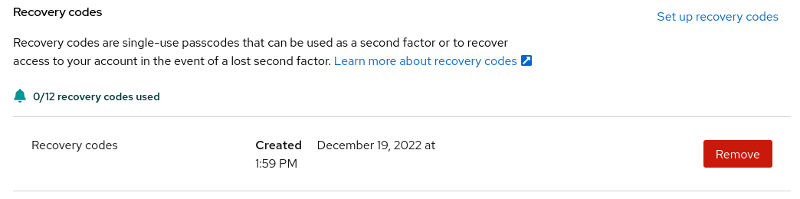
The Signing in page verifies when you created the recovery codes and how many have been used.
Remove recovery codes for two-factor authentication (2FA)
You can remove existing recovery codes from your Red Hat account. If you remove recovery codes for codes completely, you do not recieve the option to "Use a recovery code instead" when attempting to log in to your Red Hat account.
Before you begin
- Ensure you have created recovery codes for your Red Hat account.
- Confirm that you can log in to your user account.
Procedure
-
Click Remove.
After you remove recovery codes, you can create a new set.
Access your account securely
When two-factor authentication is enabled and configured, you can use an authenticator application or a recovery code to securely log in to your Red Hat account. This process provides a second layer of authentication to ensure that only authorized users can access the account.
Sign in to your account with your 2FA authenticator application
Use a one-time code provided by your authenticator app to log in to your Red Hat user account on any Red Hat site, such as Red Hat Customer Portal.
Before you begin
- Ensure you have a registered Red Hat user account with two-factor authentication enabled.
Set up two-factor authentication (2FA) for your individual Red Hat account
- Ensure you have a smartphone or other device with the Google Authenticator app or the FreeOTP app installed.
Procedure
If the 6-digit one-time code is not accepted, you will remain on the verification page. You can try the following actions:
- Wait a few seconds and enter a new code from your authenticator app.
- If you have more than one token enabled in your authenticator app, make sure you are using the token for your Red Hat account. For example, you might have two-factor authentication tokens for a Google account, a banking account, and a Red Hat account.
- If you cannot successfully log in to your Red Hat with two-factor authentication enabled, contact Red Hat Support for assistance in resetting your account.
Sign in to your account with your 2FA recovery codes
Use a recovery code to log in to your Red Hat account if your authentication device is not available.
Before you begin
- Ensure you have a registered Red Hat user account with two-factor authentication enabled.
Set up two-factor authentication (2FA) for your individual Red Hat account
- Ensure you have access to your recovery codes.
Procedure
Verify your information for account recovery
Red Hat requires a verified email and phone number to ensure you have reliable recovery options for your account.
To proceed with two-factor authentication, ensure your account has a verified email and phone number. This information is required in order for Red Hat Customer Service to assist you with the account recovery process should you lose access.
Verify your email information
You may receive an email verification request while logging in to a Red Hat portal. Follow the steps to verify your email address when this request appears:
Before you begin
- Ensure you have a registered Red Hat user account.
- Ensure you have an email address where you can receive a verification notice.
- Confirm that you receive an email verification request notice when you log in to a Red Hat platform.
Procedure
- Log in to your Red Hat user account.
- When a verification alert message appears, click Resend verification email if you have not yet received a verification email.
-
Check your email for an email verification message from
no-reply@redhat.com. - Follow the instructions in the email for verifying your email address.
- When you complete the instructions, a verification window appears.
Verify your phone information
You may receive a phone number verification request while logging in to a Red Hat portal. Follow the steps to verify your phone number when this request appears:
Before you begin
- Ensure you have a registered Red Hat user account.
- Ensure you have a phone number where you can receive direct voice calls.
- Confirm that you receive a phone number verification request when you log in to a Red Hat platform.
About this task
Procedure
- Log in to your Red Hat user account, and navigate to the Account details page.
- Enter your contact phone number, including any country code, in the verification window.
- Click Submit.
Recover account access
You can revoke the two-factor authentication requirement on your Red Hat account if both your authenticator application and recovery codes are unavailable and you have no other way to log in to your account.
Red Hat Customer Service can quickly revoke two-factor authentication with a phone call or seven-day email response after you create a support ticket.
Revoke two-factor authentication (2FA) via phone
To quickly revoke two-factor authentication on your account, you must be reachable by phone. If you can not accept a return call from Red Hat Customer Service, the two-factor authentication on your account can not be quickly revoked.
Before you begin
- Ensure you are reachable at the phone number registered to your account.
- See Verify your phone information for information about setting up your contact information.
Account verification through a phone call from Red Hat Customer Service to your account phone number is the only method approved by the Red Hat security teams for quickly allowing two-factor authentication settings to be revoked. There are no exceptions to this process.
Procedure
- Contact Red Hat Customer Service to open a support ticket to revoke your two-factor authentication.
- After a support ticket is opened and assigned, Red Hat Customer Service places a call to the phone number of record for your account. This two-step process with outgoing call confirmation protects the security of your account. It is the only method approved by the Red Hat security team that allows two-factor authentication settings to be revoked by phone.
- After two-factor authentication is revoked, you can log in using your valid password. Depending on your organization policy, you might be required to reenable two-factor authentication after you log in.
Revoke two-factor authentication (2FA) via email
When you cannot accept a call to the phone number of record for your account, the Red Hat Customer Service team sends an email notification to the email address associated with your account.
Before you begin
- Without a phone contact, Red Hat support sends an email to the address registered to your account.
- See Verify your email information for information about setting up your contact information.
Procedure
- Contact Red Hat Customer Service to open a support ticket to revoke your two-factor authentication.
- After a support ticket is opened and assigned, Red Hat Customer Service will attempt to contact you by phone at the number registered to your account.
- When you can’t be reached by phone, Red Hat Customer Service sends an email to the address registered to your account.
- The account holder is notified that two-factor authentication will be revoked in 7 days. You can reply to the notification email if you decide you do not want two-factor authentication revoked.
- After two-factor authentication is revoked, you can log in using your valid password. Depending on your organization policy, you might be required to reenable two-factor authentication after you log in.

'%20d='M201.5%20305.5c-13.8%200-24.9-11.1-24.9-24.6%200-13.8%2011.1-24.9%2024.9-24.9%2013.6%200%2024.6%2011.1%2024.6%2024.9%200%2013.6-11.1%2024.6-24.6%2024.6zM504%20256c0%20137-111%20248-248%20248S8%20393%208%20256%20119%208%20256%208s248%20111%20248%20248zm-132.3-41.2c-9.4%200-17.7%203.9-23.8%2010-22.4-15.5-52.6-25.5-86.1-26.6l17.4-78.3%2055.4%2012.5c0%2013.6%2011.1%2024.6%2024.6%2024.6%2013.8%200%2024.9-11.3%2024.9-24.9s-11.1-24.9-24.9-24.9c-9.7%200-18%205.8-22.1%2013.8l-61.2-13.6c-3-.8-6.1%201.4-6.9%204.4l-19.1%2086.4c-33.2%201.4-63.1%2011.3-85.5%2026.8-6.1-6.4-14.7-10.2-24.1-10.2-34.9%200-46.3%2046.9-14.4%2062.8-1.1%205-1.7%2010.2-1.7%2015.5%200%2052.6%2059.2%2095.2%20132%2095.2%2073.1%200%20132.3-42.6%20132.3-95.2%200-5.3-.6-10.8-1.9-15.8%2031.3-16%2019.8-62.5-14.9-62.5zM302.8%20331c-18.2%2018.2-76.1%2017.9-93.6%200-2.2-2.2-6.1-2.2-8.3%200-2.5%202.5-2.5%206.4%200%208.6%2022.8%2022.8%2087.3%2022.8%20110.2%200%202.5-2.2%202.5-6.1%200-8.6-2.2-2.2-6.1-2.2-8.3%200zm7.7-75c-13.6%200-24.6%2011.1-24.6%2024.9%200%2013.6%2011.1%2024.6%2024.6%2024.6%2013.8%200%2024.9-11.1%2024.9-24.6%200-13.8-11-24.9-24.9-24.9z'/%3e%3c/svg%3e)