Chapter 6. Ensuring system integrity with Keylime
With Keylime, you can continuously monitor the integrity of remote systems and verify the state of systems at boot. You can also send encrypted files to the monitored systems, and specify automated actions triggered whenever a monitored system fails the integrity test.
6.1. Remote system integrity monitoring
To quickly detect unauthorized changes and verify that your remote infrastructure is in a trusted state, use Keylime to monitor system integrity. With Keylime, you can continuously validate your systems by comparing measurements of boot components and runtime files against a known-good baseline.
6.1.1. Components and mechanisms for remote system validation
To establish a trusted cryptographic foundation for remote attestation in RHEL, you rely on the Keylime architecture. Its core components, the verifier, registrar, tenant, and agent, interact with Trusted Platform Module (TPM) technology to dynamically build and maintain a continuous chain of trust.
A TPM acts as the root of this trust. It is a hardware, firmware, or virtual component with integrated cryptographic keys.
Keylime running in a virtual machine or using a virtual TPM depends upon the integrity of the underlying host. Ensure you trust the host environment before relying upon Keylime measurements in a virtual environment.
To achieve your system security goals, you can configure agents to perform the following monitoring actions:
- Verify system state at boot
- Keylime measured boot verifies the system state when the system boots.
- Continuously monitor runtime integrity
- Keylime runtime integrity monitoring continuously monitors the system where the agent is deployed and measures the integrity of the files included in the allowlist and not included in the excludelist.
To perform these actions, the system relies on three main components:
- Verifier
-
Initially and continuously verifies the integrity of the systems that run the agent. You can deploy the verifier from a package, as a container, or by using the
keylime_serverRHEL system role. - Registrar
-
Serves as a secure database that stores the unique TPM identity data for all registered agents, including their Endorsement Key (EK), Attestation Key (AK), and related identification certificates. You can deploy the registrar from a package, as a container, or by using the
keylime_serverRHEL system role. - Agent
- Deployed to the remote systems that are measured by the verifier.
In addition, you can use the keylime_tenant utility for many functions, including provisioning the agents on your target systems.
6.1.2. Keylime attestation models for remote monitoring
To establish a trusted remote monitoring strategy for your infrastructure, you use either the pull or push attestation model. You achieve the same goal of system integrity validation with either option, although they operate by using different network mechanics and scaling behaviors.
- The pull model
Traditional Keylime attestation uses the pull model, where the verifier service initiates the attestation process by periodically polling remote systems. The verifier establishes an inbound network connection to the Keylime agent to retrieve Trusted Platform Module (TPM) quotes, Integrity Measurement Architecture (IMA) logs, and the UEFI event log. The pull model uses mutual TLS (mTLS) authentication to ensure secure communication between Keylime components. The verifier holds the connection open while retrieving and evaluating the measurements. It validates the TPM quote by checking its cryptographic signature against the agent’s registered attestation key, which confirms that the reported PCR values are authentic and untampered. It then replays each event log to reconstruct expected PCR values and compares them against the values reported in the quote. During UEFI event log evaluation, the verifier validates the boot sequence by checking each boot component measurement against a reference state. When evaluating the IMA log, it detects unauthorized or modified software by comparing recorded file measurements against the runtime policy. If any reconstructed PCR value does not match the quote, or if any measurement fails a policy check, the attestation fails.
The pull model provides almost instant detection of network or Keylime agent failures, but it requires each monitored node to be reachable and have the necessary inbound ports open. By using this model, you can also deploy secure payloads to send encrypted information or configuration files to agents as soon as they are verified.
Figure 6.1. Connections between Keylime components through configurations in the pull model

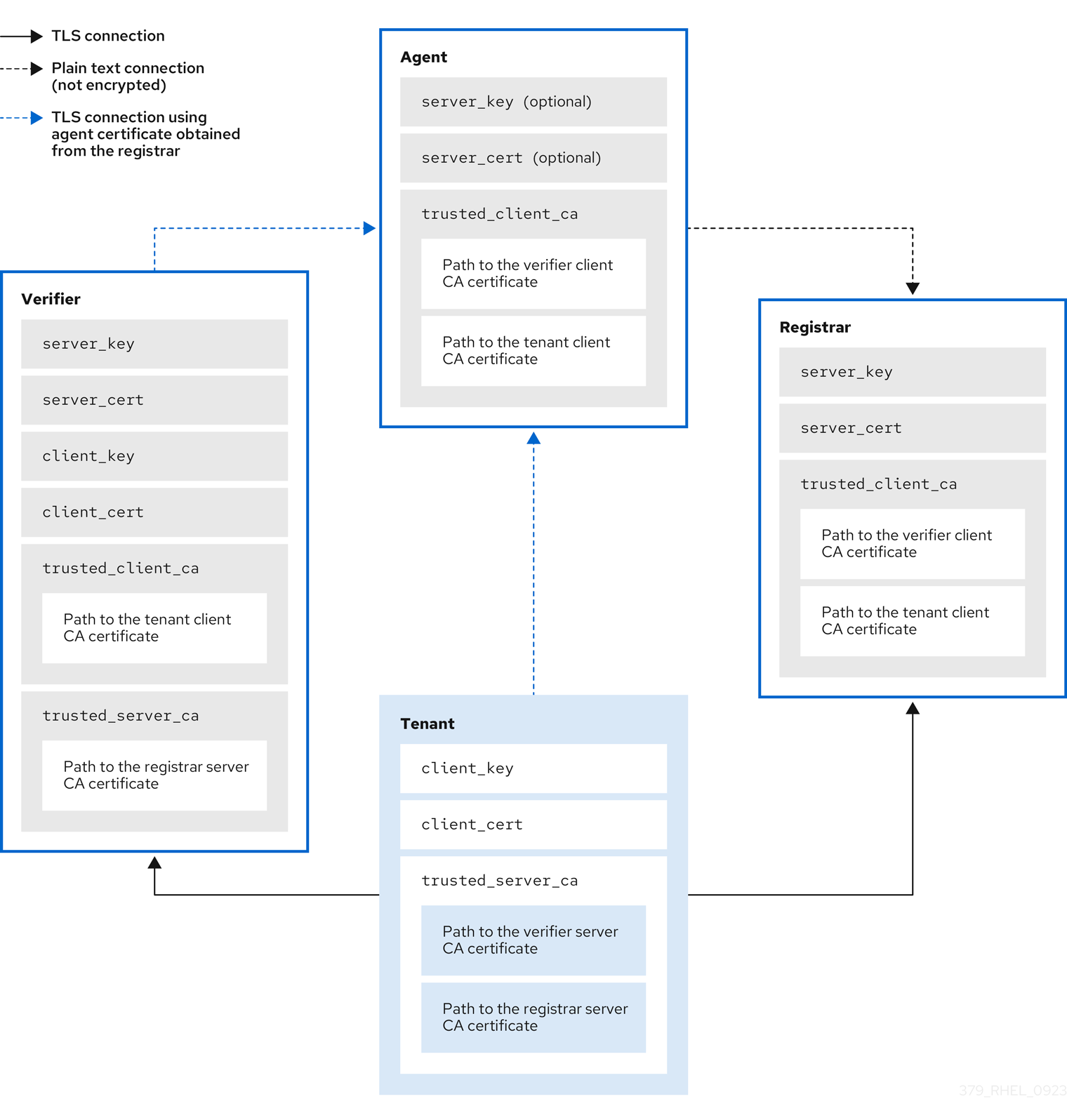
Keylime ensures the integrity of the monitored systems in a chain of trust by using keys and certificates exchanged between the components and the tenant. For a secure foundation of this chain, use a certificate authority (CA) that you can trust.
NoteIf the agent receives no key and certificate, it generates a key and a self-signed certificate with no involvement from the CA.
Figure 6.2. Connections between Keylime components certificates and keys in the pull model
- The push model
In push model attestation, the Keylime verifier operates as a passive validator. The Keylime agent service initiates the attestation process by sending measurements to the verifier at a defined interval. The agent establishes an outbound connection to the verifier to provide the necessary TPM quotes, IMA logs, and the UEFI event log. The push model uses a TPM challenge-and-response process, Proof of Possession (PoP), to verify agent authenticity. Unlike in the pull model, the verifier acknowledges receipt of the data immediately and processes attestation results independently. It validates the TPM quote by checking its cryptographic signature against the agent’s registered attestation key, which confirms that the reported PCR values are authentic and untampered. It then replays each event log to reconstruct expected PCR values and compares them against the values reported in the quote. During UEFI event log evaluation, the verifier validates the boot sequence by checking each boot component measurement against a reference state. When evaluating the IMA log, it detects unauthorized or modified software by comparing recorded file measurements against the runtime policy. If any reconstructed PCR value does not match the quote, or if any measurement fails a policy check, the attestation fails.
The verifier never connects to the agent, which makes the push model suitable specifically for edge computing and NAT-protected environments where the verifier service cannot directly reach the remote systems. Although the push model increases security by removing inbound ports, it does not support the delivery of secure payloads.
Figure 6.3. Connections between Keylime components certificates and keys in the push model

Figure 6.4. Differences between network configuration for the pull and push model

The technical specifications for each model detail their operational differences.
| Attribute | Pull model (default) | Push model |
|---|---|---|
| Initiator | The Keylime verifier requests data from the Keylime agent | The Keylime agent sends data to the Keylime verifier |
| Agent package |
|
|
| Network direction | Inbound to the Keylime agent (port 9002) | Inbound to the Keylime verifier (port 8881) |
| Agent listening port | Yes (9002 must be open) | No |
| Scalability | Limited by verifier’s polling capacity | High (load is distributed across agents) |
| Real-time detection | Immediate (verifier knows if poll fails) | Delayed (based on timeouts) |
| API version | REST API 2.x | REST API 3.0 (asynchronous) |
6.1.3. Considerations for choosing the right Keylime attestation model
To determine the best fit for your architecture, from stable data centers to edge deployments, you can assess how specific network use cases and environmental factors align with each Keylime attestation model. This choice directly affects how you configure the verifier and agents.
The pull model is best suited for environments where the network is managed, stable, and transparent.
- Corporate data centers: Best for servers on a flat, internal network where the verifier has direct access to every node.
- Isolated air-gapped networks: Ideal for high-security environments where the verifier strictly controls all communication.
- Secret and script delivery (secure payloads): Required if the verifier must deliver sensitive configuration files, keys, or scripts to the agent immediately after a successful attestation.
- Centralized monitoring architecture: Preferred when integrating with existing infrastructure management tools that rely on a central server to poll or ping clients for status updates.
- Real-time failure forensics: Used when the verifier must immediately detect a network drop or an agent service failure, which is critical for high-availability systems.
The push model is designed for distributed, restricted, or dynamic network architectures.
- Edge and Internet of Things (IoT) deployments: Ideal for devices in remote branches or field locations that must connect to the verifier through external gateways.
- Cloud instances behind NAT: Used for virtual machines in public clouds that have outbound internet access but lack a public IP address for inbound connections.
- Zero trust device onboarding: Best for environments where devices must prove their integrity to a central service before receiving access to network resources.
- Hardened stealth nodes: Used when security policies forbid any listening services or open inbound ports on the monitored system to minimize the attack surface.
- Massively scalable fleets: Preferred for environments with tens of thousands of agents, because it offloads the scheduling and timing tasks from the verifier to the individual nodes.
- Dynamic network environments: Ideal for mobile devices or systems with frequently changing IP addresses, because the agent initiates the connection regardless of its current network location.
The following factors determine whether to use the pull or push attestation model:
| Decision factor | Pull model (default) | Push model |
|---|---|---|
| Network reachability | Requires direct network access from the verifier to agents. | Works across complex network topologies, NATs, and firewalls. |
| Inbound firewall requirements | Requires opening an inbound port on each agent node. | Requires no open inbound ports on agent nodes. |
| Scalability | Lower (the verifier manages polling timers and connection load for every agent) | Higher (attestation scheduling is offloaded to agents, which increases fleet capacity) |
| Failure detection | Active polling (verifier detects unreachable agents during scheduled polls) | Timeout-based (verifier flags agents that miss scheduled push intervals) |
| Deployment environment | Static data centers with fixed IP addresses | Edge, IoT, dynamic, and public cloud environments |
6.2. Deploying Keylime verifier from a package
Deploy the Keylime verifier from a package to establish the core integrity monitoring component. The verifier acts as the verification authority for target systems - agents.
The verifier is the most critical component in Keylime. It performs initial and periodic checks of system integrity to ensure that monitored agents remain in a trusted state. In the pull model, the verifier also supports bootstrapping cryptographic keys and secure payloads with the agent.
The behavior of the Keylime verifier depends on the selected attestation model:
- Pull model
- The verifier actively polls the agent. It initiates an outbound connection and waits for a response before evaluating the measurements.
- Push model
- The verifier acts as a listener for inbound connections from agents. It accepts the incoming data, acknowledges it immediately, and evaluates the measurements independently. This decoupled approach allows the verifier to handle a significantly higher volume of requests without keeping connections open while processing the data.
To maintain the chain of trust, keep the system that runs the verifier secure and under your control.
You can install the verifier on a separate system or on the same system as the Keylime registrar, depending on your requirements. Running the verifier and registrar on separate systems provides better performance.
To keep the configuration files organized within the drop-in directories, use file names with a two-digit number prefix, for example /etc/keylime/verifier.conf.d/00-verifier-ip.conf. The configuration processing reads the files inside the drop-in directory in lexicographic order and sets each option to the last value it reads.
Prerequisites
-
You have
rootpermissions and network connection to the system or systems on which you want to install Keylime components. - You have valid keys and certificates from your certificate authority.
If you use pull model attestation:
- The verifier’s host has outbound access to all monitored agents on port 9002.
- The verifier’s host is reachable on port 8881 by the tenant.
- The verifier has both server and client certificates for mTLS.
If you use push model attestation:
- The verifier’s host is reachable on port 8881 by all monitored agents and the tenant.
- The verifier has a server certificate to prove its own identity to agents.
Optional: You have access to the databases where Keylime saves data from the verifier. You can use any of the following database management systems:
- SQLite (default)
- PostgreSQL
- MySQL
- MariaDB
Procedure
Install the Keylime verifier:
# dnf install keylime-verifierDefine the IP address and port of verifier by creating a new
.conffile in the/etc/keylime/verifier.conf.d/directory, for example,/etc/keylime/verifier.conf.d/00-verifier-ip.conf, with the following content:[verifier] ip = <verifier_IP_address>-
Replace
<verifier_IP_address>with the verifier’s IP address. Alternatively, useip = *orip = 0.0.0.0to bind the verifier to all available IP addresses. -
Optionally, you can also change the verifier’s port from the default value
8881by using theportoption.
-
Replace
Optional: Configure the verifier’s database. The default configuration uses an SQLite database in the verifier’s
/var/lib/keylime/cv_data.sqlite/directory. You can define a different database by creating a new.conffile in the/etc/keylime/verifier.conf.d/directory, for example,/etc/keylime/verifier.conf.d/00-db-url.conf, with the following content:[verifier] database_url = <protocol>://<name>:<password>@<ip_address_or_hostname>/<properties>Replace
<protocol>://<name>:<password>@<ip_address_or_hostname>/<properties>with the URL of the database, for example,postgresql://verifier:UQ?nRNY9g7GZzN7@198.51.100.1/verifierdb.Ensure that the credentials you use provide the permissions for Keylime to create the database structure.
Add certificates and keys to the verifier. You can either let Keylime generate them, or use existing keys and certificates:
-
With the default
tls_dir = generateoption, Keylime generates new certificates for the verifier, registrar, and tenant in the/var/lib/keylime/cv_ca/directory. To load existing keys and certificates in the configuration, define their location in the verifier configuration. The certificates must be accessible by the
keylimeuser, under which the Keylime services are running.Create a new
.conffile in the/etc/keylime/verifier.conf.d/directory, for example,/etc/keylime/verifier.conf.d/00-keys-and-certs.conf, with the following content:[verifier] tls_dir = /var/lib/keylime/cv_ca server_key = </path/to/server_key> server_key_password = <passphrase1> server_cert = </path/to/server_cert> trusted_client_ca = ['</path/to/ca/cert1>', '</path/to/ca/cert2>'] client_key = </path/to/client_key> client_key_password = <passphrase2> client_cert = </path/to/client_cert> trusted_server_ca = ['</path/to/ca/cert3>', '</path/to/ca/cert4>']NoteUse absolute paths to define key and certificate locations. Alternatively, relative paths are resolved from the directory defined in the
tls_diroption.
-
With the default
For push model only: Configure the verifier for the push model attestation.
NoteThe mode setting affects all agents on the verifier. A verifier in push mode expects agents to submit attestation data, it does not poll agents. A single verifier cannot operate in both modes simultaneously.
You can either use a drop-in configuration file, set the mode in the verifier’s configuration file, or use an environment variable:
Set the verifier’s
modeoption by creating a new.conffile in the/etc/keylime/verifier.conf.d/directory, for example,/etc/keylime/verifier.conf.d/00-push-mode.conf, with the following content:[verifier] mode = pushSet the verifier’s
modeoption topushin the./etc/keylime/verifier.conffile:[verifier] mode = pushTo configure the verifier by using environment variable, inject the variable directly into the
systemdservice environment.Open the
systemdconfiguration editor for the verifier service:# systemctl edit keylime_verifierAdd the variable to the
Serviceenvironment:[Service] Environment="KEYLIME_VERIFIER_MODE=push"After you save the changes, the
systemdservice automatically updates and reloads the modified verifier service profile.
Open the port in firewall:
# firewall-cmd --add-port 8881/tcp
# firewall-cmd --runtime-to-permanent
If you use a different port, replace
8881with the port number defined in the.conffile.Start the verifier service:
# systemctl enable --now keylime_verifierNoteIn the default configuration, start the
keylime_verifierbefore starting thekeylime_registrarservice because the verifier creates the CA and certificates for the other Keylime components. This order is not necessary when you use custom certificates.
Verification
Check that the
keylime_verifierservice is active and running:# systemctl status keylime_verifierkeylime_verifier.service - The Keylime verifier Loaded: loaded (/usr/lib/systemd/system/keylime_verifier.service; disabled; vendor preset: disabled) Active: active (running) since Wed 2022-11-09 10:10:08 EST; 1min 45s agoFor push model only: Check that the verifier is configured for push model attestation:
# journalctl -u keylime_verifier -b
...
keylime.verifier - INFO - Starting Keylime verifier in PUSH mode...
...
Next steps
6.3. Deploying Keylime verifier as a container
Configure the Keylime verifier as a container instead of the RPM method, without any binaries or packages on the host. The container deployment provides better isolation, modularity, and reproducibility of Keylime components.
The Keylime verifier performs initial and periodic checks of system integrity to ensure monitored agents remain in a trusted state. In the pull model, the verifier also supports bootstrapping cryptographic keys and delivering secure payloads to the agent.
The behavior of the Keylime verifier depends on the selected attestation model:
- The pull model
- The verifier actively polls the agent. It initiates an outbound connection and waits for a response before evaluating the measurements.
- The push model
- The verifier acts as a listener for inbound connections from agents. It accepts the incoming data, acknowledges it immediately, and evaluates the measurements independently. This decoupled approach allows the verifier to handle a significantly higher volume of requests without keeping connections open while processing the data.
After you start the container, the Keylime verifier is deployed with default configuration files. You can customize the configuration by using one or more of following methods:
- Mounting the host’s directories that contain the configuration files to the container.
- Modifying the environment variables directly on the container. Modifying the environment variables overrides the values from the configuration files.
Prerequisites
-
The
podmanpackage and its dependencies are installed on the system. -
The user that executes
podmancommands has read access to the local configuration files and certificates that will be mounted into the container. If you use pull model attestation:
- The verifier’s host has outbound access to all monitored agents on port 9002.
- The verifier’s host is reachable on port 8881 by the tenant.
- The verifier has both server and client certificates for mTLS.
If you use push model attestation:
- The verifier’s host is reachable on port 8881 by all monitored agents and the tenant.
- The verifier has a server certificate to prove its own identity to agents.
Optional: You have access to a database where Keylime saves data from the verifier. You can use any of the following database management systems:
- SQLite (default)
- PostgreSQL
- MySQL
- MariaDB
- You have valid keys and certificates from your certificate authority.
Procedure
Optional: Install the
keylime-verifierpackage to access the configuration files. You can configure the container without this package, but it might be easier to modify the configuration files provided with the package.# dnf install keylime-verifierBind the verifier to all available IP addresses by creating a new
.conffile in the/etc/keylime/verifier.conf.d/directory, for example,/etc/keylime/verifier.conf.d/00-verifier-ip.conf, with the following content:[verifier] ip = *-
Optionally, you can also change the verifier’s port from the default value
8881by using theportoption.
-
Optionally, you can also change the verifier’s port from the default value
Optional: Configure the verifier’s database. The default configuration uses an SQLite database in the verifier’s
/var/lib/keylime/cv_data.sqlite/directory. You can define a different database by creating a new.conffile in the/etc/keylime/verifier.conf.d/directory, for example,/etc/keylime/verifier.conf.d/00-db-url.conf, with the following content:[verifier] database_url = <protocol>://<name>:<password>@<ip_address_or_hostname>/<properties>Replace
<protocol>://<name>:<password>@<ip_address_or_hostname>/<properties>with the URL of the database, for example,postgresql://verifier:UQ?nRNY9g7GZzN7@198.51.100.1/verifierdb.Ensure that the credentials you use have the permissions for Keylime to create the database structure.
Add certificates and keys to the verifier. You can either let Keylime generate them, or use existing keys and certificates:
-
With the default
tls_dir = generateoption, Keylime generates new certificates for the verifier, registrar, and tenant in the/var/lib/keylime/cv_ca/directory. To load existing keys and certificates in the configuration, define their location in the verifier configuration. The certificates must be accessible by the
keylimeuser, under which the Keylime processes are running.Create a new
.conffile in the/etc/keylime/verifier.conf.d/directory, for example,/etc/keylime/verifier.conf.d/00-keys-and-certs.conf, with the following content:[verifier] tls_dir = /var/lib/keylime/cv_ca server_key = </path/to/server_key> server_cert = </path/to/server_cert> trusted_client_ca = ['</path/to/ca/cert1>', '</path/to/ca/cert2>'] client_key = </path/to/client_key> client_cert = </path/to/client_cert> trusted_server_ca = ['</path/to/ca/cert3>', '</path/to/ca/cert4>']NoteUse absolute paths to define key and certificate locations. Alternatively, relative paths are resolved from the directory defined in the
tls_diroption.
-
With the default
For the push model only: Configure the verifier for the push model attestation.
NoteThe mode setting affects all agents on the verifier. A verifier in push mode expects agents to submit attestation data, it does not poll agents. A single verifier cannot operate in both modes simultaneously.
You can either use a drop-in configuration file, or set the mode in the verifier’s configuration file:
Set the verifier’s
modeoption by creating a new.conffile in the/etc/keylime/verifier.conf.d/directory, for example,/etc/keylime/verifier.conf.d/00-push-mode.conf, with the following content:[verifier] mode = pushSet the verifier’s
modeoption topushin the./etc/keylime/verifier.conffile:[verifier] mode = push
Open the port in firewall:
# firewall-cmd --add-port 8881/tcp
# firewall-cmd --runtime-to-permanent
If you use a different port, replace
8881with the port number defined in the.conffile.For the push model, the port must be open to the network segments where the agents are located.
Run the container:
In the push model:
$ podman run --name keylime-verifier \ -p 8881:8881 \ -v /etc/keylime/verifier.conf.d:/etc/keylime/verifier.conf.d:Z \ -v /var/lib/keylime/cv_ca:/var/lib/keylime/cv_ca:Z \ -d \ -e KEYLIME_VERIFIER_MODE=push registry.redhat.io/rhel10/keylime-verifier-
The
-poption opens the default port8881on the host and on the container. The
-voption creates a bind mount for the directory to the container.-
With the
Zoption, Podman marks the content with a private unshared label. This means only the current container can use the private volume.
-
With the
-
The
-doption runs the container detached and in the background. -
You can override configuration options with environment variables by using the option
-e KEYLIME_VERIFIER_<ENVIRONMENT_VARIABLE>_=<value>. To modify additional options, insert the-eoption separately for each environment variable. For a complete list of environment variables and their default values, see Keylime configuration.
-
The
In the pull model:
$ podman run --name keylime-verifier \ -p 8881:8881 \ -v /etc/keylime/verifier.conf.d:/etc/keylime/verifier.conf.d:Z \ -v /var/lib/keylime/cv_ca:/var/lib/keylime/cv_ca:Z \ -d \ -e KEYLIME_VERIFIER_SERVER_KEY_PASSWORD=<passphrase1> \ -e KEYLIME_VERIFIER_CLIENT_KEY_PASSWORD=<passphrase2> \ registry.redhat.io/rhel10/keylime-verifier-
The
-poption opens the default port8881on the host and on the container. The
-voption creates a bind mount for the directory to the container.-
With the
Zoption, Podman marks the content with a private unshared label. This means only the current container can use the private volume.
-
With the
-
The
-doption runs the container detached and in the background. -
The option
-e KEYLIME_VERIFIER_SERVER_KEY_PASSWORD=<passphrase1>defines the server key passphrase. -
The option
-e KEYLIME_VERIFIER_CLIENT_KEY_PASSWORD=<passphrase2>defines the client key passphrase. -
You can override configuration options with environment variables by using the option
-e KEYLIME_VERIFIER_<ENVIRONMENT_VARIABLE>=<value>. To modify additional options, insert the-eoption separately for each environment variable. For a complete list of environment variables and their default values, see Keylime configuration.
-
The
Verification
Check that the container is running:
$ podman ps -a
CONTAINER ID  IMAGE                                                     COMMAND           CREATED         STATUS         PORTS                   NAMES
80b6b9dbf57c  registry.redhat.io/rhel10/keylime-verifier:latest  keylime_verifier  14 seconds ago  Up 14 seconds  0.0.0.0:8881->8881/tcp  keylime-verifier
For the push model only: Check that the verifier is configured for the push model attestation:
# podman logs keylime-verifier | grep -i "push mode"
...
keylime.verifier - INFO - Starting Keylime verifier in PUSH mode...
...
Next steps
6.4. Deploying Keylime registrar from a package
Deploy the Keylime registrar from a package to securely store and manage identity and key information about agents. Keeping the registrar secure helps maintain the chain of trust.
The registrar is the Keylime component that contains a database of all agents, and it hosts the public keys of the TPM vendors. After the registrar’s HTTPS service accepts trusted platform module (TPM) public keys, it presents an interface to obtain these public keys for checking quotes.
To maintain the chain of trust, keep the system that runs the registrar secure and under your control.
You can install the registrar on a separate system or on the same system as the Keylime verifier, depending on your requirements. Running the verifier and registrar on separate systems provides better performance.
To keep the configuration files organized within the drop-in directories, use file names with a two-digit number prefix, for example /etc/keylime/registrar.conf.d/00-registrar-ip.conf. The configuration processing reads the files inside the drop-in directory in lexicographic order and sets each option to the last value it reads.
Prerequisites
- You have network access to the systems where the Keylime verifier is installed and running. For more information, see
Section 6.2, “Deploying Keylime verifier from a package”.
-
You have
rootpermissions and network connection to the system or systems on which you want to install Keylime components. You have access to the database where Keylime saves data from the registrar. You can use any of the following database management systems:
- SQLite (default)
- PostgreSQL
- MySQL
- MariaDB
- You have valid keys and certificates from your certificate authority.
Procedure
Install the Keylime registrar:
# dnf install keylime-registrarDefine the IP address and port of the registrar by creating a new
.conffile in the/etc/keylime/registrar.conf.d/directory, for example,/etc/keylime/registrar.conf.d/00-registrar-ip.conf, with the following content:[registrar] ip = <registrar_IP_address>-
Replace
<registrar_IP_address>with the registrar’s IP address. Alternatively, useip = *orip = 0.0.0.0to bind the registrar to all available IP addresses. -
Optionally, change the port to which the Keylime agents connect by using the
portoption. The default value is8890. -
Optionally, change the TLS port to which the Keylime verifier and tenant connect by using the
tls_portoption. The default value is8891.
-
Replace
Optional: Configure the registrar’s database for the list of agents. The default configuration uses an SQLite database in the registrar’s
/var/lib/keylime/reg_data.sqlitedirectory. You can create a new.conffile in the/etc/keylime/registrar.conf.d/directory, for example,/etc/keylime/registrar.conf.d/00-db-url.conf, with the following content:[registrar] database_url = <protocol>://<name>:<password>@<ip_address_or_hostname>/<properties>Replace
<protocol>://<name>:<password>@<ip_address_or_hostname>/<properties>with the URL of the database, for example,postgresql://registrar:EKYYX-bqY2?#raXm@198.51.100.1/registrardb.Ensure that the credentials you use have the permissions for Keylime to create the database structure.
Add certificates and keys to the registrar:
-
You can use the default configuration and load the keys and certificates to the
/var/lib/keylime/reg_ca/directory. Alternatively, you can define the location of the keys and certificates in the configuration. Create a new
.conffile in the/etc/keylime/registrar.conf.d/directory, for example,/etc/keylime/registrar.conf.d/00-keys-and-certs.conf, with the following content:[registrar] tls_dir = /var/lib/keylime/reg_ca server_key = </path/to/server_key> server_key_password = <passphrase1> server_cert = </path/to/server_cert> trusted_client_ca = ['</path/to/ca/cert1>', '</path/to/ca/cert2>']NoteUse absolute paths to define key and certificate locations. Alternatively, you can define a directory in the
tls_diroption and use paths relative to that directory.
-
You can use the default configuration and load the keys and certificates to the
Open the ports in firewall:
# firewall-cmd --add-port 8890/tcp --add-port 8891/tcp
# firewall-cmd --runtime-to-permanent
If you use a different port, replace
8890or8891with the port number defined in the.conffile.Start the
keylime_registrarservice:# systemctl enable --now keylime_registrarNoteIn the default configuration, start the
keylime_verifierbefore starting thekeylime_registrarservice because the verifier creates the CA and certificates for the other Keylime components. This order is not necessary when you use custom certificates.
Verification
Check that the
keylime_registrarservice is active and running:# systemctl status keylime_registrar ● keylime_registrar.service - The Keylime registrar service Loaded: loaded (/usr/lib/systemd/system/keylime_registrar.service; disabled; vendor preset: disabled) Active: active (running) since Wed 2022-11-09 10:10:17 EST; 1min 42s ago ...
Next steps
6.5. Deploying Keylime registrar as a container
Configure the Keylime registrar as a container instead of the RPM method, without any binaries or packages on the host. The container deployment provides better isolation, modularity, and reproducibility of Keylime components.
The registrar is the Keylime component that contains a database of all agents, and it hosts the public keys of the trusted platform module (TPM) vendors. After the registrar’s HTTPS service accepts TPM public keys, it presents an interface to obtain these public keys for checking quotes.
After you start the container, the Keylime registrar is deployed with default configuration files. You can customize the configuration by using one or more of following methods:
- Mounting the host’s directories that contain the configuration files to the container. This is available in all versions of RHEL 9.
- Modifying the environment variables directly on the container. This is available in RHEL 9.3 and later versions. Modifying the environment variables overrides the values from the configuration files.
Prerequisites
-
The
podmanpackage and its dependencies are installed on the system. Optional: You have access to a database where Keylime saves data from the registrar. You can use any of the following database management systems:
- SQLite (default)
- PostgreSQL
- MySQL
- MariaDB
- You have valid keys and certificates from your certificate authority.
Procedure
Optional: Install the
keylime-registrarpackage to access the configuration files. You can configure the container without this package, but it might be easier to modify the configuration files provided with the package.# dnf install keylime-registrarBind the registrar to all available IP addresses by creating a new
.conffile in the/etc/keylime/registrar.conf.d/directory, for example,/etc/keylime/registrar.conf.d/00-registrar-ip.conf, with the following content:[registrar] ip = *-
Optionally, change the port to which the Keylime agents connect by using the
portoption. The default value is8890. -
Optionally, change the TLS port to which the Keylime tenant connects by using the
tls_portoption. The default value is8891.
-
Optionally, change the port to which the Keylime agents connect by using the
Optional: Configure the registrar’s database for the list of agents. The default configuration uses an SQLite database in the registrar’s
/var/lib/keylime/reg_data.sqlitedirectory. You can create a new.conffile in the/etc/keylime/registrar.conf.d/directory, for example,/etc/keylime/registrar.conf.d/00-db-url.conf, with the following content:[registrar] database_url = <protocol>://<name>:<password>@<ip_address_or_hostname>/<properties>Replace
<protocol>://<name>:<password>@<ip_address_or_hostname>/<properties>with the URL of the database, for example,postgresql://registrar:EKYYX-bqY2?#raXm@198.51.100.1/registrardb.Ensure that the credentials you use have the permissions for Keylime to create the database structure.
Add certificates and keys to the registrar:
-
You can use the default configuration and load the keys and certificates to the
/var/lib/keylime/reg_ca/directory. Alternatively, you can define the location of the keys and certificates in the configuration. Create a new
.conffile in the/etc/keylime/registrar.conf.d/directory, for example,/etc/keylime/registrar.conf.d/00-keys-and-certs.conf, with the following content:[registrar] tls_dir = /var/lib/keylime/reg_ca server_key = </path/to/server_key> server_cert = </path/to/server_cert> trusted_client_ca = ['</path/to/ca/cert1>', '</path/to/ca/cert2>']NoteUse absolute paths to define key and certificate locations. Alternatively, you can define a directory in the
tls_diroption and use paths relative to that directory.
-
You can use the default configuration and load the keys and certificates to the
Open the ports in firewall:
# firewall-cmd --add-port 8890/tcp --add-port 8891/tcp
# firewall-cmd --runtime-to-permanent
If you use a different port, replace
8890or8891with the port number defined in the.conffile.Run the container:
$ podman run --name keylime-registrar \ -p 8890:8890 \ -p 8891:8891 \ -v /etc/keylime/registrar.conf.d:/etc/keylime/registrar.conf.d:Z \ -v /var/lib/keylime/reg_ca:/var/lib/keylime/reg_ca:Z \ -d \ -e KEYLIME_REGISTRAR_SERVER_KEY_PASSWORD=<passphrase1> \ registry.access.redhat.com/rhel9/keylime-registrar-
The
-poption opens the default ports8890and8881on the host and on the container. The
-voption creates a bind mount for the directory to the container.-
With the
Zoption, Podman marks the content with a private unshared label. This means only the current container can use the private volume.
-
With the
-
The
-doption runs the container detached and in the background. -
The option
-e KEYLIME_VERIFIER_SERVER_KEY_PASSWORD=<passphrase1>defines the server key passphrase. -
You can override configuration options with environment variables by using the option
-e KEYLIME_REGISTRAR__<ENVIRONMENT_VARIABLE>=<value>. To modify additional options, insert the-eoption separately for each environment variable. For a complete list of environment variables and their default values, see Section 6.13, “Keylime configuration”.
-
The
Verification
Check that the container is running:
$ podman ps -a
CONTAINER ID  IMAGE                               COMMAND            CREATED             STATUS             PORTS                                           NAMES
07d4b4bff1b6  localhost/keylime-registrar:latest  keylime_registrar  12 seconds ago      Up 12 seconds      0.0.0.0:8881->8881/tcp, 0.0.0.0:8891->8891/tcp  keylime-registrar
Next steps
6.6. Deploying a Keylime server by using RHEL system roles
You can configure the verifier and registrar, which are the Keylime server components, by using the keylime_server RHEL system role. The keylime_server role installs and configures both the verifier and registrar components together on each node.
For more information about Keylime, see Remote system integrity monitoring.
Prerequisites
- You have prepared the control node and the managed nodes.
- You are logged in to the control node as a user who can run playbooks on the managed nodes.
-
The account you use to connect to the managed nodes has
sudopermissions for these nodes.
Procedure
Create a playbook that defines the required role:
Create a new YAML file and open it in a text editor, for example:
# vi keylime-playbook.ymlInsert the following content:
---
- name: Manage keylime servers
  hosts: all
  vars:
    keylime_server_verifier_ip: "{{ ansible_host }}"
    keylime_server_registrar_ip: "{{ ansible_host }}"
    keylime_server_verifier_tls_dir: <ver_tls_directory>
    keylime_server_verifier_server_cert: <ver_server_certfile>
    keylime_server_verifier_server_key: <ver_server_key>
    keylime_server_verifier_server_key_passphrase: <ver_server_key_passphrase>
    keylime_server_verifier_trusted_client_ca: <ver_trusted_client_ca_list>
    keylime_server_verifier_client_cert: <ver_client_certfile>
    keylime_server_verifier_client_key: <ver_client_key>
    keylime_server_verifier_client_key_passphrase: <ver_client_key_passphrase>
    keylime_server_verifier_trusted_server_ca: <ver_trusted_server_ca_list>
    keylime_server_registrar_tls_dir: <reg_tls_directory>
    keylime_server_registrar_server_cert: <reg_server_certfile>
    keylime_server_registrar_server_key: <reg_server_key>
    keylime_server_registrar_server_key_passphrase: <reg_server_key_passphrase>
    keylime_server_registrar_trusted_client_ca: <reg_trusted_client_ca_list>
  roles:
    - rhel-system-roles.keylime_server
You can learn more about the variables in Variables for the keylime_server RHEL system role.
Run the playbook:
$ ansible-playbook <keylime-playbook.yml>
Verification
Check that the
keylime_verifierservice is active and running on the managed host:# systemctl status keylime_verifier ● keylime_verifier.service - The Keylime verifier Loaded: loaded (/usr/lib/systemd/system/keylime_verifier.service; disabled; vendor preset: disabled) Active: active (running) since Wed 2022-11-09 10:10:08 EST; 1min 45s agoCheck that the
keylime_registrarservice is active and running:# systemctl status keylime_registrar ● keylime_registrar.service - The Keylime registrar service Loaded: loaded (/usr/lib/systemd/system/keylime_registrar.service; disabled; vendor preset: disabled) Active: active (running) since Wed 2022-11-09 10:10:17 EST; 1min 42s ago ...
Next steps
6.7. Variables for the keylime_server RHEL system role
When setting up a Keylime server by using the keylime_server RHEL system role, you can customize the following variables for registrar and verifier.
List of keylime_server RHEL system role variables for configuring the Keylime verifier:
keylime_server_verifier_ip- Defines the IP address of the verifier.
keylime_server_verifier_tls_dir-
Specifies the directory where the keys and certificates are stored. If set to default, the verifier uses the
/var/lib/keylime/cv_cadirectory. keylime_server_verifier_server_key_passphrase- Specifies a passphrase to decrypt the server private key. If the value is empty, the private key is not encrypted.
keylime_server_verifier_server_cert: Specifies the Keylime verifier server certificate file.
keylime_server_verifier_trusted_client_ca-
Defines the list of trusted client CA certificates. You must store the files in the directory set in the
keylime_server_verifier_tls_diroption. keylime_server_verifier_client_key- Defines the file containing the Keylime verifier private client key.
keylime_server_verifier_client_key_passphrase- Defines the passphrase to decrypt the client private key file. If the value is empty, the private key is not encrypted.
keylime_server_verifier_client_cert- Defines the Keylime verifier client certificate file.
keylime_server_verifier_trusted_server_ca-
Defines the list of trusted server CA certificates. You must store the files in the directory set in the
keylime_server_verifier_tls_diroption.
List of registrar variables for setting up keylime_server RHEL system role:
keylime_server_registrar_ip- Defines the IP address of the registrar.
keylime_server_registrar_tls_dir-
Specifies the directory where you store the keys and certificates for the registrar. If you set it to default, the registrar uses the
/var/lib/keylime/reg_cadirectory. keylime_server_registrar_server_key- Defines the Keylime registrar private server key file.
keylime_server_registrar_server_key_passphrase- Specifies the passphrase to decrypt the server private key of the registrar. If the value is empty, the private key is not encrypted.
keylime_server_registrar_server_cert- Specifies the Keylime registrar server certificate file.
keylime_server_registrar_trusted_client_ca-
Defines the list of trusted client CA certificates. You must store the files in the directory set in the
keylime_server_registrar_tls_diroption.
6.8. Deploying Keylime tenant from a package
Keylime uses the keylime_tenant utility for many functions, including provisioning the agents on the target systems. You can install keylime_tenant on any system, including the systems that run other Keylime components, or on a separate system, depending on your requirements.
For additional advanced options for the keylime_tenant utility, enter the keylime_tenant -h command.
Prerequisites
-
You have
rootpermissions and network connection to the system or systems on which you want to install Keylime components. You have network access to the systems where the other Keylime components are configured:
- Verifier
- For more information, see Section 6.2, “Deploying Keylime verifier from a package”.
- Registrar
- For more information, see Section 6.4, “Deploying Keylime registrar from a package”.
Procedure
Install the Keylime tenant:
# dnf install keylime-tenantDefine the tenant’s connection to the Keylime verifier by editing the
/etc/keylime/tenant.conf.d/00-verifier-ip.conffile:[tenant] verifier_ip = <verifier_ip>-
Replace
<verifier_ip>with the IP address to the verifier’s system. -
If the verifier uses a different port than the default value
8881, add theverifier_port = <verifier_port>setting.
-
Replace
Define the tenant’s connection to the Keylime registrar by editing the
/etc/keylime/tenant.conf.d/00-registrar-ip.conffile:[tenant] registrar_ip = <registrar_ip>-
Replace
<registrar_ip>with the IP address to the registrar’s system. -
If the registrar uses a different port than the default value
8891, add theregistrar_port = <registrar_port>setting.
-
Replace
Add certificates and keys to the tenant:
-
You can use the default configuration and load the keys and certificates to the
/var/lib/keylime/cv_cadirectory. Alternatively, you can define the location of the keys and certificates in the configuration. Create a new
.conffile in the/etc/keylime/tenant.conf.d/directory, for example,/etc/keylime/tenant.conf.d/00-keys-and-certs.conf, with the following content:[tenant] tls_dir = /var/lib/keylime/cv_ca client_key = tenant-key.pem client_key_password = <passphrase1> client_cert = tenant-cert.pem trusted_server_ca = ['</path/to/ca/cert>']The
trusted_server_caparameter accepts paths to the verifier and registrar server CA certificate. You can provide multiple comma-separated paths, for example if the verifier and registrar use different CAs.NoteUse absolute paths to define key and certificate locations. Alternatively, you can define a directory in the
tls_diroption and use paths relative to that directory.
-
You can use the default configuration and load the keys and certificates to the
-
Optional: If the trusted platform module (TPM) endorsement key (EK) cannot be verified by using certificates in the
/var/lib/keylime/tpm_cert_storedirectory, add the certificate to that directory. This can occur particularly when using virtual machines with emulated TPMs.
Verification
Check the status of the verifier:
# keylime_tenant -c cvstatus
Reading configuration from ['/etc/keylime/logging.conf']
2022-10-14 12:56:08.155 - keylime.tpm - INFO - TPM2-TOOLS Version: 5.2
Reading configuration from ['/etc/keylime/tenant.conf']
2022-10-14 12:56:08.157 - keylime.tenant - INFO - Setting up client TLS...
2022-10-14 12:56:08.158 - keylime.tenant - INFO - Using default client_cert option for tenant
2022-10-14 12:56:08.158 - keylime.tenant - INFO - Using default client_key option for tenant
2022-10-14 12:56:08.178 - keylime.tenant - INFO - TLS is enabled.
2022-10-14 12:56:08.178 - keylime.tenant - WARNING - Using default UUID d432fbb3-d2f1-4a97-9ef7-75bd81c00000
2022-10-14 12:56:08.221 - keylime.tenant - INFO - Verifier at 127.0.0.1 with Port 8881 does not have agent d432fbb3-d2f1-4a97-9ef7-75bd81c00000.
If correctly configured, and if no agent is configured, the verifier responds that it does not recognize the default agent UUID.
Check the status of the registrar:
# keylime_tenant -c regstatus
Reading configuration from ['/etc/keylime/logging.conf']
2022-10-14 12:56:02.114 - keylime.tpm - INFO - TPM2-TOOLS Version: 5.2
Reading configuration from ['/etc/keylime/tenant.conf']
2022-10-14 12:56:02.116 - keylime.tenant - INFO - Setting up client TLS...
2022-10-14 12:56:02.116 - keylime.tenant - INFO - Using default client_cert option for tenant
2022-10-14 12:56:02.116 - keylime.tenant - INFO - Using default client_key option for tenant
2022-10-14 12:56:02.137 - keylime.tenant - INFO - TLS is enabled.
2022-10-14 12:56:02.137 - keylime.tenant - WARNING - Using default UUID d432fbb3-d2f1-4a97-9ef7-75bd81c00000
2022-10-14 12:56:02.171 - keylime.registrar_client - CRITICAL - Error: could not get agent d432fbb3-d2f1-4a97-9ef7-75bd81c00000 data from Registrar Server: 404
2022-10-14 12:56:02.172 - keylime.registrar_client - CRITICAL - Response code 404: agent d432fbb3-d2f1-4a97-9ef7-75bd81c00000 not found
2022-10-14 12:56:02.172 - keylime.tenant - INFO - Agent d432fbb3-d2f1-4a97-9ef7-75bd81c00000 does not exist on the registrar. Please register the agent with the registrar.
2022-10-14 12:56:02.172 - keylime.tenant - INFO - {"code": 404, "status": "Agent d432fbb3-d2f1-4a97-9ef7-75bd81c00000 does not exist on registrar 127.0.0.1 port 8891.", "results": {}}
If correctly configured, and if no agent is configured, the registrar responds that it does not recognize the default agent UUID.
Next steps
Depending on the attestation model you choose, configure the corresponding agent on systems you want to monitor:
6.9. Deploying Keylime pull-model agent from a package
To continuously monitor system integrity, deploy the Keylime pull-model agent. With this configuration, the target system reports its security state when polled by the verifier.
By default, the Keylime pull-model agent stores all its data in the /var/lib/keylime/ directory of the monitored system.
To keep the configuration files organized within the drop-in directories, use file names with a two-digit number prefix, for example /etc/keylime/agent.conf.d/00-registrar-ip.conf. The configuration processing reads the files inside the drop-in directory in lexicographic order and sets each option to the last value it reads.
Prerequisites
-
You have
rootpermissions to the monitored system. -
The monitored system has a Trusted Platform Module (TPM). To verify, enter the
tpm2_pcrreadcommand. If the output returns several hashes, a TPM is available. You have network access to the systems where the other Keylime components are configured:
- Verifier
- For more information, see Deploying Keylime verifier from a package.
- Registrar
- For more information, see Deploying Keylime registrar from a package.
- Tenant
- For more information, see Deploying Keylime tenant from a package.
- Integrity measurement architecture (IMA) is enabled on the monitored system. For more information, see Enhancing security with the kernel integrity subsystem.
Procedure
Install the Keylime pull-model agent:
# dnf install keylime-agent-rustThis command installs the
keylime-agent-rustpackage.Define the agent’s IP address and port in the configuration files. Create a new
.conffile in the/etc/keylime/agent.conf.d/directory, for example,/etc/keylime/agent.conf.d/00-agent-ip.conf, with the following content:[agent] ip = '<agent_IP_address>'NoteThe Keylime agent configuration uses the TOML format, which is different from the INI format used for configuration of the other components. Therefore, enter values in valid TOML syntax, for example, paths in single quotation marks and arrays of multiple paths in square brackets.
-
Replace
<agent_IP_address>with the agent’s IP address. Alternatively, useip = '*'orip = '0.0.0.0'to bind the agent to all available IP addresses. -
Optionally, you can also change the agent’s port from the default value
9002by using theport = '<agent_port>'option.
-
Replace
Define the registrar’s IP address and port in the configuration files. Create a new
.conffile in the/etc/keylime/agent.conf.d/directory, for example,/etc/keylime/agent.conf.d/00-registrar-ip.conf, with the following content:[agent] registrar_ip = '<registrar_IP_address>'-
Replace
<registrar_IP_address>with the registrar’s IP address. -
Optionally, you can also change the registrar’s port from the default value
8890by using theregistrar_port = '<registrar_port>'option.
-
Replace
Define the agent’s universally unique identifier (UUID). The default UUID in the configuration file is a hard-coded placeholder value shared by all installations. You must override it before deploying the agent to avoid registration conflicts between agents.
Create a new
.conffile in the/etc/keylime/agent.conf.d/directory, for example,/etc/keylime/agent.conf.d/00-agent-uuid.conf, with the following content:[agent] uuid = '<agent_UUID>'Replace
<agent_UUID>with one of the following strings:-
hash_ek- Keylime derives the UUID from a SHA-256 hash of the public Endorsement Key (EK) in PEM format. Use this option for most deployments. -
generate- Keylime generates a random UUID at first startup. -
A specific UUID string, for example
d432fbb3-d2f1-4a97-9ef7-abcdef012345. You can use theuuidgenutility to generate one.
-
Optional: Load existing keys and certificates for the agent. If the agent receives no
server_keyandserver_cert, it generates its own key and a self-signed certificate.Define the location of the keys and certificates in the configuration. Create a new
.conffile in the/etc/keylime/agent.conf.d/directory, for example,/etc/keylime/agent.conf.d/00-keys-and-certs.conf, with the following content:[agent] server_key = '</path/to/server_key>' server_key_password = '<passphrase1>' server_cert = '</path/to/server_cert>' trusted_client_ca = '[</path/to/ca/cert3>, </path/to/ca/cert4>]'NoteUse absolute paths to define key and certificate locations. The Keylime agent does not accept relative paths.
Open the port in firewall:
# firewall-cmd --add-port 9002/tcp
# firewall-cmd --runtime-to-permanent
If you use a different port, replace
9002with the port number defined in the.conffile.Enable and start the
keylime_agentservice:# systemctl enable --now keylime_agentOptional: On the Keylime tenant system, verify the agent configuration and its connection to the registrar.
# keylime_tenant -c regstatus --uuid <agent_uuid>Replace
<agent_uuid>with the agent’s UUID. If you configured the agent to dynamically generate its UUID by usinghash_ekorgenerate, retrieve the generated UUID from the local agent’s log output by usingjournalctl -u keylime_agent.If the registration is successful, the output displays the agent’s IP address and port, followed by
"operational_state": "Registered".Reading configuration from ['/etc/keylime/logging.conf'] ... ==\n-----END CERTIFICATE-----\n", "ip": "127.0.0.1", "port": 9002, "regcount": 1, "operational_state": "Registered"}}}Create a new IMA policy by entering the following content into the
/etc/ima/ima-policyfile:# PROC_SUPER_MAGIC = 0x9fa0 dont_measure fsmagic=0x9fa0 # SYSFS_MAGIC = 0x62656572 dont_measure fsmagic=0x62656572 # DEBUGFS_MAGIC = 0x64626720 dont_measure fsmagic=0x64626720 # TMPFS_MAGIC = 0x01021994 dont_measure fsmagic=0x1021994 # RAMFS_MAGIC dont_measure fsmagic=0x858458f6 # DEVPTS_SUPER_MAGIC=0x1cd1 dont_measure fsmagic=0x1cd1 # BINFMTFS_MAGIC=0x42494e4d dont_measure fsmagic=0x42494e4d # SECURITYFS_MAGIC=0x73636673 dont_measure fsmagic=0x73636673 # SELINUX_MAGIC=0xf97cff8c dont_measure fsmagic=0xf97cff8c # SMACK_MAGIC=0x43415d53 dont_measure fsmagic=0x43415d53 # NSFS_MAGIC=0x6e736673 dont_measure fsmagic=0x6e736673 # EFIVARFS_MAGIC dont_measure fsmagic=0xde5e81e4 # CGROUP_SUPER_MAGIC=0x27e0eb dont_measure fsmagic=0x27e0eb # CGROUP2_SUPER_MAGIC=0x63677270 dont_measure fsmagic=0x63677270 # OVERLAYFS_MAGIC # when containers are used we almost always want to ignore them dont_measure fsmagic=0x794c7630 # MEASUREMENTS measure func=BPRM_CHECK measure func=FILE_MMAP mask=MAY_EXEC measure func=MODULE_CHECK uid=0This policy targets runtime monitoring of executed applications. You can adjust this policy according to your scenario. You can find the MAGIC constants in the
statfs(2)man page.Update kernel parameters:
# grubby --update-kernel DEFAULT --args 'ima_appraise=log ima_canonical_fmt ima_policy=tcb ima_template=ima-ng'- Reboot the system to apply the new IMA policy.
Verification
Verify that the agent is running:
# systemctl status keylime_agent
● keylime_agent.service - The Keylime compute agent
     Loaded: loaded (/usr/lib/systemd/system/keylime_agent.service; enabled; preset: disabled)
     Active: active (running) since ...
Next steps
After the agent is configured on all systems you want to monitor, you can deploy Keylime to perform one or both of the following functions:
6.10. Deploying Keylime push-model agent from a package
To continuously monitor system integrity in environments where the verifier lacks direct network access to agents, deploy the Keylime push-model agent. With this configuration, the agent proactively submits attestation data to the verifier.
The push-model agent is a separate package from the standard Keylime pull-model agent. Only one agent type can run on a system at a time.
By default, the Keylime push-model agent stores all its data in the /var/lib/keylime/ directory of the monitored system.
To keep the configuration files organized within the drop-in directories, use file names with a two-digit number prefix, for example /etc/keylime/agent.conf.d/00-verifier-url.conf. The configuration processing reads the files inside the drop-in directory in lexicographic order and sets each option to the last value it reads.
Prerequisites
-
You have
rootpermissions to the monitored system. -
The monitored system has a Trusted Platform Module (TPM). To verify, enter the
tpm2_pcrreadcommand. If the output returns several hashes, a TPM is available. You have network access from the agent to the systems where the other Keylime components are configured:
- Verifier
- The verifier must be configured in push mode so that it accepts inbound attestation connections from agents. For more information, see Deploying Keylime verifier from a package.
- Registrar
- For more information, see Deploying Keylime registrar from a package.
- Tenant
- For more information, see Deploying Keylime tenant from a package.
-
The verifier’s CA certificate is available on the monitored system. You can copy it from the verifier, where it is typically located at
/var/lib/keylime/cv_ca/cacert.crt. - Integrity measurement architecture (IMA) is enabled on the monitored system. For more information, see Enhancing security with the kernel integrity subsystem.
Procedure
Install the Keylime push-model agent:
# dnf install keylime-agent-rust-pushThis command installs the
keylime-agent-rust-pushpackage and its dependencies, includingkeylime-agent-rust-commonandkeylime-base.Define the verifier’s URL in the configuration files. Create a new
.conffile in the/etc/keylime/agent.conf.d/directory, for example,/etc/keylime/agent.conf.d/00-verifier-url.conf, with the following content:[agent] verifier_url = 'https://<verifier_IP_address>:8881'NoteThe Keylime agent configuration uses the TOML format, which is different from the INI format used for configuration of the other components. Therefore, enter values in valid TOML syntax, for example, paths in single quotation marks and arrays of multiple paths in square brackets.
-
Replace
<verifier_IP_address>with the verifier’s IP address or hostname. -
Optionally, you can also change the verifier’s port from the default value
8881.
-
Replace
Define the path to the verifier’s CA certificate. If the verifier’s CA certificate is already at the default location (
/var/lib/keylime/cv_ca/cacert.crt), this step can be skipped. Otherwise, create a new.conffile in the/etc/keylime/agent.conf.d/directory, for example,/etc/keylime/agent.conf.d/00-verifier-tls.conf, with the following content:[agent] verifier_tls_ca_cert = '/var/lib/keylime/cv_ca/cacert.crt'- Replace the path with the actual location of the verifier’s CA certificate on the monitored system.
Define the registrar’s IP address and port in the configuration files. Create a new
.conffile in the/etc/keylime/agent.conf.d/directory, for example,/etc/keylime/agent.conf.d/00-registrar-ip.conf, with the following content:[agent] registrar_ip = '<registrar_IP_address>'-
Replace
<registrar_IP_address>with the registrar’s IP address. -
Optionally, you can also change the registrar’s port from the default value
8890by using theregistrar_port = <registrar_port>option. Note that port values are integers and must not be quoted.
-
Replace
Optional: If TLS is enabled on the registrar, configure TLS for the registrar connection. Create a new
.conffile in the/etc/keylime/agent.conf.d/directory, for example,/etc/keylime/agent.conf.d/00-registrar-tls.conf, with the following content:[agent] registrar_tls_enabled = true registrar_tls_port = 8891 registrar_tls_ca_cert = '/var/lib/keylime/cv_ca/cacert.crt'-
Replace
8891with the registrar’s TLS port if it differs from the default. - Replace the certificate path with the actual location of the CA certificate used to verify the registrar’s server certificate.
-
Replace
Define the agent’s universally unique identifier (UUID). The default UUID in the configuration file is a hard-coded placeholder value shared by all installations. You must override it before deploying the agent to avoid registration conflicts between agents.
Create a new
.conffile in the/etc/keylime/agent.conf.d/directory, for example,/etc/keylime/agent.conf.d/00-agent-uuid.conf, with the following content:[agent] uuid = '<agent_UUID>'Replace
<agent_UUID>with one of the following strings:-
hash_ek- Keylime derives the UUID from a SHA-256 hash of the public Endorsement Key (EK) in PEM format. Use this option for most deployments. -
generate- Keylime generates a random UUID at first startup. -
A specific UUID string, for example
d432fbb3-d2f1-4a97-9ef7-abcdef012345. You can use theuuidgenutility to generate one.
-
Optional: Define the attestation interval. Create a new
.conffile in the/etc/keylime/agent.conf.d/directory, for example,/etc/keylime/agent.conf.d/00-attestation-interval.conf, with the following content:[agent] attestation_interval_seconds = 5The
attestation_interval_secondsparameter sets a fallback interval, which defaults to60seconds. The verifier automatically overrides this parameter during normal operations by sending theseconds_to_next_attestationvalue in its response. If a response does not contain this value, or during initial agent startup, the agent usesattestation_interval_secondsto schedule its next push.Set
attestation_interval_secondsbelow the verifier’s timeout limit. By default, this limit is10seconds, calculated asquote_interval * 5. If the fallback value exceeds this limit, the verifier marks the agent as timed out.If the standard pull-model agent was previously installed, disable it to prevent it from starting on boot:
# systemctl disable keylime_agentImportantStarting the push-model agent automatically stops the pull-model agent if it is running. However, you must disable the pull-model agent to ensure it does not start on reboot.
Enable and start the
keylime_push_model_agentservice:# systemctl enable --now keylime_push_model_agentOptional: On the Keylime tenant system, verify the agent configuration and its connection to the registrar.
# keylime_tenant -c regstatus --uuid <agent_uuid>Replace
<agent_uuid>with the agent’s UUID. If you configured the agent to dynamically generate its UUID by usinghash_ekorgenerate, retrieve the generated UUID from the local agent’s log output by usingjournalctl -u keylime_push_model_agent.If the registration is successful, the output displays the agent’s IP address and port, followed by
"operational_state": "Registered".Reading configuration from ['/etc/keylime/logging.conf'] ... ==\n-----END CERTIFICATE-----\n", "ip": "127.0.0.1", "port": 9002, "regcount": 1, "operational_state": "Registered"}}NoteFor push-model agents, the output omits the
operational_statefield. Additionally, theipandportfields returnnullbecause the registrar does not need to track inbound connection details for push-model agents.
Verification
Verify that the push-model agent is running:
# systemctl status keylime_push_model_agent
● keylime_push_model_agent.service - The Keylime push model agent
   Loaded: loaded (/usr/lib/systemd/system/keylime_push_model_agent.service; enabled; preset: disabled)
   Active: active (running) since ...
Next steps
After the agent is configured on all systems you want to monitor, you can deploy Keylime to perform one or both of the following functions:
6.11. Configuring Keylime for runtime monitoring
To verify that the state of monitored systems is correct, set up the Keylime agent on the monitored systems.
Runtime monitoring relies on the Linux kernel Integrity Measurement Architecture (IMA) to measure files upon access. An overly broad IMA policy might increase I/O operations and CPU usage. To minimize the performance impact on your system, configure the IMA policy to measure only critical files.
When provisioning the agent, you can also define a file that Keylime sends to the monitored system. Keylime encrypts the file sent to the agent, and decrypts it only if the agent’s system complies with the TPM policy and with the IMA allowlist.
Secure payload delivery is only available with pull-model attestation. The push model does not support delivering encrypted files to the agent. Do not use the --cert option with push-model agents. If you specify this option, the system generates certificates but never delivers them to the agent.
You can make Keylime ignore changes of specific files or within specific directories by configuring a Keylime excludelist. The excluded files are still measured by IMA.
The allowlist and excludelist are combined into the Keylime runtime policy.
Prerequisites
You have network access to the systems where the Keylime components are configured:
- Verifier
- For more information, see Deploying Keylime verifier from a package.
- Registrar
- For more information, see Deploying Keylime registrar from a package.
- Tenant
- For more information, see Deploying Keylime tenant from a package.
- Agent
- If you use pull model attestation: For more information, see Deploying Keylime pull-model agent from a package.
- If you use push model attestation: For more information, see Deploying Keylime push-model agent from a package.
Procedure
On the monitored system where the Keylime agent is configured and running, install the
python3-keylimepackage, which contains thekeylime-policytool:# dnf -y install python3-keylimeCreate a runtime policy from the current state of the agent system:
# keylime-policy create runtime --ima-measurement --rootfs '/' --ramdisk-dir '/boot/' --output <policy.json>In this command,
-
Replace
<policy.json>with the file name of the runtime policy. The following directories are automatically excluded from measurement:
-
/sys -
/run -
/proc -
/lost+found -
/dev -
/media -
/snap -
/mnt -
/var -
/tmp
-
-
Optionally, you can exclude additional specific paths from measurement by adding a
--excludelist <excludelist.txt>option. The excludelist accepts Python regular expressions with one regular expression per line. See Regular expression operations at docs.python.org for the complete list of special characters.
-
Replace
Copy the generated runtime policy to the system where the
keylime_tenantutility is configured, for example:# scp <policy.json> root@<tenant.ip>:/root/<policy.json>On the system where the Keylime tenant is configured, provision the agent by using the
keylime_tenantutility:If you use pull model attestation:
# keylime_tenant --command add --targethost <agent_ip> --uuid <agent_uuid> --runtime-policy <policy.json> --cert default-
Replace
<agent_ip>with the agent’s IP address. -
Replace
<agent_uuid>with the agent’s UUID. -
Replace
<policy.json>with the path to the Keylime runtime policy file. With the
--certoption, the tenant generates and signs a certificate for the agent by using the CA certificates and keys located in the specified directory, or the default/var/lib/keylime/ca/directory. If the directory contains no CA certificates and keys, the tenant will generate them automatically according to the configuration in the/etc/keylime/ca.conffile and save them to the specified directory. The tenant then sends these keys and certificates to the agent.When generating CA certificates or signing agent certificates, you might be prompted for the password to access the CA private key:
Please enter the password to decrypt your keystore:.NoteKeylime encrypts the file sent to the agent, and decrypts it only if the agent’s system complies with the TPM policy and the IMA allowlist. By default, Keylime decompresses sent
.zipfiles.
As an example, with the following command,
keylime_tenantprovisions a new Keylime agent at127.0.0.1with UUIDd432fbb3-d2f1-4a97-9ef7-75bd81c00000and loads a runtime policypolicy.json. It also generates a certificate in the default directory and sends the certificate file to the agent. Keylime decrypts the file only if the TPM policy configured in/etc/keylime/verifier.confis satisfied:# keylime_tenant --command add --targethost 127.0.0.1 --uuid d432fbb3-d2f1-4a97-9ef7-75bd81c00000 --runtime-policy policy.json --cert default-
Replace
If you use push model attestation:
# keylime_tenant --command add --push-model --uuid <agent_uuid> --runtime-policy <policy.json>-
Replace
<agent_uuid>with the agent’s UUID. -
Replace
<policy.json>with the path to the Keylime runtime policy file. -
The
--push-modeloption indicates the agent uses push model attestation. Because the verifier does not connect to the agent in the push model, you do not need to specify the agent’s IP address with the--targethostoption. - Push-model agents authenticate by using TPM-based Proof of Possession (PoP), not mTLS client certificates.
As an example, with the following command,
keylime_tenantprovisions a new push-model Keylime agent with UUIDd432fbb3-d2f1-4a97-9ef7-75bd81c00000and loads a runtime policypolicy.json:# keylime_tenant --command add --push-model --uuid d432fbb3-d2f1-4a97-9ef7-75bd81c00000 --runtime-policy policy.json-
Replace
Verification
- Optional: Reboot the monitored system to verify that the settings are persistent.
Verify a successful attestation of the agent:
If you use pull model attestation:
# keylime_tenant --command cvstatus --uuid <agent_uuid>Replace
<agent_uuid>with the agent’s UUID.If the value of
operational_stateisGet Quoteandattestation_countis nonzero, the attestation of this agent is successful:... {"<agent_uuid>": {"operational_state": "Get Quote"..."attestation_count": 5 ...If the value of
operational_stateisInvalid QuoteorFailedattestation fails, the command displays output similar to the following:{"<agent_uuid>": {"operational_state": "Invalid Quote", ... "ima.validation.ima-ng.not_in_allowlist", "attestation_count": 5, "last_received_quote": 1684150329, "last_successful_attestation": 1684150327}}If you use push model attestation:
# keylime_tenant --command cvstatus --push-model --uuid <agent_uuid>Replace
<agent_uuid>with the agent’s UUID.Push-model agents do not use the
operational_statefield. Instead, check theattestation_statusfield, which returnsPENDING,PASS,FAIL, orTIMEOUT. If the value ofattestation_statusisPASSandattestation_countis nonzero, the attestation of this agent is successful:{"<agent_uuid>": {"attestation_status": "PASS", "attestation_count": 5, ...}}
If the attestation fails, display more details in the verifier log:
# journalctl --unit keylime_verifier
keylime.tpm - INFO - Checking IMA measurement list...
keylime.ima - WARNING - File not found in allowlist: /root/bad-script.sh
keylime.ima - ERROR - IMA ERRORS: template-hash 0 fnf 1 hash 0 good 781
keylime.cloudverifier - WARNING - agent D432FBB3-D2F1-4A97-9EF7-75BD81C00000 failed, stopping polling
Next steps
-
To modify the configuration of an already registered agent, use the
keylime_tenant --command updatecommand. For push-model agents, include the--push-modeloption with theupdatecommand. -
To stop Keylime from monitoring a node, use the
keylime_tenant --command delete --uuid <agent_uuid>command. Thedeletecommand works identically for both pull-model and push-model agents and does not require the--push-modeloption.
6.12. Configuring Keylime for measured boot attestation
To ensure your system boots into a trusted state, configure Keylime to compare UEFI boot event measurements against known-good reference values.
Prerequisites
You have network access to the systems where the Keylime components are configured:
- Verifier
- For more information, see Deploying Keylime verifier from a package.
- Registrar
- For more information, see Deploying Keylime registrar from a package.
- Tenant
- For more information, see Deploying Keylime tenant from a package.
- Agent
- If you use pull model attestation: For more information, see Deploying Keylime agent from a package.
- If you use push model attestation: For more information, see Deploying Keylime push-model agent from a package.
- Unified Extensible Firmware Interface (UEFI) is enabled on the agent system.
Procedure
On the monitored system where the Keylime agent is configured and running, install the
python3-keylimepackage, which contains thekeylime-policytool:# dnf -y install python3-keylimeOn the monitored system, generate a policy from the measured boot log of the current state of the system by using the
keylime-policytool:# keylime-policy create measured-boot --eventlog-file /sys/kernel/security/tpm0/binary_bios_measurements --output <measured_boot_reference_state.json>-
Replace
<measured_boot_reference_state.json>with the path wherekeylime-policysaves the generated policy. If your UEFI system does not have Secure Boot enabled, pass the
--without-securebootargument.ImportantThe policy generated with
keylime-policyis based on the current state of the system and is very strict. Any modifications of the system including kernel updates and system updates will change the boot process and the system will fail the attestation.
-
Replace
Copy the generated policy to the system where the
keylime_tenantutility is configured, for example:# scp root@<agent_ip>:<measured_boot_reference_state.json> <measured_boot_reference_state.json>On the system where the Keylime tenant is configured, provision the agent by using the
keylime_tenantutility:If you use pull model attestation:
# keylime_tenant --command add --targethost <agent_ip> --uuid <agent_uuid> --mb-policy <measured_boot_reference_state.json> --cert default-
Replace
<agent_ip>with the agent’s IP address. -
Replace
<agent_uuid>with the agent’s UUID. -
Replace
<measured_boot_reference_state.json>with the path to the measured boot policy. -
With the
--certoption, the tenant generates and signs a certificate for the agent.
If you configure measured boot in combination with runtime monitoring, provide all the options from both use cases when entering the
keylime_tenant --command addcommand:# keylime_tenant --command add --targethost <agent_ip> --uuid <agent_uuid> --runtime-policy <policy.json> --mb-policy <measured_boot_reference_state.json> --cert default-
Replace
If you use push model attestation:
# keylime_tenant --command add --push-model --uuid <agent_uuid> --mb-policy <measured_boot_reference_state.json>-
Replace
<agent_uuid>with the agent’s UUID. -
Replace
<measured_boot_reference_state.json>with the path to the measured boot policy. -
The
--push-modeloption indicates the agent uses push model attestation. Because the verifier does not connect to the agent in the push model, you do not need to specify the agent’s IP address with the--targethostoption.
If you configure measured boot in combination with runtime monitoring, provide all the options from both use cases when entering the
keylime_tenant --command addcommand:# keylime_tenant --command add --push-model --uuid <agent_uuid> --runtime-policy <policy.json> --mb-policy <measured_boot_reference_state.json>-
Replace
Verification
Reboot the monitored system and verify a successful attestation of the agent:
If you use pull model attestation:
# keylime_tenant --command cvstatus --uuid <agent_uuid>Replace
<agent_uuid>with the agent’s UUID.If the value of
operational_stateisGet Quoteandattestation_countis nonzero, the attestation of this agent is successful.... {"<agent_uuid>": {"operational_state": "Get Quote"..."attestation_count": 5 ...If the value of
operational_stateisInvalid QuoteorFailedattestation fails, the command displays output similar to the following:{"<agent_uuid>": {"operational_state": "Invalid Quote", ... "ima.validation.ima-ng.not_in_allowlist", "attestation_count": 5, "last_received_quote": 1684150329, "last_successful_attestation": 1684150327}}If you use push model attestation:
# keylime_tenant --command cvstatus --push-model --uuid <agent_uuid>Replace
<agent_uuid>with the agent’s UUID.Push-model agents do not use the
operational_statefield. Instead, check theattestation_statusfield, which returnsPENDING,PASS,FAIL, orTIMEOUT. If the value ofattestation_statusisPASSandattestation_countis nonzero, the attestation of this agent is successful:{"<agent_uuid>": {"attestation_status": "PASS", "attestation_count": 5, ...}}
If the attestation fails, display more details in the verifier log:
# journalctl -u keylime_verifier
{"d432fbb3-d2f1-4a97-9ef7-75bd81c00000": {"operational_state": "Tenant Quote Failed", ... "last_event_id": "measured_boot.invalid_pcr_0", "attestation_count": 0, "last_received_quote": 1684487093, "last_successful_attestation": 0}}
Next steps
-
To modify the configuration of an already registered agent, use the
keylime_tenant --command updatecommand. For push-model agents, include the--push-modeloption with theupdatecommand. -
To stop Keylime from monitoring a node, use the
keylime_tenant --command delete --targethost <agent_ip> --uuid <agent_uuid>command. Thedeletecommand works identically for both pull-model and push-model agents and does not require the--push-modeloption.
6.13. Keylime configuration
To safely customize Keylime components, logging, and certificate authorities without modifying default configuration files, you can use drop-in files or environment variables. These methods prevent configuration errors and let you override settings in both standard and containerized deployments.
You can pass environment variables to a container by using the -e option with the podman run command.
The environment variables have the following syntax:
KEYLIME_<SECTION>_<ENVIRONMENT_VARIABLE>=<value>Where:
-
<SECTION>is the section of the Keylime configuration file. -
<ENVIRONMENT_VARIABLE>is the environment variable. -
<value>is the value to which you want to set the environment variable.
For example, -e KEYLIME_VERIFIER_MAX_RETRIES=6 sets the max_retries configuration option in the [verifier] section to 6.
6.13.1. General verifier configuration
To customize the verifier, you can add configuration drop-in files in the /etc/keylime/verifier.conf.d/ directory. These drop-in files keep your custom settings separate from the default configuration to prevent errors during system updates.
| Configuration option | Environment variable | Default value |
|
|
|
|
|
|
|
|
|
|
| |
|
|
|
|
|
|
|
|
|
|
|
|
|
|
| |
|
|
|
|
|
|
|
|
|
|
|
|
|
|
|
|
|
|
|
|
|
|
|
|
|
|
|
|
|
|
|
|
|
|
|
|
|
|
|
|
|
|
| |
|
|
|
|
|
|
| |
|
|
|
|
|
|
|
|
|
|
|
|
|
|
|
|
|
|
|
|
|
|
|
|
|
|
|
|
|
|
|
|
|
|
|
|
|
|
|
|
|
|
|
|
|
|
|
|
|
|
| |
|
|
| |
|
|
| |
|
|
|
|
|
|
|
|
|
|
| |
|
|
|
|
|
|
|
|
|
|
|
|
|
|
|
|
| Configuration option | Environment variable | Default value |
|
|
|
|
|
|
|
6.13.2. Additional verifier configuration for the push model
To customize the verifier for the push model, you can add configuration drop-in files in the /etc/keylime/verifier.conf.d/ directory. These drop-in files keep your custom settings separate from the default configuration to prevent errors during system updates.
The quote_interval option is a general verifier option used by both pull and push models. In the push model, it is used to derive the agent attestation timeout threshold.
Rate-limiting options protect the verifier against denial-of-service attacks in the push model, where the verifier accepts inbound connections from all agents.
| Configuration option | Environment variable | Default value | Description |
|---|---|---|---|
|
|
|
|
Attestation mode. Set to |
|
|
|
|
Interval in seconds between attestation checks. In the pull model, this is the polling interval. In the push model, the agent timeout is derived as |
|
|
|
| Lifetime in seconds (30 minutes) for PoP challenges sent to agents. Challenges that are not answered within this period expire. |
|
|
|
|
Maximum time in seconds permitted for evidence verification to complete. A value of |
|
|
|
| Lifetime in seconds for authenticated push-model sessions. After this period, the agent must re-authenticate using PoP. |
|
|
|
| When enabled, successful attestation extends the session token lifetime, preventing re-authentication for agents that are actively attesting. |
|
|
|
| Whether to allow push-model agents to automatically recover from attestation failures without manual intervention. |
|
|
|
| Time in seconds to wait for in-flight push-model requests to complete during verifier shutdown. |
|
|
|
| Maximum number of session creation requests allowed per IP address within the rate limit window. |
|
|
|
| Time window in seconds for IP-based rate limiting. |
|
|
|
| Maximum number of session creation requests allowed per agent UUID within the rate limit window. |
|
|
|
| Time window in seconds for per-agent rate limiting. |
6.13.3. Registrar configuration
To customize the registrar, you can add configuration drop-in files in the /etc/keylime/registrar.conf.d/ directory. These drop-in files keep your custom settings separate from the default configuration to prevent errors during system updates.
| Configuration option | Environment variable | Default value |
|
|
|
|
|
|
|
|
|
|
|
|
|
|
| |
|
|
|
|
|
|
| |
|
|
|
|
|
|
| |
|
|
|
|
|
|
|
|
|
|
|
|
|
|
|
|
|
|
|
|
|
|
|
|
|
|
| |
|
|
| |
|
|
|
|
|
|
|
|
|
|
|
|
|
|
| |
|
|
|
|
|
|
|
|
6.13.4. Tenant configuration
To customize the tenant, you can add configuration drop-in files in the /etc/keylime/tenant.conf.d/ directory. These drop-in files keep your custom settings separate from the default configuration to prevent errors during system updates.
| Configuration option | Environment variable | Default value |
|
|
|
|
|
|
|
|
|
|
|
|
|
|
|
|
|
|
| |
|
|
|
|
|
|
| |
|
|
|
|
|
|
|
|
|
|
|
|
|
|
|
|
|
|
| |
|
|
|
|
|
|
|
|
|
|
|
|
|
|
|
|
|
|
|
|
|
|
|
|
|
|
|
|
|
|
|
|
|
|
|
|
|
|
|
|
|
|
|
|
6.13.5. CA configuration
To customize the certificate authorities, you can add configuration drop-in files in the /etc/keylime/ca.conf.d/ directory. These drop-in files keep your custom settings separate from the default configuration to prevent errors during system updates.
| Configuration option | Environment variable | Default value |
|
|
|
|
|
|
|
|
|
|
|
|
|
|
|
|
|
|
|
|
|
|
|
|
|
|
|
|
|
|
|
|
|
|
|
|
|
|
|
|
|
|
|
|
|
|
|
|
6.13.6. General agent configuration
To customize the agent, you can add configuration drop-in files in the /etc/keylime/agent.conf.d/ directory. These drop-in files keep your custom settings separate from the default configuration to prevent errors during system updates. The agent configuration uses the TOML format.
| Configuration option | Environment variable | Default value |
|
|
|
|
|
|
|
|
|
|
|
|
|
|
|
|
|
|
|
|
|
|
|
|
|
|
|
|
|
|
|
|
|
|
|
|
|
|
|
|
|
|
|
|
|
|
|
|
|
|
|
|
|
|
|
|
|
|
|
|
|
|
|
|
|
|
|
|
|
|
|
|
|
|
|
|
|
|
|
|
|
|
|
|
|
|
|
|
|
|
|
|
|
|
|
|
|
|
|
|
|
|
| |
|
|
|
|
|
|
|
|
|
|
|
|
|
|
|
|
|
|
| |
|
|
|
|
|
|
|
|
|
|
|
|
|
|
|
|
6.13.7. Additional agent configuration for the push model
To customize the agent for the push model, you can add configuration drop-in files in the /etc/keylime/agent.conf.d/ directory. These drop-in files keep your custom settings separate from the default configuration to prevent errors during system updates. The agent configuration uses the TOML format.
The push-model agent, provided by the keylime-agent-rust-push package, shares the same configuration file as the default pull-model agent. The following options are specific to or primarily relevant for push-model deployments. Some options behave differently in push-model attestation. These differences are noted in the Description column.
Exponential backoff options control retry behavior when the agent encounters errors such as network failures or verifier unavailability.
Disabling TLS verification exposes your infrastructure to man-in-the-middle attacks. Never enable the options that bypass TLS checks in a production environment. Use these insecure settings only in a testing environment to troubleshoot deployment issues.
| Configuration option | Environment variable | Default value | Description |
|---|---|---|---|
|
|
| URL of the Keylime verifier, including schema, host, and port. Must use HTTPS. | |
|
|
|
|
Path to the CA certificate used to verify the verifier’s TLS server certificate. When set to |
|
|
|
|
Fallback interval in seconds between push attestation cycles. The verifier dynamically overrides this parameter by returning |
|
|
|
| Enable TLS for communication between the push model agent and the registrar. When enabled, the agent uses TLS with server verification when communicating with the registrar. |
|
|
|
|
TLS port of the registrar. Used when |
|
|
|
|
CA certificate for verifying the registrar’s TLS server certificate. Used when |
|
|
|
| The push-model agent always uses API version 3.0 regardless of this setting. Any configured value is silently overridden. |
|
|
|
| API versions to use when communicating with the registrar. The agent negotiates the best mutually supported version. |
|
|
|
| Server identifier used for Attestation Key (AK) certification data. |
|
|
|
| Evidence version to use for UEFI event logs sent during attestation. |
|
|
|
|
EK handle on the TPM. The push-model agent always uses auto-detection (empty string), ignoring any configured value. Custom EK handles (for example, |
|
|
|
| Initial retry delay in milliseconds (10 seconds). |
|
|
|
| Maximum number of retry attempts. |
|
|
|
| Maximum delay in milliseconds between retries (5 minutes). |
|
|
|
| Accept invalid TLS certificates (for example, self-signed, expired, wrong CA). Must be used only in a testing environment. |
|
|
|
| Accept TLS certificates where the hostname does not match the certificate’s subject or SAN fields. Must be used only in a testing environment. |
6.13.8. Logging configuration
To customize the logging, you can add configuration drop-in files in the /etc/keylime/logging.conf.d/ directory. These drop-in files keep your custom settings separate from the default configuration to prevent errors during system updates.
| Configuration option | Environment variable | Default value |
|
|
|
|
| Configuration option | Environment variable | Default value |
|
|
|
|
| Configuration option | Environment variable | Default value |
|
|
|
|
| Configuration option | Environment variable | Default value |
|
|
|
|
| Configuration option | Environment variable | Default value |
|
|
|
|
|
|
|
|
| Configuration option | Environment variable | Default value |
|
|
|
|
|
|
|
|
| Configuration option | Environment variable | Default value |
|
|
|
|
|
|
|
|
|
|
|
|
|
|
|
|
| Configuration option | Environment variable | Default value |
|
|
| |
|
|
|
|
|
|
|
|

'%20d='M201.5%20305.5c-13.8%200-24.9-11.1-24.9-24.6%200-13.8%2011.1-24.9%2024.9-24.9%2013.6%200%2024.6%2011.1%2024.6%2024.9%200%2013.6-11.1%2024.6-24.6%2024.6zM504%20256c0%20137-111%20248-248%20248S8%20393%208%20256%20119%208%20256%208s248%20111%20248%20248zm-132.3-41.2c-9.4%200-17.7%203.9-23.8%2010-22.4-15.5-52.6-25.5-86.1-26.6l17.4-78.3%2055.4%2012.5c0%2013.6%2011.1%2024.6%2024.6%2024.6%2013.8%200%2024.9-11.3%2024.9-24.9s-11.1-24.9-24.9-24.9c-9.7%200-18%205.8-22.1%2013.8l-61.2-13.6c-3-.8-6.1%201.4-6.9%204.4l-19.1%2086.4c-33.2%201.4-63.1%2011.3-85.5%2026.8-6.1-6.4-14.7-10.2-24.1-10.2-34.9%200-46.3%2046.9-14.4%2062.8-1.1%205-1.7%2010.2-1.7%2015.5%200%2052.6%2059.2%2095.2%20132%2095.2%2073.1%200%20132.3-42.6%20132.3-95.2%200-5.3-.6-10.8-1.9-15.8%2031.3-16%2019.8-62.5-14.9-62.5zM302.8%20331c-18.2%2018.2-76.1%2017.9-93.6%200-2.2-2.2-6.1-2.2-8.3%200-2.5%202.5-2.5%206.4%200%208.6%2022.8%2022.8%2087.3%2022.8%20110.2%200%202.5-2.2%202.5-6.1%200-8.6-2.2-2.2-6.1-2.2-8.3%200zm7.7-75c-13.6%200-24.6%2011.1-24.6%2024.9%200%2013.6%2011.1%2024.6%2024.6%2024.6%2013.8%200%2024.9-11.1%2024.9-24.6%200-13.8-11-24.9-24.9-24.9z'/%3e%3c/svg%3e)