Install the Ansible automation portal Helm chart
You can use the configured secrets and plugin registry to install the Ansible automation portal. Deploy the application onto your OpenShift cluster using the provided Helm chart.
Configure the Helm chart from the OpenShift catalog
Copy linkLink copied!
Deploy the Helm chart from the OpenShift catalog by configuring the base URL and organization name in the YAML view. This launches the Ansible automation portal installation.
Before you begin
Copy linkLink copied!
- You have created a project for Ansible automation portal in OpenShift Container Platform.
- You have created secrets in OpenShift Container Platform for Red Hat Ansible Automation Platform authentication.
- If you configure SCM integration (for example, importing from private repositories or using templates that access SCM), you have created secrets in OpenShift for SCM authentication.
- You have completed the plug-in delivery prerequisites:
- For OCI container delivery (default): You have created the
<release-name>-dynamic-plugins-registry-authsecret. - For HTTP plug-in registry (deprecated): If you are overriding the default OCI delivery to use an in-cluster HTTP plug-in registry, you have deployed the plug-in registry and plan to set
pluginModetotarball.
- For OCI container delivery (default): You have created the
- Helm charts are enabled in the OpenShift Container Platform developer catalog. If the Automation Portal chart does not appear in the catalog, verify that the
HelmChartRepositorycustom resources are not disabled. For more information, see Working with Helm charts in the OpenShift Container Platform documentation.
Procedure
Copy linkLink copied!
Verify the installation
Copy linkLink copied!
Verify the Helm chart installation from the OpenShift Container Platform web console.
Procedure
Copy linkLink copied!
-
In the Developer perspective, navigate to the Topology view for the namespace where you deployed the Helm chart.
The deployment appears with the label
Don the icon. The name of the deployment is<installation-name>-backstage, for example<my-self-service-automation-portal-backstage>.While it is deploying, the icon is light blue. The color changes to dark blue when deployment is complete.
Figure 1. OpenShift deployment topology view 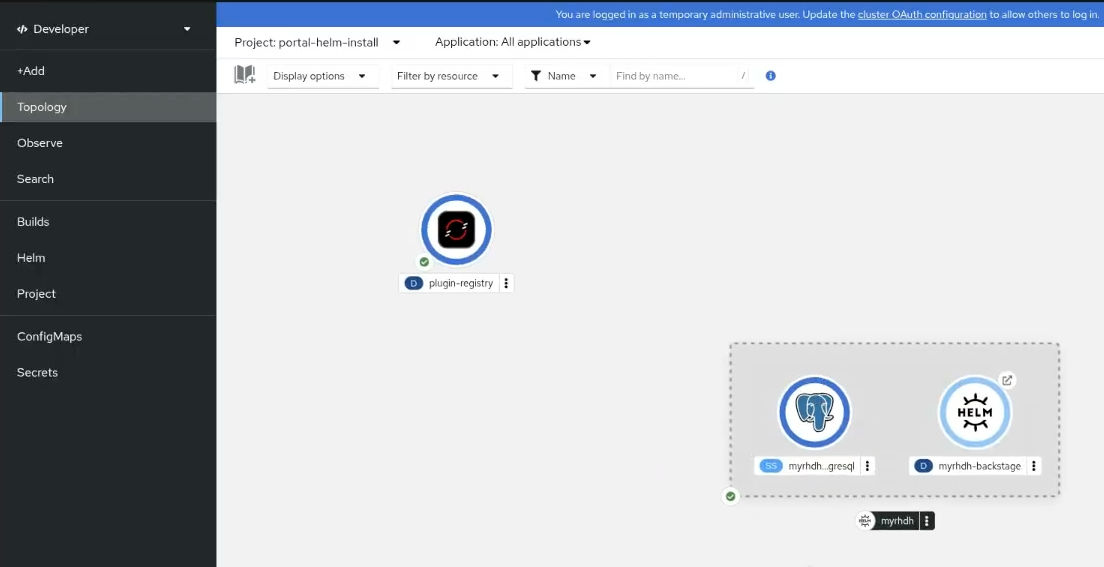

'%20d='M201.5%20305.5c-13.8%200-24.9-11.1-24.9-24.6%200-13.8%2011.1-24.9%2024.9-24.9%2013.6%200%2024.6%2011.1%2024.6%2024.9%200%2013.6-11.1%2024.6-24.6%2024.6zM504%20256c0%20137-111%20248-248%20248S8%20393%208%20256%20119%208%20256%208s248%20111%20248%20248zm-132.3-41.2c-9.4%200-17.7%203.9-23.8%2010-22.4-15.5-52.6-25.5-86.1-26.6l17.4-78.3%2055.4%2012.5c0%2013.6%2011.1%2024.6%2024.6%2024.6%2013.8%200%2024.9-11.3%2024.9-24.9s-11.1-24.9-24.9-24.9c-9.7%200-18%205.8-22.1%2013.8l-61.2-13.6c-3-.8-6.1%201.4-6.9%204.4l-19.1%2086.4c-33.2%201.4-63.1%2011.3-85.5%2026.8-6.1-6.4-14.7-10.2-24.1-10.2-34.9%200-46.3%2046.9-14.4%2062.8-1.1%205-1.7%2010.2-1.7%2015.5%200%2052.6%2059.2%2095.2%20132%2095.2%2073.1%200%20132.3-42.6%20132.3-95.2%200-5.3-.6-10.8-1.9-15.8%2031.3-16%2019.8-62.5-14.9-62.5zM302.8%20331c-18.2%2018.2-76.1%2017.9-93.6%200-2.2-2.2-6.1-2.2-8.3%200-2.5%202.5-2.5%206.4%200%208.6%2022.8%2022.8%2087.3%2022.8%20110.2%200%202.5-2.2%202.5-6.1%200-8.6-2.2-2.2-6.1-2.2-8.3%200zm7.7-75c-13.6%200-24.6%2011.1-24.6%2024.9%200%2013.6%2011.1%2024.6%2024.6%2024.6%2013.8%200%2024.9-11.1%2024.9-24.6%200-13.8-11-24.9-24.9-24.9z'/%3e%3c/svg%3e)